
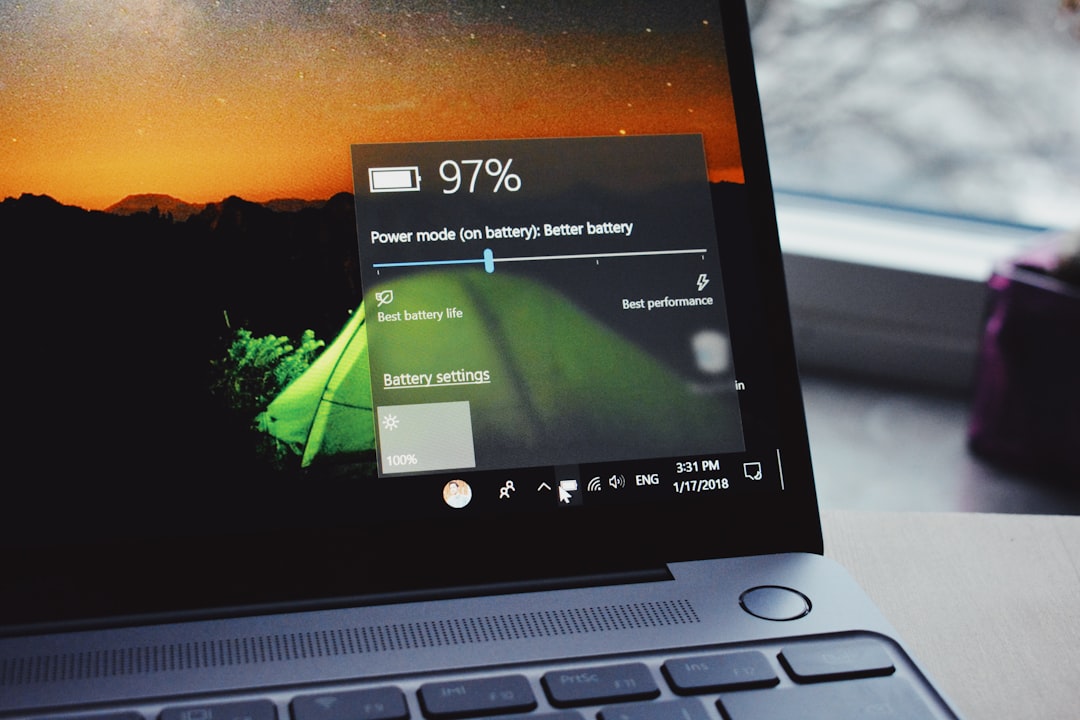
What Does Battery Health Code 81 Mean on Laptops?
Laptops are amazing. They go everywhere with us. Work. School. Travel. Couch. Bed. But sometimes, they send strange messages. One of those is Battery Health Code 81. It sounds serious. Maybe even scary. But don’t worry. Let’s break it down in a fun and simple way.
TLDR: Battery Health Code 81 usually means your laptop battery is starting to wear out. It may not hold a charge as well as it used to. Your laptop still works, but the battery may need attention soon. In many cases, replacing the battery fixes the issue.
What Is Battery Health?
Before we talk about Code 81, let’s talk about battery health.
Your laptop battery is like a tiny rechargeable fuel tank. Over time, it ages. Every time you charge and use it, that counts as a cycle. More cycles mean more wear.
Battery health shows how strong your battery is compared to when it was new.
- 100% health = brand new condition
- 80% health = still usable but weaker
- Below 70% = noticeable problems
As batteries age, they:
- Drain faster
- Take longer to charge
- Shut down unexpectedly
- Overheat more easily
That’s normal. All batteries age. Yes, even expensive ones.
So, What Does Battery Health Code 81 Mean?
Battery Health Code 81 usually means your system has detected reduced battery capacity.
In simple words:
Your battery is getting old.
Some laptop brands use numeric health alerts. Code 81 often appears during system diagnostics. It may show up when:
- You run a hardware test
- Your laptop boots up
- You check battery diagnostics in BIOS
The code is a warning. Not a panic alarm.
It tells you that the battery:
- Is no longer performing like new
- May need replacement soon
- Has decreased capacity beyond normal limits
Is Battery Code 81 Dangerous?
Good question.
The short answer? No. Not immediately.
It does not mean your laptop is about to explode.
It does not mean your charger is broken.
It does not mean your files are gone.
It simply means your battery is aging faster than expected or has crossed a health threshold set by the manufacturer.
However, ignoring it for too long can lead to problems.
Possible Issues If Ignored
- Very short battery life
- Laptop only works when plugged in
- Sudden shutdowns at 20% or 30%
- Battery swelling (rare but serious)
If you notice physical swelling, stop using the battery immediately. That is rare but important.
Why Does This Happen?
Batteries do not last forever. Most laptop batteries last:
- 2 to 4 years
- 300 to 1000 charge cycles
Several things can speed up wear:
1. Heat
Heat is the enemy. Gaming. Heavy software. Poor airflow. All create heat.
2. Always Plugged In
Keeping your laptop at 100% charge all the time stresses the battery.
3. Deep Discharges
Letting the battery drop to 0% too often reduces its lifespan.
4. Cheap Chargers
Low-quality chargers may cause unstable charging.
5. Age
Time alone reduces battery performance. Even if you barely use it.

How Can You Confirm Code 81?
If you see Code 81, you can double-check battery health.
On Windows:
- Open Command Prompt
- Type: powercfg /batteryreport
- Press Enter
- Open the generated report
Look for:
- Design Capacity
- Full Charge Capacity
If full charge capacity is much lower than design capacity, your battery has degraded.
On Mac:
- Go to System Settings
- Click Battery
- Check Battery Health
It will show:
- Normal
- Service Recommended
Can You Fix Battery Health Code 81?
Here is the honest answer:
You cannot restore a worn lithium battery to 100% health.
But you have options.
Option 1: Calibrate the Battery
Sometimes the issue is inaccurate reporting.
Try this:
- Charge to 100%
- Let it stay plugged in for 1–2 hours
- Unplug and use until it drops near 5%
- Turn off and recharge to 100%
This may reset battery readings. It won’t increase real capacity, but it can fix incorrect estimates.
Option 2: Update BIOS and Drivers
Manufacturers release firmware updates. These improve battery communication.
Check your laptop support page.
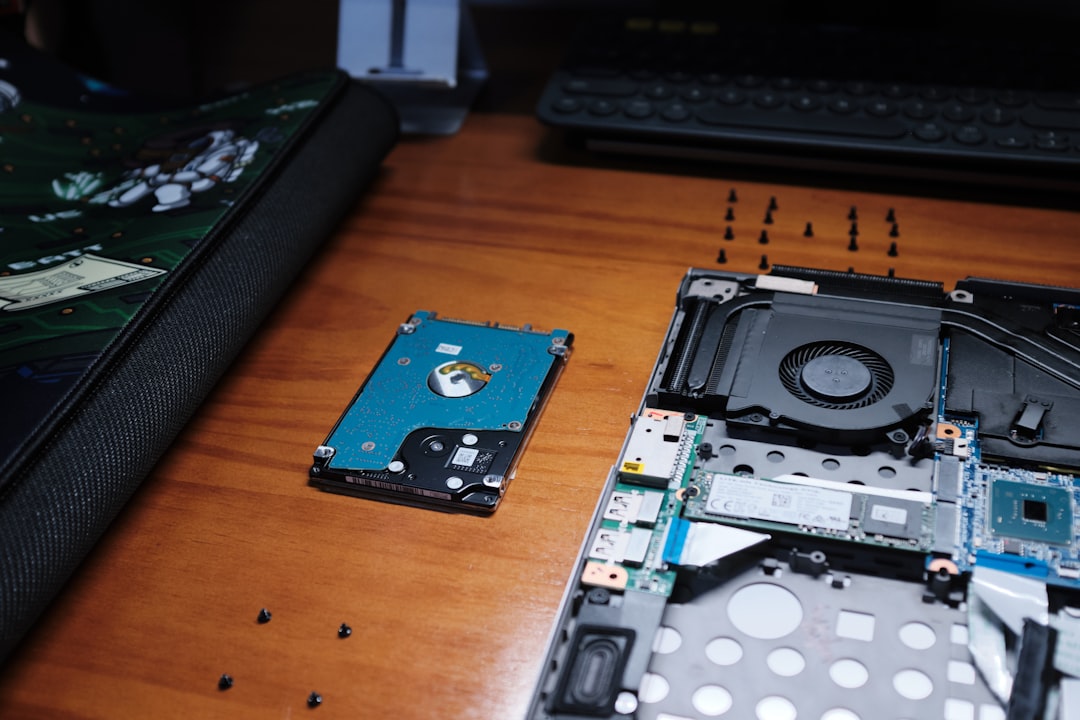
Option 3: Replace the Battery
This is the most reliable solution.
If your laptop is:
- Less than 3 years old
- Still powerful enough for your needs
Replacing the battery is cheaper than buying a new laptop.
How Much Does a Replacement Cost?
Prices vary.
- Basic laptops: $40–$80
- Ultrabooks: $80–$150
- Premium models: $100–$250
Official service centers cost more. Third-party batteries are cheaper but choose carefully.
Always check:
- Compatibility
- Warranty
- User reviews
Can You Still Use the Laptop?
Yes. Absolutely.
Many people continue using their laptop with Code 81 for months.
You just need to:
- Keep the charger nearby
- Save work often
- Monitor overheating
If battery life drops below 30 minutes, replacement becomes practical.
How to Make Your Next Battery Last Longer
Want to avoid Code 81 in the future? Follow these simple habits.
Keep Charge Between 20% and 80%
This is the sweet spot for lithium batteries.
Avoid Extreme Heat
Use laptops on desks, not blankets. Clean vents regularly.
Use Original Chargers
Stable power matters.
Enable Battery Optimization
Many laptops limit charge to 80% automatically.
Do Not Store Fully Drained
If storing for months, keep battery around 50%.
Is Code 81 the Same for All Brands?
Not exactly.
Different brands use different codes.
But Code 81 generally signals:
- Battery wear detected
- Capacity below threshold
- Service recommended
Always check your manufacturer’s support page for exact details.
Should You Replace the Laptop Instead?
Sometimes yes.
Ask yourself:
- Is the laptop more than 5 years old?
- Is it slow even when plugged in?
- Does it lack modern features?
If the answer is yes to most questions, investing in a new laptop may make sense.
If the device still runs well, a new battery gives it a second life.
Final Thoughts
Battery Health Code 81 sounds technical. But it is simple.
Your laptop battery is aging. That is all.
No drama. No emergency. Just wear and tear.
You can:
- Keep using it
- Calibrate it
- Replace the battery
Laptops are tools. Batteries are consumables.
Think of it like car tires. They wear out. You replace them. The car keeps going.
Now you know what Code 81 means. And you are ready for it.
Easy, right?

