
How to Fix Windows Update Stuck at 0 Percent?
Windows Update can get stuck at 0% when your PC tries downloading or installing an update. But sometimes it sits there for minutes or even much longer without showing any progress, and honestly this stuff becomes really annoying because you keep staring at the screen wondering if the computer is frozen or just being slow. This article explains why Windows Update is stuck at 0 and how you can fix it with simple steps before trying advanced repairs.
What Does Windows Update Stuck at 0 Mean?
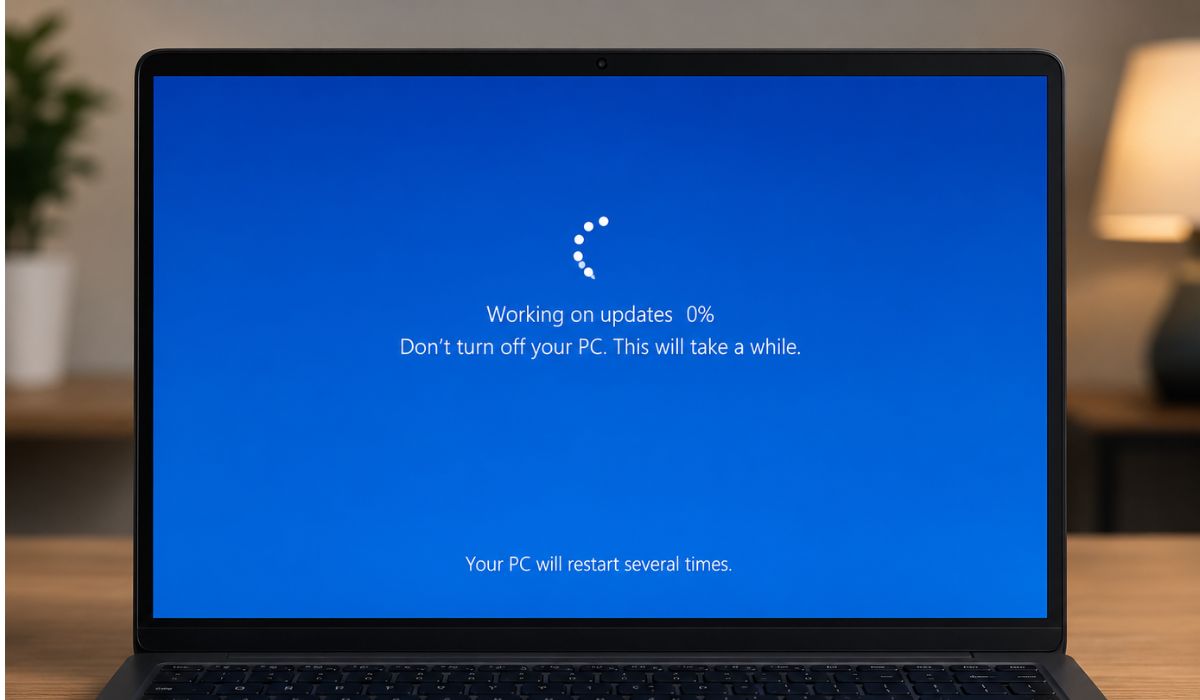
Windows Update stuck at 0 means your PC is not moving forward with the update process. And it may show downloading 0%, installing 0%, or checking for updates forever without changing, and sometimes Windows actually keeps working quietly in the background even though it looks completely stuck.
The cause can be your internet connection, low disk space, Windows Update service, BITS, update cache, VPN, proxy, firewall, or even a Microsoft server delay. Sometimes Windows only looks frozen while preparing files. So wait a little first. Then start checking things one by one.
Common Reasons Why Windows Update Is Stuck at 0
Windows Update usually gets stuck at 0 when something blocks the download process, installation process, update services, or storage access.
- Internet connection is slow or disconnected
- Windows Update has a temporary glitch
- Your PC does not have enough free disk space
- Windows Update troubleshooter needs to repair an issue
- Windows Update service or BITS is stopped
- Update cache files are corrupt
- VPN, proxy, or metered connection is blocking the download
- Antivirus or firewall is interfering with Windows Update
How to Fix Windows Update Stuck at 0 Percent?
If you are facing this issue, try these fixes one by one. And start with restart, internet, storage, and the Windows Update troubleshooter first, then move to services, cache, and reset steps because sometimes the error is not much difficult and one small blocked service quietly breaks the whole update process.
Fix #1: Restart Your PC
A restart can clear a stuck Windows Update process. But it also refreshes services, closes blocked tasks, and restarts pending update work, and honestly this simple fix works way more often than people expect.
Restart your PC. Then open Settings. Go to Windows Update and click Check for updates again.
If the update was stuck because of a small system glitch, this may fix it immediately.
Fix #2: Check Your Internet Connection
Windows Update needs a stable internet connection for downloading update files. And if your Wi-Fi keeps dropping or the speed becomes super slow, Windows Update may stay stuck at 0% forever, and this part feels especially annoying on older routers.
Follow these steps:
- Open a browser and load any website.
- Restart your router if the internet feels slow.
- Move closer to the router if you use Wi-Fi.
- Use Ethernet if possible.
- Turn off VPN for testing.
- Open Windows Update and try again.
If the internet feels slow in other apps too, fix the connection first because Windows Update does not download properly on unstable networks.
Fix #3: Free Up Disk Space
Windows needs free storage space to download and install updates. But if your C drive is almost full, Windows Update may stop completely or sit at 0% without moving, and honestly low storage causes more weird Windows behavior than people realize.
Follow these steps:
- Open Settings.
- Go to System.
- Open Storage.
- Use Cleanup recommendations.
- Remove temporary files.
- Empty the Recycle Bin.
- Try Windows Update again.
Do not accidentally delete personal files. Start with temporary files, old downloads, and apps you no longer use.
Fix #4: Run Windows Update Troubleshooter
Windows includes a built-in troubleshooter for update problems. And it can find and repair common issues with update settings, services, and download files, and honestly this tool is pretty decent for basic repair stuff.
Follow these steps:
- Open Settings.
- Go to System.
- Click Troubleshoot.
- Open Other troubleshooters.
- Find Windows Update.
- Click Run.
- Restart your PC after it finishes.
- Check for updates again.
This is one of the safest fixes to try first. But use it before running commands or deleting update folders manually.
Fix #5: Turn Off Metered Connection, VPN, or Proxy
A metered connection can limit large downloads. And a VPN or proxy can also slow or completely block Windows Update files, and some VPN servers honestly cause really weird update problems without warning.
Open your network settings and check whether your Wi-Fi or Ethernet is set as metered. Turn it off if you want Windows updates downloading normally again.
Also disable VPN and proxy temporarily for testing. Then go back to Windows Update and try again.
If Windows Update works after turning off VPN, the VPN server or routing path was likely causing the issue.
Fix #6: Restart Windows Update Services
Windows Update depends on services like Windows Update, BITS, and Cryptographic Services. But if one of these services stops running correctly, the update may stay frozen at 0%, and honestly Windows services can become weird after shutdowns or crashes.
Follow these steps:
- Press Windows + R.
- Type services.msc.
- Press Enter.
- Find Windows Update.
- Right-click it and choose Restart.
- Find Background Intelligent Transfer Service.
- Right-click it and choose Restart.
- Find Cryptographic Services.
- Right-click it and choose Restart.
- Try Windows Update again.
If a service is not running, start it manually. If it keeps stopping again, deeper repair may be needed.
Fix #7: Clear Windows Update Cache
Windows stores update files inside the SoftwareDistribution folder. And if these files become corrupt or stuck, Windows Update may fail to download fresh files properly, and this weird cache problem happens surprisingly often after failed updates.
Follow these steps:
- Press Windows + R.
- Type services.msc.
- Press Enter.
- Right-click Windows Update.
- Click Stop.
- Open File Explorer.
- Go to C:\\Windows\\SoftwareDistribution.
- Delete the files inside the folder.
- Go back to Services.
- Start Windows Update again.
- Check for updates.
Do not delete the Windows folder itself. Only clear the files inside the SoftwareDistribution folder.
Fix #8: Reset Windows Update Components
Use this fix only if the basic steps fail completely. And resetting Windows Update components can repair deeper problems connected to BITS, wuauserv, cryptsvc, SoftwareDistribution, and Catroot2, and honestly this step feels a little technical if you are not comfortable using Windows commands.
This repair usually needs Command Prompt as administrator. If you are not comfortable using commands, ask a technician or somebody with Windows repair experience to help.
A reset can help when Windows Update stays stuck at 0 even after restarting, freeing storage, running the troubleshooter, restarting services, and clearing update cache.
Tips to Prevent Windows Update From Getting Stuck
You cannot prevent every Windows Update problem completely. But a few small habits can lower the chances of updates getting stuck at 0% again, and honestly keeping Windows a little cleaner helps more than people think.
Use these tips before your next Windows update:
- Keep enough free space on the C drive
- Use stable Wi-Fi or Ethernet during updates
- Avoid turning off the PC while updates install or download
- Keep VPN, proxy, and firewall settings simple during updates
- Restart your PC regularly so update services stay fresh
Conclusion
Windows Update can get stuck at 0 because of weak internet, low disk space, stopped update services, corrupt update cache, VPN settings, proxy settings, firewall blocks, or some temporary system glitch quietly interrupting the process. And sometimes the update only looks frozen while Windows prepares files in the background.
Start with the easy fixes first. And restart your PC, check internet speed, free up disk space, and run the Windows Update troubleshooter because these simple checks solve the issue surprisingly often without needing advanced repair commands. If it still stays stuck at 0, restart update services, clear the SoftwareDistribution folder, or carefully reset Windows Update components.

