
How to Take a Screenshot on a Huawei Laptop Easily
Taking a screenshot on a Huawei laptop is easier than you think. You don’t need extra apps. You don’t need special tech skills. Just a few simple clicks or key presses, and you’re done.
TLDR: You can take a screenshot on a Huawei laptop using simple keyboard shortcuts like PrtSc, Windows + Shift + S, or Windows + PrtSc. You can also use the built-in Snipping Tool for more control. Screenshots can be copied to your clipboard or saved automatically to your Pictures folder. It’s fast, simple, and works on almost all Huawei laptops running Windows.
Let’s break it down step by step. No confusing tech talk. Just clear instructions.
Method 1: Press the Print Screen (PrtSc) Key
This is the quickest way.
Look at the top right area of your keyboard. You should see a key labeled PrtSc, PrtScn, or something similar.
Here’s what to do:
- Open the screen you want to capture.
- Press the PrtSc key.
- Open Paint or another image app.
- Press Ctrl + V to paste.
- Click Save.
That’s it.
What just happened? The screenshot was copied to your clipboard. It wasn’t saved automatically. You had to paste it somewhere.
This method is great if you want to quickly drop the screenshot into Word, an email, or a chat.
Method 2: Windows + Print Screen (Auto Save)
Want to skip the paste step? This method saves the file automatically.
Follow these steps:
- Open the screen you want.
- Press Windows key + PrtSc at the same time.
Your screen might briefly dim. That means it worked.
Now check here:
- Open File Explorer.
- Go to Pictures.
- Open the Screenshots folder.
Your image will be waiting there.
This method is perfect when:
- You need to take many screenshots.
- You don’t want to paste each one.
- You want automatic saving.
Simple. Fast. Organized.
Method 3: Windows + Shift + S (Snip Tool Shortcut)
This one is a favorite. Why? Because you choose exactly what to capture.
Press:
Windows + Shift + S
Your screen will dim slightly. A small toolbar will appear at the top.
You’ll see options like:
- Rectangular Snip
- Freeform Snip
- Window Snip
- Full-screen Snip
Select the one you like. Then drag your mouse over the area.
The image is copied to your clipboard.
Click the preview notification in the corner. This opens the Snipping Tool editor. From there you can:
- Add highlights.
- Draw on the image.
- Crop it.
- Save it.
This method is perfect when:
- You only need part of the screen.
- You want to hide private details.
- You want to mark something important.
It gives you more control.
Method 4: Use the Snipping Tool App
Huawei laptops run Windows. So they come with the Snipping Tool app.
To open it:
- Click the Start button.
- Type Snipping Tool.
- Press Enter.
Once open, click New. Then select the area you want.
The good thing here? You don’t have to remember keyboard shortcuts.
Also, you can set delays. For example:
- 3 seconds
- 5 seconds
- 10 seconds
This helps when capturing menus that disappear when you click.
Method 5: Alt + Print Screen (Active Window Only)
Sometimes you only want one window. Not the whole desktop.
Use this shortcut:
Alt + PrtSc
This captures only the currently active window.
You still need to paste it into Paint or another app.
This is useful when:
- You are comparing apps.
- You only want a browser window.
- You want a clean image without distractions.
Where Do Screenshots Go?
This depends on the method you use.
- PrtSc alone: Copied to clipboard.
- Alt + PrtSc: Copied to clipboard.
- Windows + PrtSc: Saved in Pictures > Screenshots.
- Windows + Shift + S: Copied to clipboard (unless saved manually).
Tip: If you can’t find your screenshot, use the search bar. Type “Screenshots.”
How to Take a Screenshot on a Huawei MateBook
If you own a Huawei MateBook, the steps are exactly the same. It runs Windows like most Huawei laptops.
But here’s something important.
On some MateBooks, the PrtSc key may share a button with another function. You might need to press the Fn key too.
For example:
- Fn + PrtSc
If pressing PrtSc alone doesn’t work, try adding Fn.
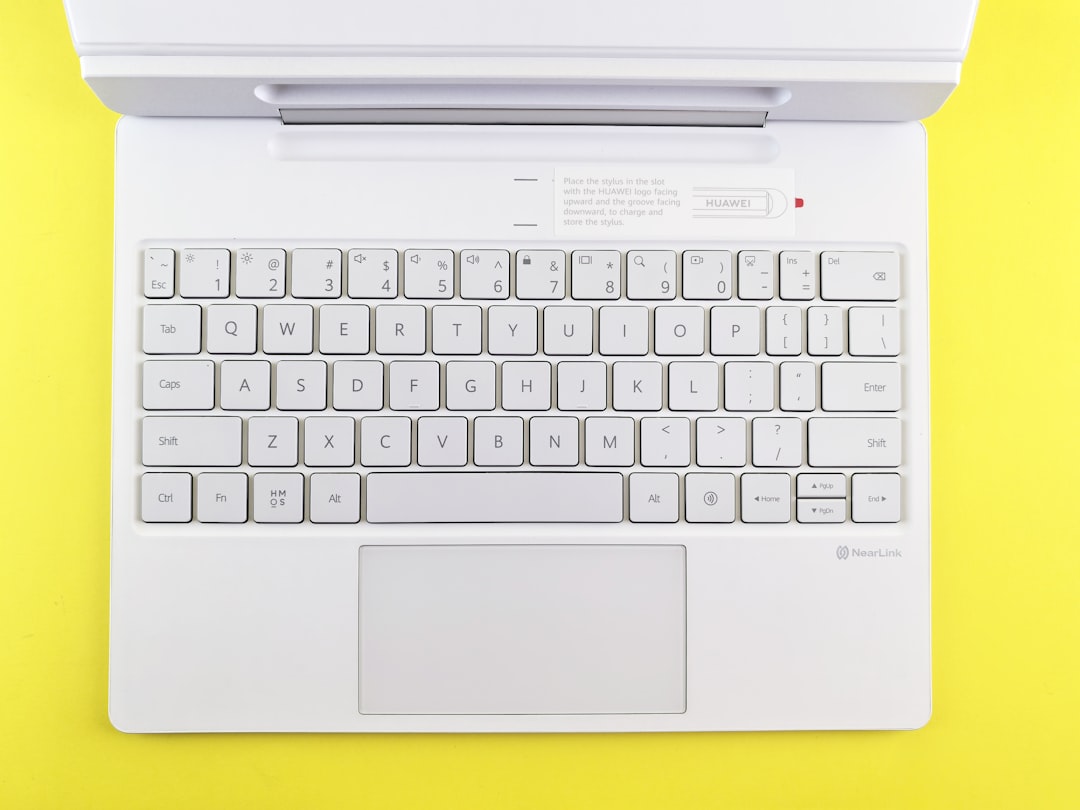
Every keyboard layout is slightly different. But the shortcuts still work.
How to Edit Your Screenshot
After taking a screenshot, you may want to edit it.
You can use:
- Paint (simple and built-in)
- Photos app
- Snipping Tool editor
With these tools, you can:
- Crop extra space.
- Draw arrows.
- Highlight text.
- Add notes.
If you’re sending instructions to someone, adding arrows and circles makes things clearer.
Common Problems and Quick Fixes
Problem 1: Nothing happens when I press PrtSc.
Try:
- Pressing Fn + PrtSc
- Restarting your laptop
- Checking keyboard settings
Problem 2: Screenshot is too dark.
This may happen with certain apps or video players. Try using Windows + Shift + S instead.
Problem 3: I can’t find my screenshot.
Go to:
- Pictures > Screenshots
- Or paste into Paint to check clipboard
Tips to Take Better Screenshots
Want cleaner screenshots? Follow these simple tips:
- Close apps you don’t need.
- Remove private notifications.
- Maximize the window.
- Zoom in on small text.
Small changes make a big difference.
Bonus: Screenshot for Work, School, or Fun
Screenshots are useful everywhere.
For work:
- Show tech problems.
- Share reports.
- Save receipts.
For school:
- Capture online lessons.
- Save research info.
- Highlight study material.
For fun:
- Save social media posts.
- Capture video call moments.
- Share game results.
Once you learn the shortcuts, it becomes second nature.
Quick Shortcut Cheat Sheet
- PrtSc – Copy full screen
- Alt + PrtSc – Copy active window
- Windows + PrtSc – Save full screen automatically
- Windows + Shift + S – Select area screenshot
- Fn + PrtSc – For some MateBooks
You don’t need to memorize them all. Start with one. Practice it. Then try the others.
Final Thoughts
Taking a screenshot on a Huawei laptop is simple. You have several easy options. Some copy the image. Some save it instantly. Others let you select exactly what you want.
If you want the fastest method, use Windows + PrtSc.
If you want control, use Windows + Shift + S.
If you just want something basic, hit PrtSc.
That’s it. No special software. No complicated steps.
Try it now. Open your screen. Press the shortcut. And just like that, you’re a screenshot pro.

