
How to Fix Unknown Error Occurred ChatGPT PDF Issue?
You upload a PDF in ChatGPT and suddenly it says “unknown error occurred.” Not a very helpful message, right? It does not tell you if the file is bad, if ChatGPT is down, or if your browser is causing it.
This error can show up before the PDF uploads. It can also show after upload when ChatGPT tries to read the file. Sometimes the same PDF works after a few minutes. Sometimes it keeps failing again and again.
If you are getting this ChatGPT PDF unknown error, this guide will help you check the common reasons and fix them one by one. The goal is simple. Find out if the issue is from the PDF, ChatGPT, browser, app, internet, or your account.
What does ” Unknown Error Occurred” mean when uploading a PDF?
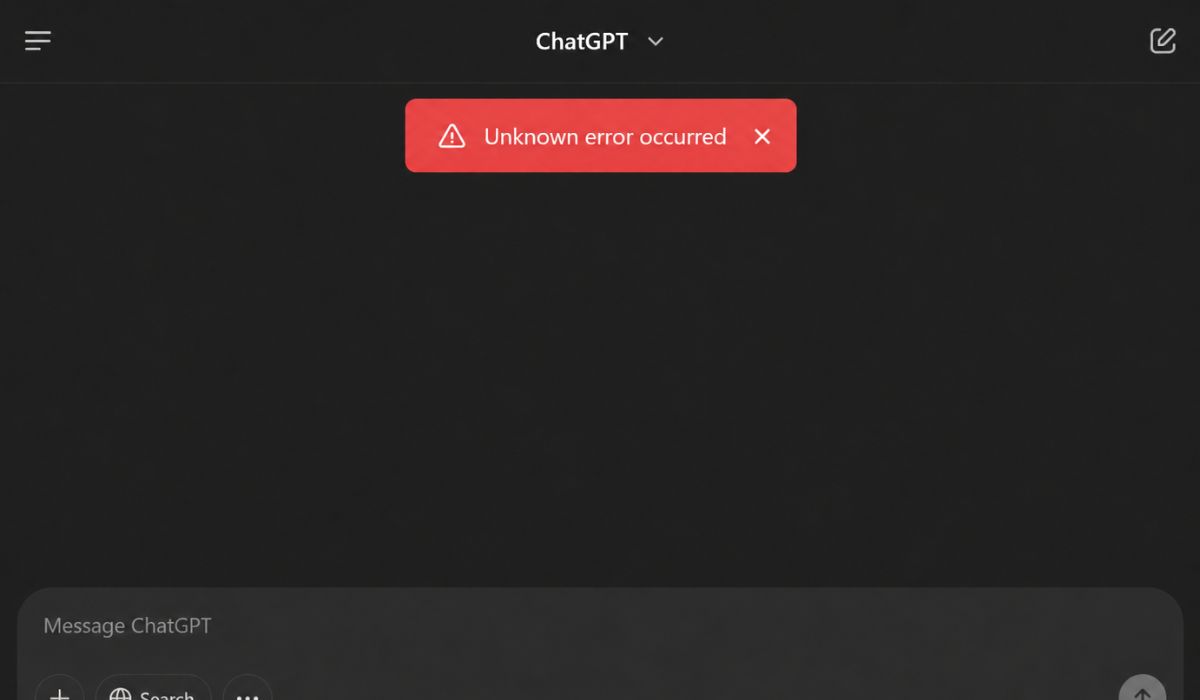
The “unknown error occurred” message usually means ChatGPT failed while handling your PDF. It does not give the exact reason, so the message feels vague. The file may not upload properly, or it may upload but fail when ChatGPT starts reading it.
So this error is more like a general warning. It does not always mean your PDF is broken. It also does not always mean ChatGPT is fully down. Something stopped the PDF upload or PDF processing in the middle, and ChatGPT could not show a clearer message.
Why Does ChatGPT Show “Unknown Error Occurred” When Uploading a PDF?
ChatGPT can show this error for many reasons because PDF files are not always simple. Some PDFs are normal text files, but many others have scanned pages, images, locked content, forms, tables, or strange formatting inside them. A PDF may open fine on your laptop, but ChatGPT may still fail when trying to read it.
Here are some common reasons this error shows:
- The PDF file is too large and takes too long to upload.
- The PDF has too many scanned pages or images.
- The PDF is password-protected or locked.
- The PDF is corrupted, even if it opens in a PDF reader.
- The file was exported badly from another app.
- The file name has special symbols or a very long name.
- Your internet connection drops during upload.
- A VPN or proxy interrupts the file connection.
- Browser cache or cookies create a bad ChatGPT session.
- A browser extension blocks uploads, scripts, or cookies.
- ChatGPT has a temporary file upload issue.
- Your account or file upload limit may be reached.
The main thing to understand is this. The message does not point to one single cause. You have to test the file and your setup step by step.
How to Fix Unknown Error Occurred ChatGPT PDF Issue?
Start with small fixes first. Don’t jump straight into reinstalling apps or changing all browser settings. That can waste time and make the issue harder to track.
Try one fix, upload the PDF again, and see what happens. If it still fails, move to the next one. This way you’ll know what actually solved the problem.
1. Refresh ChatGPT and Try Again
Refresh the ChatGPT page first. It sounds too basic, but a stuck page session can cause file upload errors. If the upload box froze or the chat was already slow, refreshing can give it a clean start.
After refreshing, wait a few seconds before uploading again. Don’t click the upload button many times while the page is loading. That can make the browser slower and may cause another failed upload.
If the chat is very long, open a new chat and upload the PDF there. Long chats with many messages or previous files can sometimes feel heavy.
2. Try a Small PDF First
Before blaming your main file, test a small PDF. Make a simple one or two-page PDF and upload it to ChatGPT. It should not be scanned, locked, or full of images.
If the small PDF works, your original PDF is probably the problem. It may be too large, damaged, locked, or hard to read. If the small PDF also fails, the problem may be your browser, internet, app, account, or ChatGPT itself.
This is a useful test because it saves guessing. You don’t have to try ten random fixes when one small PDF can show the direction.
3. Reduce the PDF Size
Large PDFs can fail during upload or processing. This happens more often with scanned notes, long reports, books, manuals, forms, and image-heavy documents. A file can look normal but still be heavy inside.
If your PDF has many pages, split it into smaller parts. For example, instead of uploading a 90-page file, upload only the pages you need. If you need pages 20 to 35, make a smaller PDF from those pages.
You can also compress the PDF before uploading it. Just keep the original copy safe. Sometimes compression can reduce image quality, so it is better to work on a copy instead of the main file.
4. Check If the PDF Is Locked
A password-protected PDF may not work well in ChatGPT. The file might open on your device because you already entered the password, but ChatGPT may still not be able to read it properly.
Open the PDF and check a few things. Does it ask for a password? Can you select normal text? Can you copy a sentence from it? If not, the file may be locked, scanned, or restricted.
If you own the document, save a normal unlocked copy and upload that version. Don’t try to remove protection from a file you do not own or do not have permission to edit. Keep it simple and safe.
5. Rename the PDF File
This one sounds small, maybe even too small, but it can help. Some file names have symbols, brackets, emojis, or very long text. That can sometimes create upload problems.
Rename the PDF with a plain name like:
- notes.pdf
- report.pdf
- file-1.pdf
- assignment.pdf
- chapter.pdf
After renaming, upload it again in a fresh chat. Also avoid saving the PDF in a folder with a very long path or strange symbols. Most of the time this is not the main cause, but it is easy to test.
6. Re-Save the PDF
Some PDFs are messy inside. They open fine in a PDF reader, but their internal structure is broken or badly made. ChatGPT may fail when it tries to pull text, tables, or page data from that file.
This can happen with scanned files, old exports, online converters, or PDFs downloaded from some websites. The fix is to create a fresh copy.
Open the PDF and use Save As. If that does not help, use Print to PDF and save it as a new file. If you still have the original Word file, Google Docs file, PowerPoint file, or image file, export it again as PDF.
Then upload the new copy. If it works, the old PDF was probably not clean enough for ChatGPT to process.
7. Clear Browser Cache and Cookies
Your browser stores cache and cookies for websites. That helps pages load faster, but old site data can also break things. ChatGPT may fail to upload files if the browser session is not clean.
You don’t have to delete your whole browser history. Just clear site data for ChatGPT if your browser allows it.
A simple way is:
- Open browser settings.
- Go to privacy or site data.
- Search for ChatGPT or OpenAI.
- Clear saved site data.
- Restart the browser.
- Log in again and upload the PDF.
If you don’t want to clear anything yet, try private mode first. If the PDF works there, your normal browser cache, cookies, or extensions may be the reason.
8. Turn Off VPN or Proxy for a Test
VPNs and proxies can disturb file uploads. Not always, but it happens. The upload may slow down, stop halfway, or fail when ChatGPT tries to connect with the file tool.
Turn off your VPN and refresh ChatGPT. Then upload the PDF again. If it works, your VPN route or proxy setting was likely part of the problem.
Also check your network. School Wi-Fi, office Wi-Fi, or public Wi-Fi can block some upload features. Try home Wi-Fi or a mobile hotspot if you can. This test is useful when ChatGPT works fine for text but fails only when you upload files.
9. Test Incognito Mode
Incognito mode gives you a cleaner browser session. It usually runs without most extensions, unless you allowed them there. This makes it good for testing ChatGPT upload errors.
Open an incognito or private window, log in to ChatGPT, and upload the same PDF. If it works there, the problem is probably from browser data or an extension in your normal window.
Extensions that can cause issues include ad blockers, script blockers, privacy tools, grammar tools, download tools, and VPN extensions. Turn them off one by one and test again. Don’t remove everything at once unless you really want to reset the browser setup.
10. Try Another Browser or Device
If ChatGPT keeps showing the unknown error in one browser, try another browser. Use Chrome, Edge, Firefox, Safari, or whatever trusted browser you have. You are not changing the PDF here, only the place where you upload it.
Here is how to understand the result:
| What Happens | What It Means |
|---|---|
| PDF works in another browser | Your first browser may have a cache or extension issue |
| PDF works on desktop but not phone | The mobile app or phone network may be causing it |
| PDF fails everywhere | The file or ChatGPT service may be the problem |
| Other PDFs work fine | Your original PDF likely has an issue |
| No file uploads work | Your account, network, or ChatGPT session may need checking |
Desktop is usually better for larger PDF uploads. So if you are trying from a phone and it keeps failing, test once from a laptop or PC.
11. Update the ChatGPT App
If you are using the ChatGPT app, update it from the app store. Older app versions can have bugs with login, files, uploads, or attachments. An update may fix the issue without changing your PDF.
After updating, close the app fully and open it again. Upload a small PDF first, then try your main file. If the app still fails, open ChatGPT in a browser and test there.
On some Android phones, clearing the app cache may help. On iPhone, reinstalling the app can sometimes fix app data problems. But don’t start with this. Try the easier checks first.
12. Check File Upload or Account Limits
Sometimes the PDF error is linked to limits. ChatGPT file uploads can depend on your account, plan, model, workspace, file size, and storage. These limits can change, so it is better not to rely on old numbers you saw somewhere.
If you uploaded many files recently, try removing old files you no longer need if that option is available. Then start a new chat and upload a smaller PDF.
Also try using another available model or upload option if your account shows one. If all uploads fail, not just PDFs, it may be an account or tool issue instead of a PDF problem.
Don’t panic here. A limit does not mean your account is broken. It can be temporary, or it can be tied to one file or one upload session.
13. Check Your Internet Connection
A PDF upload needs a stable connection. Text messages may still work even when file upload fails, because files need more time and a stronger connection. So yes, your internet can be the reason even if ChatGPT loads normally.
Try uploading the PDF after reconnecting your Wi-Fi. You can also switch from Wi-Fi to mobile hotspot or from mobile data to Wi-Fi. If the upload works on another connection, the first network was likely unstable or blocking something.
This matters more for large PDFs. A tiny drop in connection can break the upload and show a vague error.
14. Contact Support If Nothing Works
If the error happens with every PDF, every browser, every device, and every network, then it may be time to contact support. At that point, you have already tested the common causes.
Before you contact support, collect the basic details. This makes the issue easier to explain.
- The exact error message
- A screenshot of the error
- Your browser or app version
- Your device type
- PDF file size
- Whether a small PDF works
- Whether VPN was on or off
- Whether the same file works in another browser
Be careful with private PDFs. If the file has school, business, legal, or personal details, don’t share it anywhere unless you are sure it is safe.
How to Prevent ChatGPT PDF Upload Errors Next Time?
You can’t stop every upload error, but you can lower the chance. Clean files work better. Stable internet helps too. And smaller PDFs are easier for ChatGPT to handle than huge scanned documents.
Before uploading an important PDF, try these habits:
- Use a simple file name.
- Remove extra pages.
- Split very long PDFs.
- Compress heavy files.
- Upload only the pages you need.
- Re-save old or scanned PDFs.
- Avoid weak public Wi-Fi.
- Turn off VPN if it keeps causing issues.
- Keep your browser or app updated.
Also, don’t upload a full book or full report if you only need one section. A smaller file usually gives better answers because ChatGPT has less useless content to sort through.
Final Thoughts
The “unknown error occurred” ChatGPT PDF issue is annoying because the message is not clear. But most of the time, the cause is simple. The PDF may be too large, locked, badly exported, or hard to read. Or your browser, VPN, app, internet, or account session may be causing trouble.
Start with the easy checks. Refresh ChatGPT, upload a small test PDF, rename the file, and try another browser. If that does not work, move to cache, VPN, app update, file limits, and network checks.
Did this error happen with only one PDF, or does ChatGPT fail with every PDF you upload? Share that in the comments, because that one detail tells a lot. Also share this guide if it helped you fix the problem.

