
How to Fix OAuth Error Timeout of 15000ms Exceeded Claude Code?
If Claude Code shows OAuth error: timeout of 15000ms exceeded, it usually happens when you are trying to log in. You run the login command, the browser opens, you try to approve access, and then the terminal gives up.
Annoying thing is, the browser may look fine. You may even feel like login worked. But Claude Code still says the OAuth request timed out.
This guide is for that exact Claude Code login error. We’ll check the browser, terminal, network, VPN, account, API key setting, and a few local system issues. Nothing too fancy. Just practical checks that can help you find where the login flow breaks.
What Does “OAuth Error: Timeout of 15000ms Exceeded” Mean in Claude Code?
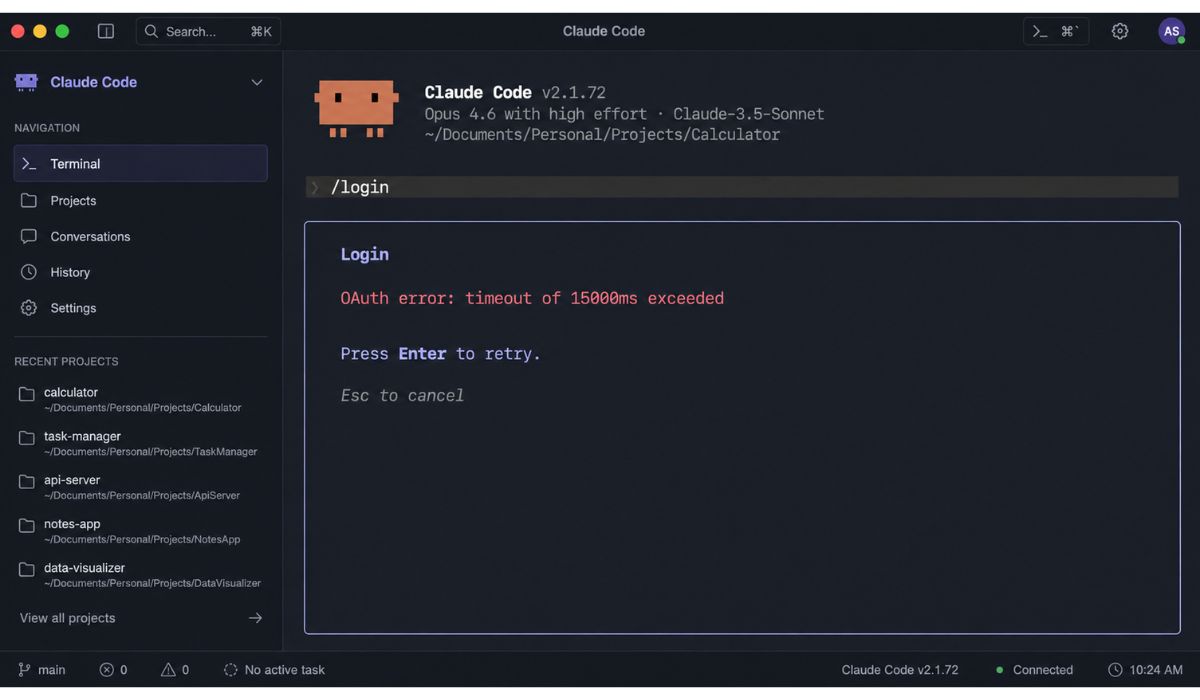
This error means Claude Code started the OAuth login process, but it did not get the needed response back in time. The 15000ms part means about 15 seconds. So Claude Code waited for the browser login flow, then stopped because the response took too long.
OAuth is just the login handoff between Claude Code, your browser, and your Claude account. Claude Code opens the browser so you can sign in and allow access. Then the browser should send the result back to the terminal. When that return step fails or takes too long, you see this timeout error.
It does not always mean your password is wrong. It also does not always mean Claude Code is broken. Most of the time, something blocks or delays the login return flow.
Why Does Claude Code Show This OAuth Timeout Error?
Claude Code can show this timeout error when the browser, terminal, network, account, or auth session does not complete the login flow properly. Since Claude Code supports different ways to authenticate, including Claude.ai login and other team or enterprise methods, the cause can change based on your setup.
Here are some common reasons:
- Your browser opens too slowly and the terminal times out.
- You are logged into the wrong Claude account in the browser.
- The browser blocks cookies, redirects, or local callback behavior.
- A VPN or proxy slows down the OAuth flow.
- A firewall or security tool blocks the local auth return.
- Your terminal session is stuck from an old login attempt.
- Claude Code is outdated and has a login bug.
- Your organization or workspace blocks OAuth access.
- ANTHROPIC_API_KEY is set and changes how auth works.
- You are using WSL, SSH, or a remote terminal where browser login cannot return cleanly.
- Claude or Claude Code login service has a temporary issue.
That’s why this error feels a bit random. Same command, same account, but different result on another browser or network.
How to Fix OAuth Error Timeout of 15000ms Exceeded in Claude Code?
Start with the small checks. Don’t reinstall everything first. That is usually too much.
Try one fix, then run the login again. If it works, stop there. If not, move to the next one. This way you know what was causing the problem.
1. Restart the Terminal and Try Login Again
Close the terminal where Claude Code failed. If you have more Claude Code windows open, close those too. Then open a fresh terminal and run the login again.
Use:
claude login
If you are already inside Claude Code and it asks for login, you can also use:
/login
This helps when the terminal session is holding an old auth state. It sounds too simple, I know. But stuck sessions happen with CLI tools. A fresh terminal gives the login flow a cleaner start.
2. Finish the Browser Login Quickly
When you run the login command, Claude Code opens a browser window. Try to finish that browser login without waiting too long. The terminal is waiting for the browser result, and the error itself says it timed out after 15000ms.
A good trick is to open Claude in your browser first and sign in with the correct account. Then go back to the terminal and run the login command. This saves time because you are not doing password steps or account switching during the timeout window.
Also check the browser tab after login. If it asks you to approve Claude Code access, approve it right away. If the page hangs or keeps loading, the terminal may time out before the browser finishes.
3. Try Another Default Browser
Claude Code usually opens your system’s default browser for login. If that browser blocks cookies, redirects, or strict privacy settings, the login may fail.
Try changing your default browser for a few minutes. For example, switch from Brave to Chrome, or from Safari to Edge. Then run the Claude Code login again.
You can also test with a cleaner browser profile. This helps if your normal browser has too many extensions or old cookies. If login works in a clean browser, your main browser setup is probably the issue.
Things worth checking:
- Is the browser already logged into the right Claude account?
- Are cookies allowed for Claude?
- Is strict tracking protection blocking login?
- Is a privacy extension blocking redirects?
- Does another browser finish the login faster?
Don’t overthink it. Just test one other browser once. It gives a clear clue.
4. Turn Off VPN or Proxy for a Short Test
VPNs and proxies can slow down or change the login route. Sometimes they also block the local callback part of the OAuth flow. Not every VPN causes this, but it is common enough to test.
Turn off your VPN. Refresh your browser. Open a new terminal and run login again.
If you are on office Wi-Fi, school Wi-Fi, or a managed network, the network may also block auth redirects. Try a mobile hotspot or home internet if you can. This is only for testing. If it works on another network, your first network is probably interrupting the login flow.
Some users also have proxy settings in the terminal. That can affect CLI tools even when the browser looks normal. So if you use proxy variables or company network tools, check those too.
5. Check Firewall or Security Software
A firewall or antivirus tool can block local connections that are needed during login. The browser may approve the login, but the result still needs to return to Claude Code. If that return path is blocked, the terminal keeps waiting and then times out.
Look for any firewall prompt when you run Claude Code login. If your system asks whether to allow terminal, Node.js, or Claude Code network access, allow it for a trusted private network.
Don’t turn off your security software forever. Just test carefully. You can allow Claude Code or your terminal app through the firewall, then try login again. If you use a company laptop, you may need admin help for this part.
6. Log Out and Start a Fresh Login
Old auth data can become stale. Maybe you logged in before. Maybe the token expired. Maybe the browser account and terminal session are not matching anymore.
Inside Claude Code, try:
/logout
Then login again:
/login
If you are outside the Claude Code session, use:
claude login
Anthropic’s Claude Code troubleshooting docs also suggest resetting login when the cause is not clear, because a clean re-auth can fix many auth and token issues.
Make sure you log in with the same Claude account that has access to Claude Code. If you have personal and work accounts, this part matters.
7. Update Claude Code
An old Claude Code install can have login bugs. Updates can fix auth issues, browser flow problems, and CLI behavior. So it is worth checking if your version is behind.
First check your version:
claude –version
Then update Claude Code using the same method you used to install it. If you installed it with npm, update it through npm. If you used another install method, use that method instead.
I’m not adding one fixed update command here because installs can differ. Using the wrong package command can create another problem. Better to follow the install method you already used.
After updating, close the terminal and open a new one. Then run:
claude login
8. Check If ANTHROPIC_API_KEY Is Set
This one is easy to miss. If ANTHROPIC_API_KEY is set on your system, Claude Code may use API key based auth instead of the login flow you expected. Anthropic’s API docs explain that the ANTHROPIC_API_KEY environment variable is used for API authentication.
So if you are trying to use Claude.ai login, but your terminal has an API key set, auth behavior can feel confusing. Claude Code may not be using the account login the way you think.
On macOS or Linux, you can check with:
echo $ANTHROPIC_API_KEY
On Windows PowerShell, try:
echo $env:ANTHROPIC_API_KEY
If it shows a key and you do not want Claude Code to use it, remove or unset it based on your system. Anthropic also has support guidance for managing the ANTHROPIC_API_KEY environment variable in Claude Code.
Be careful here. If you use that API key for other projects, don’t delete it without knowing where it is used.
9. Make Sure You Are Using the Correct Claude Account
Many login errors come from the wrong account. You may have Claude open in your browser with a personal email, while Claude Code access belongs to your work email. Or the opposite.
Open Claude in your browser and check the account first. Log out if needed. Then sign in with the account you want Claude Code to use.
This matters more if you use Claude Team, Enterprise, or a work workspace. Your organization may have different access rules. If the browser opens the wrong profile every time, use another browser or a clean browser profile just for Claude Code login.
Small thing, but it saves time.
10. Ask Your Admin About OAuth Access
If you are on a company or team account, your organization may control how Claude Code login works. Some workspaces may limit OAuth access, external tools, or certain authentication methods.
Ask your admin a few simple things:
- Is Claude Code allowed for this workspace?
- Is OAuth login allowed?
- Should users log in with Claude.ai or another method?
- Is this email added to the right organization?
- Are there network or security rules for CLI tools?
Don’t spend hours changing your browser if the workspace itself blocks the login. If it is an admin policy issue, only the admin can fix it.
11. Avoid Remote SSH or WSL for the First Login Test
OAuth login works best when the terminal and browser are on the same local machine. If you are inside WSL, remote SSH, a container, or a server terminal, the browser flow may not return to Claude Code properly.
For the first login test, use a normal local terminal. On Windows, try Windows Terminal or PowerShell directly. On macOS, try the regular Terminal app. On Linux desktop, use a local terminal session.
After login works locally, then you can deal with your WSL or remote setup. But testing locally first keeps the problem simple. Browser login plus remote terminal can get weird fast.
12. Check Claude Service Status
Sometimes the issue is not your machine. Claude login can have service problems. If many people are seeing the same auth error, local fixes may not work until the service recovers.
Signs it may be a service-side issue:
- Claude.ai login is also slow or failing.
- Claude Code login fails on every network.
- Other users report the same error.
- Browser approval works but the CLI still fails.
- You tested another browser and device with no change.
There have been past Claude service incidents where Claude Code login was affected along with Claude.ai or platform access. So yes, it is possible for auth to fail even when your local setup is fine.
If it looks like a service issue, wait and try again later. Not exciting, but sometimes that is the real fix.
13. Reinstall Claude Code Only After Other Fixes
Reinstalling Claude Code can help if the local install is broken. But don’t make it your first step. Most OAuth timeout errors come from browser, account, network, or session issues.
Before reinstalling, note how you installed Claude Code. npm? Native installer? Another package method? Use the same path to remove and install it again.
After reinstalling, open a fresh terminal and run:
claude login
If the same timeout still appears after reinstalling, the issue is probably not the Claude Code install itself. Look again at browser login, VPN, account access, or service status.
14. Contact Support or Your Admin
If nothing works, collect the details before asking for help. This makes the support message clearer and avoids a long back-and-forth.
Write down:
- Exact error text
- Your operating system
- Terminal app
- Browser name
- Claude Code version
- Whether VPN is on
- Whether you use WSL or SSH
- Whether ANTHROPIC_API_KEY is set
- Whether this is personal, Team, or Enterprise account
- What fixes you already tried
If this is a work account, ask your organization admin first. If it is a personal setup and the error keeps happening everywhere, contact Claude support with the details.
How to Prevent This Claude Code OAuth Timeout Next Time?
You can’t stop every OAuth timeout, but you can reduce the chance. Keep your login setup simple. Use a browser that allows Claude login cookies and redirects. Avoid switching accounts in the middle of the login flow.
A few habits help:
- Keep Claude Code updated.
- Log into the correct Claude account before running login.
- Avoid VPN during login if it causes problems.
- Use a normal local terminal for first login.
- Check claude –version when errors feel strange.
- Don’t keep old broken terminal sessions open.
- Check /status after login if Claude Code opens.
The main idea is to keep the browser and terminal in sync. Once that handoff works, the OAuth timeout usually goes away.
Final Thoughts
The OAuth error: timeout of 15000ms exceeded Claude Code message means the login flow did not return to the terminal fast enough. It may be your browser. It may be VPN. It may be a stale Claude Code session, wrong account, API key setting, or a temporary Claude login issue.
Start simple. Restart the terminal, log into Claude in the browser first, try another browser, and turn off VPN for one test. Then check /logout, update Claude Code, and look at ANTHROPIC_API_KEY if the error still stays.
Did this happen on Windows, macOS, Linux, WSL, or remote SSH? Share that in the comments because the fix can change a lot based on where you run Claude Code.

