
How to Fix Zoom Error Code 1132 on Windows and Mac?
Zoom Error Code 1132 can stop you from signing in, opening the Zoom app, or joining a meeting. But this error usually appears on the Zoom desktop client for Windows or Mac, and honestly it feels super stressful when a meeting starts in five minutes and Zoom suddenly refuses to work.
This article explains what Zoom Error 1132 means, why it happens, and how you can fix or report it with simple steps.
What Does Zoom Error Code 1132 Mean?
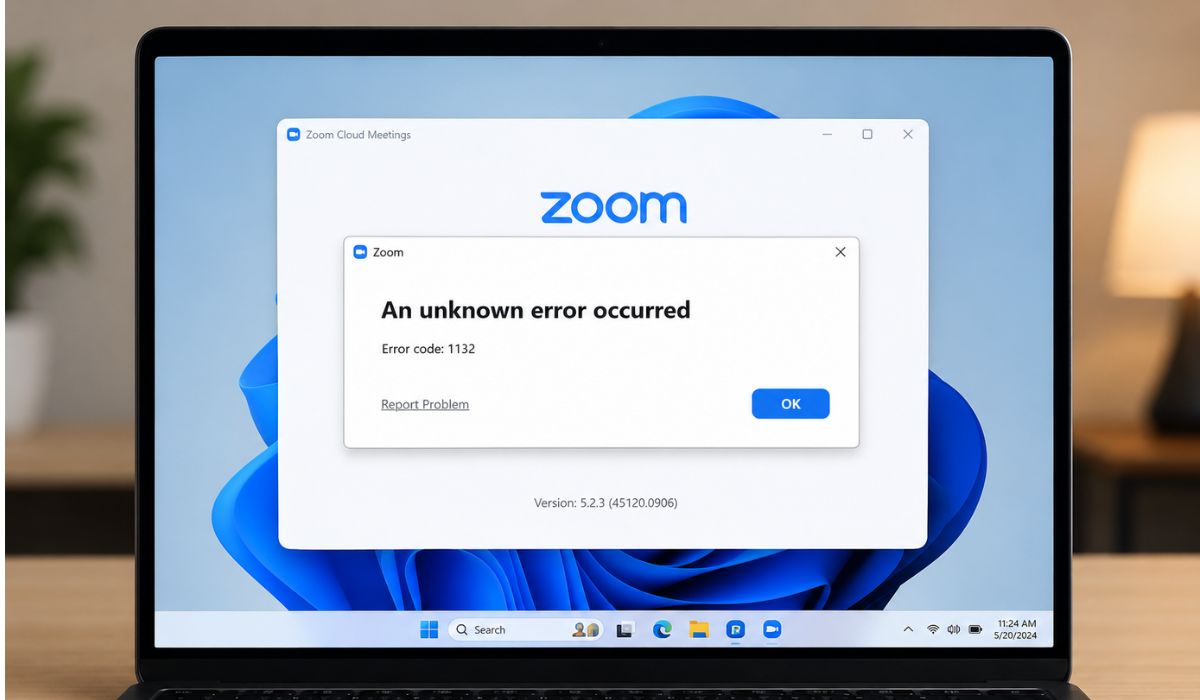
Zoom Error Code 1132 is usually an access or connection error. And it can appear when you try to sign in to your Zoom account or join a Zoom meeting, and sometimes people think their whole Zoom account got banned when actually the issue is much smaller.
The reason can be simple. Maybe your Zoom app is outdated. Maybe your network blocks Zoom. Or maybe Zoom placed some restriction on the account or device that needs review. Not great, I know. But there are still a few decent checks you can try before panicking.
Common Reasons for Zoom Error Code 1132
Zoom Error Code 1132 usually appears when Zoom cannot allow access from your app, account, device, or network.
- Your Zoom app is outdated
- Your Zoom account has an access issue
- Your device has a restriction or review issue
- Your internet connection is weak or unstable
- A VPN, proxy, firewall, or DNS setting blocks Zoom
- The Zoom desktop client is corrupted
- Zoom works on another device but not this one
- Zoom needs an official error report from you
How to Fix Zoom Error Code 1132?
If you are facing this issue, try these fixes one by one. And start by updating Zoom first, then test your network, reinstall the app, try another device, and report the error to Zoom if needed because sometimes the error is not much difficult and one small network setting quietly breaks everything.
Fix #1: Update the Zoom App
An old Zoom app can create sign-in and meeting access problems. But Zoom regularly fixes bugs through updates, and honestly outdated apps cause more weird meeting issues than most people realize.
Follow these steps:
- Open Zoom if it opens.
- Click your profile picture.
- Select Check for Updates.
- Install the latest version.
- Restart Zoom.
- Try signing in or joining the meeting again.
If Zoom does not open at all, download the newest version from the official Zoom website and reinstall it manually.
Fix #2: Restart Your Device and Internet Router
A small connection issue can stop Zoom from reaching its servers correctly. And restarting your device and router refreshes the internet connection, and honestly this weird little fix works surprisingly often for random app errors.
Follow these steps:
- Close Zoom.
- Restart your computer or phone.
- Unplug your router.
- Wait 30 seconds.
- Plug the router back in.
- Reconnect to Wi-Fi.
- Open Zoom and test it again.
This fix feels too simple sometimes. But yes, it actually helps a lot with connection problems.
Fix #3: Try Another Network
Your current network may be blocking Zoom access. And this can happen on office Wi-Fi, school Wi-Fi, public Wi-Fi, or strict home router setups, and honestly some networks block Zoom without showing any clear warning.
Try joining Zoom from another Wi-Fi network or a mobile hotspot. If Zoom works there, your original network probably has a firewall, proxy, DNS filter, or router rule causing the issue.
If you are using a work or school network, ask the network admin to check Zoom access settings.
Fix #4: Turn Off VPN, Proxy, or Firewall Blocks
A VPN changes your IP address and routes Zoom traffic through another server. But sometimes this creates sign-in problems or meeting join errors, and some VPN servers honestly become really unstable during busy hours.
Turn off your VPN and test Zoom again. If you use a proxy, DNS filter, ad blocker, or strict firewall, pause it temporarily for testing.
Do not leave protection disabled for too long. The better way is allowing Zoom properly through your firewall or security tool. If Zoom works after disabling the VPN, use another VPN server or join meetings without VPN when possible.
Fix #5: Reinstall Zoom
A damaged Zoom installation can also cause Error Code 1132. And if app files become corrupt, Zoom may fail during sign-in or when opening meeting links, and this part feels really annoying because the app sometimes looks installed normally even when files are broken inside.
Follow these steps:
- Uninstall Zoom from your device.
- Restart your computer.
- Download Zoom from the official Zoom website.
- Install the latest version.
- Sign in again.
- Test the same meeting link.
Avoid old setup files from random websites because those can create even more weird problems later.
Fix #6: Try Zoom Web Client or Another Device
If the Zoom desktop app fails, try joining from a browser instead. And Zoom Web Client lets you attend meetings while you continue fixing the desktop app later, which honestly saves people during urgent work calls all the time.
Open the meeting link in Chrome, Edge, Safari, or another browser. Look for the option to join from the browser if it appears.
You can also test Zoom on another device like a phone, tablet, or different computer. If Zoom works there, the issue is probably connected to your first device.
Fix #7: Check If the Issue Is Account-Based or Device-Based
This step helps you understand where the real problem exists. And honestly this part matters because sometimes people waste hours fixing the wrong thing without testing the account or network properly first.
Try these checks:
- Sign in to your Zoom account on another device
- Try another Zoom account on the same device
- Use the same device on another network
- Try Zoom Web Client in a browser
If your account fails everywhere, the issue may be account-based. If only one device fails, the issue is probably device-based. If Zoom fails only on one Wi-Fi network, the issue is likely network-based.
Fix #8: Report Error 1132 to Zoom
If the error still appears, Zoom may need to review the problem directly. And some Error 1132 cases require official reporting through Zoom, especially when the issue involves account or device restrictions.
Follow these steps:
- Update Zoom first.
- Try signing in again.
- Wait for the 1132 error message.
- Click Report to Zoom if you see the option.
- Enter the requested details.
- Confirm the report from your email.
- Wait for Zoom’s follow-up email.
If you do not see the report option, contact Zoom Support from the official Zoom website. Include your error code, device type, Zoom version, operating system, and everything you already tried.
Tips to Prevent Zoom Error Code 1132
You cannot prevent every Zoom access problem completely. But a few small habits can lower app, network, and device issues before important meetings, and honestly testing Zoom early saves so much last-minute stress.
Use these tips before your next class, webinar, interview, or work call:
- Keep the Zoom app updated
- Avoid unstable VPNs or blocked networks during meetings
- Use the official Zoom installer only
- Keep your Zoom account secure with a strong password
- Test Zoom before important meetings or classes
Conclusion
Zoom Error Code 1132 can appear when Zoom blocks access from your app, account, device, or network. And the problem may come from an outdated Zoom app, weak internet, VPN, firewall, damaged installation, account issue, or device restriction quietly interfering with Zoom access.
Start with the easy fixes first. And update Zoom, restart your device and router, try another network, reinstall Zoom, and test Zoom Web Client because these simple checks solve the issue surprisingly often without needing anything super technical. If the error still appears, use the Report to Zoom option or contact Zoom Support with your error details.

