
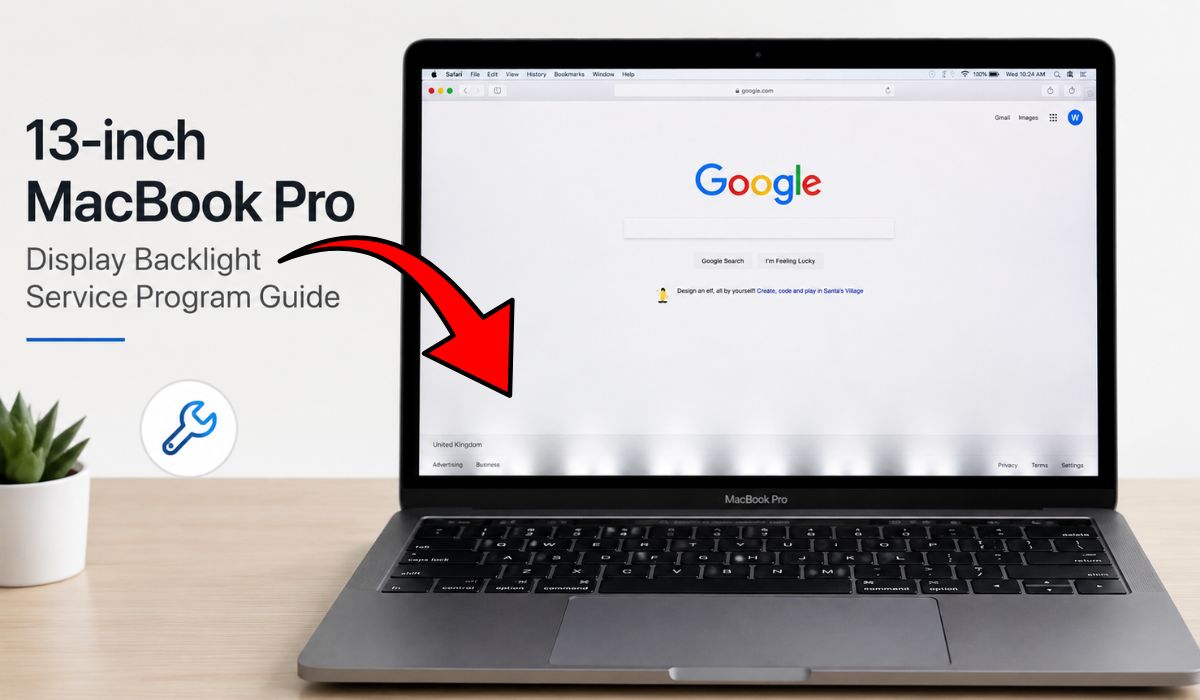
13-inch MacBook Pro Display Backlight Service Program Guide
Quick Answer: The 13-inch MacBook Pro Display Backlight Service Program was Apple’s repair program for certain 2016 13-inch MacBook Pro models with display backlight problems. The common signs were bright vertical light areas along the bottom of the screen or the display backlight failing completely.
If your MacBook Pro screen has bright light patches along the bottom, or the screen suddenly becomes very dark, it can be worrying. The laptop may still turn on. The keyboard may light up. You may even hear sounds from the Mac. But the display itself does not look right.
This issue became known by many users as the MacBook Pro backlight problem. Some people also call it Flexgate because the issue is often linked with the display flex cable. Apple created a service program for certain 13-inch MacBook Pro models from 2016 that showed this type of backlight problem.
In this guide, we’ll keep it simple. You’ll learn what the program means, which models were included, what symptoms to check, how to find your MacBook model, and what to do before contacting Apple for repair.
What Is the 13-inch MacBook Pro Display Backlight Service Program?

The 13-inch MacBook Pro Display Backlight Service Program was made for a limited number of 13-inch MacBook Pro units that could develop display backlight issues. The problem usually appeared in two ways. The screen could show vertical bright areas along the bottom edge, or the display backlight could stop working completely.
In normal words, your MacBook may still be running, but the screen lighting fails. That is why some users can connect the MacBook to an external monitor and still use it. The computer itself may not be dead. The issue may be with the display backlight system.
This program was not for every MacBook Pro. It was mainly connected with certain 2016 13-inch MacBook Pro models. So before expecting a free repair, you need to check your exact model and confirm the current service options with Apple.
Which MacBook Pro Models Were Eligible?
The program was mainly for the 2016 13-inch MacBook Pro models. This included the 13-inch MacBook Pro with Two Thunderbolt 3 ports and the 13-inch MacBook Pro with Four Thunderbolt 3 ports.
Here is a simple way to understand it:
| MacBook Model | Usually Covered by This Program? | Notes |
|---|---|---|
| MacBook Pro 13-inch, 2016, Two Thunderbolt 3 ports | Yes, if Apple confirms eligibility | One of the listed affected models |
| MacBook Pro 13-inch, 2016, Four Thunderbolt 3 ports | Yes, if Apple confirms eligibility | Also part of the affected group |
| MacBook Pro 2017 or later | Not usually under this exact program | Similar symptoms do not always mean free repair |
| 15-inch MacBook Pro | No, not under this 13-inch program | It is a different model group |
This part is important because many MacBook screens can fail for different reasons. A 2017, 2018, or 2019 MacBook Pro may show a similar backlight issue, but that does not automatically mean it is covered by this exact program.
So don’t judge only by the symptom. Check the model too.
What Symptoms Does This Backlight Issue Cause?
The most common symptom is the “stage light” effect. It looks like uneven bright vertical patches along the bottom of the display. Some users describe it like small spotlights shining up from the bottom edge of the screen.
At first, it may only show a little. Then it can get worse over time. Sometimes the screen may flicker. Sometimes it may work only at certain lid angles. And in more serious cases, the backlight may stop working completely.
Common signs include:
- Bright vertical light areas along the bottom of the screen
- Screen backlight flickering
- Display becoming very dim
- Screen going black while the MacBook still turns on
- Keyboard, sound, or external monitor still working
- Display working only when the lid is at a certain angle
- Problem getting worse over time
If your MacBook works with an external monitor, that can be a useful clue. It may mean the Mac is still running and the issue is related to the built-in display. It does not prove everything, but it helps you understand the problem better.
Why Does This Problem Happen?
This issue is often linked with the display flex cable. That cable connects the display and backlight system to the main body of the MacBook. Every time you open and close the lid, the cable moves a little.
Over time, that movement can put stress on the cable. If the cable becomes damaged or weak, the backlight may start acting strange. That is why people started calling this issue Flexgate.
The annoying part is that this is not always a small cable-only repair for normal users. In many cases, the repair may involve the display assembly. That is why people usually contact Apple or an Apple Authorized Service Provider instead of trying random fixes at home.
And just to be clear, not every display issue is this exact problem. A black screen can also happen because of software issues, battery problems, logic board issues, or other display faults. But if you see the stage light effect, this backlight program is worth checking.
How to Check Your MacBook Model
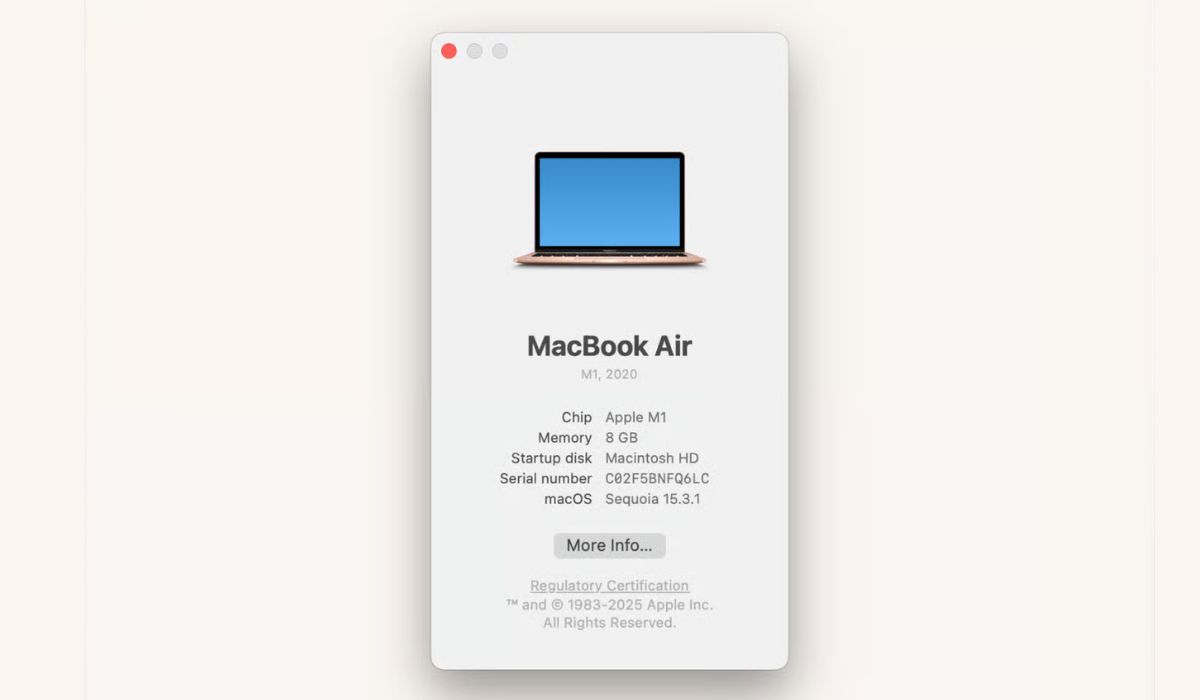
Before contacting Apple, check your exact MacBook model. Do not guess only because it is a 13-inch MacBook Pro. The year and port type matter.
You can check it like this:
- Click the Apple logo in the top-left corner.
- Choose “About This Mac.”
- Look at the model name and year.
- Check if it says MacBook Pro 13-inch, 2016.
- Notice whether it has Two Thunderbolt 3 ports or Four Thunderbolt 3 ports.
- Write down or copy the serial number.
If your screen is too dark to use, try connecting the MacBook to an external monitor. If the external display works, you may be able to open “About This Mac” from there and check the model details.
You can also use the serial number when speaking with Apple Support. That is usually the easiest way for them to check service options.
How to Get Service From Apple
If your MacBook model and symptoms seem to match the program, contact Apple Support or visit an Apple Authorized Service Provider. They will usually need to inspect the MacBook before confirming whether it qualifies.
Do not assume the repair will be free until Apple checks it. The service program had model and coverage rules. Also, if your MacBook has other damage, Apple may need to look at that first. For example, liquid damage or a cracked screen may change the repair process.
Before service, do these things:
- Back up your MacBook
- Note your serial number
- Take clear photos of the display issue
- Remove cases, covers, and accessories
- Ask Apple to confirm program eligibility
- Ask if there will be any cost before approving repair
- Ask what happens if the MacBook is not covered
Backing up is important. Most repairs may not erase your data, but you should not take that risk. If the screen still works a little, back up your files before sending it in.
Is the Program Still Available?
This is where you need to be careful. Apple service programs usually have coverage limits. They may cover eligible devices for a certain time after the first retail sale or after the program begins. Since these 13-inch MacBook Pro models were from 2016, many units may now be outside the original coverage window.
That does not mean you should give up without asking. Apple can still check your serial number and tell you what repair options are available. The answer may depend on your model, purchase date, country, device condition, and current service policy.
So the best step is simple. Contact Apple directly and ask them to check your MacBook. Old forum posts and old articles may not reflect your current repair options.
What If Apple Says Your MacBook Is Not Covered?
If Apple says your MacBook is not covered, ask why. Don’t just leave without understanding the reason. It may be because the model year is different, the service window has ended, the issue is not the same backlight problem, or the device has other damage.
You can ask for a repair quote before deciding. Sometimes repair cost makes sense. Sometimes it may be too expensive compared with the value of the MacBook. That depends on the age of the device and how much you still use it.
Your options may include:
- Ask Apple for the exact reason it is not covered
- Get a repair quote before approving anything
- Visit an Apple Authorized Service Provider for inspection
- Ask if local consumer protection rules apply in your country
- Use an external monitor as a temporary workaround
- Compare repair cost with buying a newer MacBook
If your MacBook still works with an external monitor, you may be able to use it for a while. It is not a proper fix, but it can help you back up files or keep working until you decide what to do.
Can You Use an External Monitor for Now?
Yes, if the MacBook still powers on, an external monitor may work. This is helpful when the built-in screen is black or too dim to use. You may need a USB-C monitor or a USB-C to HDMI adapter depending on your setup.
This is not a permanent repair. It will not fix the backlight cable or display issue. But it can help you get important files, check your MacBook model, or use the laptop at a desk for a short time.
If the external monitor also shows nothing, then the problem may not be only the built-in display. In that case, Apple or a repair technician needs to inspect it properly.
Final Thoughts
The 13-inch MacBook Pro Display Backlight Service Program was mainly for certain 2016 13-inch MacBook Pro models with specific backlight symptoms. The main signs were bright vertical areas along the bottom of the display or full backlight failure.
If your MacBook shows these symptoms, first check the model from “About This Mac.” Then contact Apple Support or an Apple Authorized Service Provider and ask them to check your serial number. Since many 2016 units may now be outside the original coverage period, it is better to confirm directly instead of guessing.
And before repair, back up your files if you can. If the built-in screen is too dark, try an external monitor. Are you seeing the stage light effect, flickering, or a fully black screen on your MacBook Pro?

