
What Is the Best Way to Take and Edit Screenshots on a Mac?
Taking screenshots on a Mac sounds simple. Then you need to capture one menu, one window, one tiny button, and a funny error message before it disappears. Suddenly, things get spicy. The good news is this: your Mac already has great screenshot tools built in. You do not need to be a tech wizard. You only need a few shortcuts, a tiny bit of editing magic, and maybe a snack.
TLDR: The best way to take screenshots on a Mac is to use the built-in shortcuts and the Screenshot toolbar. Press Command + Shift + 5 for the most control. Use the small preview thumbnail to edit fast with Markup. For cleaner results, crop, highlight, blur sensitive info, and save with a clear file name.
Start with the magic Mac screenshot shortcuts
Your Mac has several screenshot shortcuts. They are easy once you use them a few times. Think of them like secret spells. But with fewer dragons.
- Command + Shift + 3: Capture the whole screen.
- Command + Shift + 4: Select part of the screen.
- Command + Shift + 4, then Spacebar: Capture one window.
- Command + Shift + 5: Open the Screenshot toolbar.
- Command + Shift + 6: Capture the Touch Bar, if your Mac has one.
The fastest shortcut is Command + Shift + 4. It lets you drag a box around the exact area you want. This is great for tutorials, receipts, messages, and little screen details. You click, drag, and release. Done.
If you want the whole screen, use Command + Shift + 3. It is quick. It is also a little messy if your desktop is full of random files. We all know that one file named “final final really final.” No judgment.
Use Command + Shift + 5 for the best control
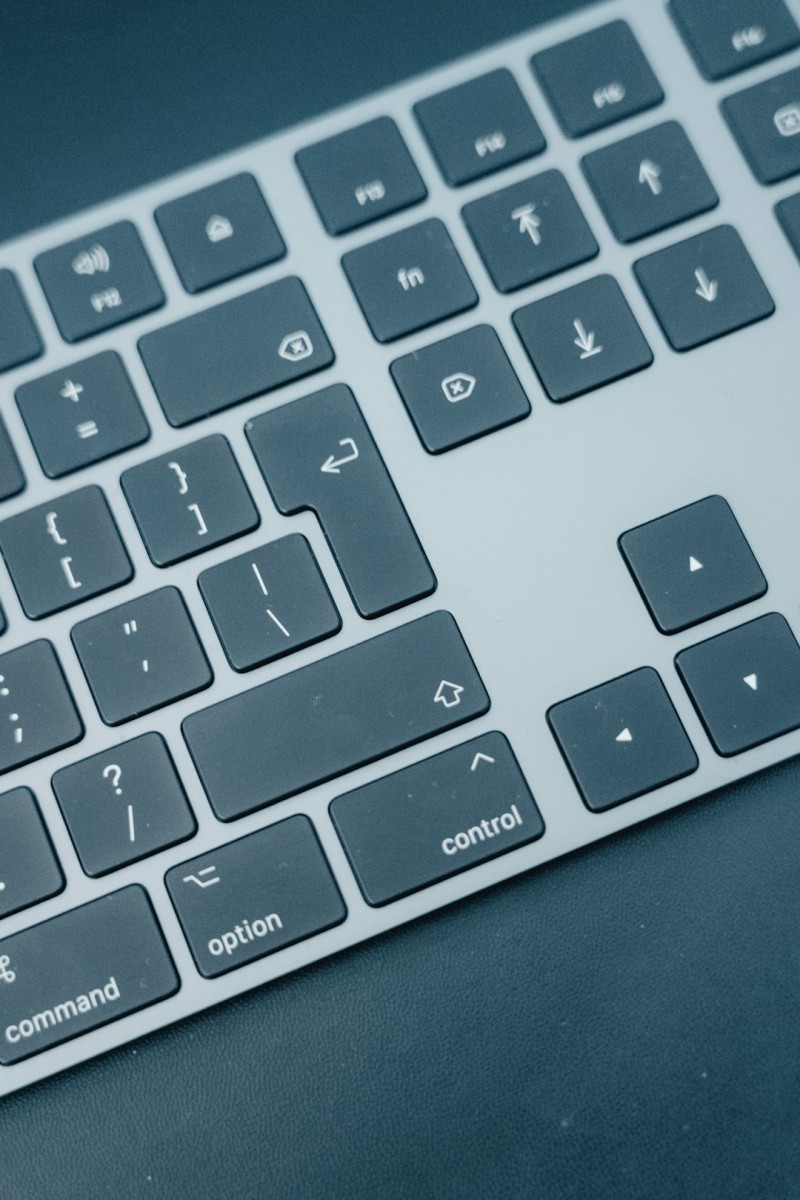
If there is one shortcut to remember, make it Command + Shift + 5. This opens the Screenshot toolbar. It is the control center for screenshots on a Mac.
With this toolbar, you can:
- Capture the whole screen.
- Capture a selected window.
- Capture a selected area.
- Record the whole screen.
- Record part of the screen.
- Choose where screenshots are saved.
- Set a timer.
- Show or hide the mouse pointer.
This is the best all-around method because it gives you options. You do not have to remember every shortcut. You can just open the toolbar and pick what you need.
Click Options in the toolbar. This is where the good stuff lives. You can save screenshots to the Desktop, Documents, Clipboard, Mail, Messages, Preview, or another folder. You can also set a timer for 5 or 10 seconds. This is useful when you need to open a menu before the screenshot is taken.
Where do screenshots go?
By default, screenshots save to your Desktop. That is handy. It is also how your desktop can become a tiny junk drawer.
If you take lots of screenshots, create a folder called Screenshots. Then use Command + Shift + 5, click Options, and choose that folder. Your future self will thank you. Maybe with coffee.
You can also copy a screenshot to the clipboard. This is perfect when you want to paste it into an email, chat, document, or design file.
To copy instead of save, hold the Control key while taking the screenshot. For example:
- Command + Shift + Control + 3: Copy the whole screen.
- Command + Shift + Control + 4: Copy a selected area.
Then press Command + V to paste it where you want.
Edit fast with the floating thumbnail
After you take a screenshot, a small thumbnail appears in the bottom-right corner of your screen. Do not ignore it. It is tiny, but powerful. Click it before it disappears.
This opens the screenshot in Markup. Markup is Apple’s built-in editing tool. It is simple and very useful.
With Markup, you can:
- Crop the screenshot.
- Draw arrows.
- Add text.
- Add shapes.
- Highlight important areas.
- Add a signature.
- Rotate the image.
- Delete parts you do not want.
For most people, this is enough. You can take a screenshot, mark it up, and send it in under one minute. That is smooth. That is crisp. That is very Mac.

How to crop screenshots like a neat person
Cropping is the easiest way to make a screenshot better. It removes clutter. It helps people focus. It also hides your 47 open browser tabs.
To crop using the thumbnail editor, click the screenshot preview. Then drag the corners or edges to frame the important part. Click Done when you are finished.
You can also open the screenshot in Preview. Double-click the image. Use your mouse to select the area you want. Then choose Tools > Crop. Or press Command + K.
A good crop should feel clear. Leave a little breathing space around the subject. Do not crop so tight that the image looks trapped. Screenshots need personal space too.
Add arrows, boxes, and text
Arrows are your best friend. They say, “Look here!” without making people guess.
In Markup, click the shape icon. Choose an arrow, line, circle, or rectangle. Drag it into place. You can change the color and thickness. Use bright colors like red, blue, or yellow. But do not use every color at once. This is a screenshot, not a birthday parade.
Text is helpful too. Add short labels. Keep them simple. Use phrases like:
- Click here
- Choose this option
- New button
- Error message
- Important setting
Short labels are easier to read. Long labels can make the screenshot feel crowded. If you need a long explanation, write it outside the image.
Hide private information
This part matters. Screenshots can show more than you think. Before you send one, check for private details.
Look for:
- Email addresses.
- Phone numbers.
- Home addresses.
- Account numbers.
- Passwords.
- Personal messages.
- Private browser tabs.
- Customer names.
Markup does not have a true blur tool. But you can cover sensitive info with a solid shape. Add a rectangle. Set the fill color to black or white. Place it over the private text. This is not fancy, but it works.
Be careful with transparent shapes. If someone can still see the text, it is not hidden. Use a solid block. Be boring. Boring is safe.
Use Preview for more editing power
Preview is one of the most underrated apps on a Mac. It opens images and PDFs. It also has helpful editing tools.
Open your screenshot in Preview. Then click the Markup button. It looks like a little pen tip inside a circle.
Preview lets you:
- Crop images.
- Resize images.
- Change file formats.
- Add text and shapes.
- Adjust colors.
- Export as JPG, PNG, PDF, or TIFF.
If your screenshot is too large, resize it. Go to Tools > Adjust Size. Choose a smaller width. A width of 1200 to 1600 pixels is often enough for web use. For email, smaller is usually better.
If you need a smaller file size, export as JPG. If you need crisp text and sharp edges, use PNG. Most Mac screenshots save as PNG by default. That is great for quality.
Should you use PNG or JPG?
Here is the simple answer. Use PNG for most screenshots. Use JPG when file size matters more than sharp text.
PNG is great for:
- App screenshots.
- Website screenshots.
- Text-heavy images.
- Tutorials.
- Clean lines and icons.
JPG is better for:
- Photos.
- Large images.
- Email attachments.
- Places with upload size limits.
If you are not sure, keep it as PNG. It will usually look cleaner.
Capture menus without panic
Menus can be tricky. They vanish when you click away. But your Mac has a fix.
Press Command + Shift + 5. Click Options. Set a timer for 5 seconds or 10 seconds. Then choose the type of screenshot you want. Click Capture. Quickly open the menu. Wait. Your Mac will take the screenshot.
This is perfect for showing dropdown menus, app settings, and hidden panels. It also makes you feel like a screenshot ninja.

Capture one window cleanly
Window screenshots look tidy. They are great for guides and presentations.
Press Command + Shift + 4. Then press the Spacebar. Your cursor becomes a camera icon. Move it over the window you want. Click once.
Your Mac captures only that window. It even adds a soft shadow. Very classy.
If you do not want the shadow, hold the Option key while clicking the window. The screenshot will be cleaner and flatter.
Record your screen when a screenshot is not enough
Sometimes one picture cannot tell the whole story. Maybe you need to show a bug. Maybe you need to explain a process. Maybe your cousin still cannot find the “Download” button.
Use Command + Shift + 5. Choose screen recording. You can record the whole screen or just part of it.
Click Options to choose a microphone if you want narration. Then click Record. When you are done, click the stop button in the menu bar.
Keep screen recordings short. People like quick videos. A 30-second clip is often better than a five-minute epic saga.
Best workflow for taking and editing screenshots
Here is a simple workflow that works for almost everyone:
- Press Command + Shift + 5.
- Choose the capture type.
- Use a timer if needed.
- Take the screenshot.
- Click the floating thumbnail.
- Crop the image.
- Add arrows, boxes, or labels.
- Hide private info.
- Click Done.
- Rename the file clearly.
A clear file name helps a lot. Instead of Screen Shot 2026 at 10.42.18 AM, use something like login error message or checkout button example. Future you will feel calm and organized. Future you deserves that.
Simple tips for better screenshots
Small habits make screenshots look much better.
- Clean your desktop before a full-screen capture.
- Close private tabs before sharing.
- Zoom in if text is too small.
- Use light or dark mode based on what looks clearer.
- Crop extra space so the subject stands out.
- Use arrows only where they help.
- Keep edits simple and easy to read.
Do not over-edit. A screenshot should explain something fast. If it looks like a detective board with 19 arrows, step back. Remove the clutter. Let the image breathe.
Do you need a third-party screenshot app?
For most people, no. The built-in Mac tools are enough. They are fast, free, and already installed.
You might want a third-party app if you need advanced features. Some apps offer scrolling screenshots, automatic blurring, team sharing, better annotation, or cloud links. These can be useful for support teams, teachers, writers, and product managers.
But start with the Mac tools first. Learn the shortcuts. Try Markup. Use Preview. You may find that you already have everything you need.
The best way, in one sentence
The best way to take and edit screenshots on a Mac is to use Command + Shift + 5, edit right away with Markup, clean things up in Preview if needed, and save the file with a clear name.
That is it. No drama. No complicated setup. Just smart shortcuts and simple edits.
Your Mac is ready. Your keyboard is ready. Your next screenshot can be neat, clear, and maybe even a little beautiful. Now go capture that tiny button like the digital champion you are.

