
Top 4 Screen Recording Tools Like OBS Studio That Make Capturing Tutorials Simple
Creating high-quality tutorials has never been more accessible, thanks to powerful screen recording tools that simplify the entire capture and editing process. While OBS Studio remains a favorite among advanced users, many creators look for alternatives that are easier to set up, more intuitive, or better suited for quick tutorial production. Whether someone is recording software walkthroughs, online courses, or gameplay guides, the right tool can dramatically improve efficiency and results.
TLDR: OBS Studio is powerful but can feel overwhelming for beginners. Several alternative screen recording tools offer simpler interfaces and built-in editing features that make tutorial creation faster and easier. This article explores four top tools that rival OBS Studio in functionality while prioritizing usability. A comparison chart and FAQs help creators choose the best option for their needs.
Why Look for Alternatives to OBS Studio?
OBS Studio is widely respected for its flexibility and cost (free and open source). However, it comes with a learning curve that may slow down new content creators. Setting up scenes, configuring audio sources, optimizing output settings, and managing plugins can be intimidating for those who simply want to record a clear tutorial.
Many tutorial creators prioritize:
- Fast setup and intuitive controls
- Built-in video editing tools
- Smooth recording performance
- Easy export options for platforms like YouTube or e-learning systems
The following four tools stand out as excellent alternatives that make tutorial recording significantly simpler.
1. Camtasia
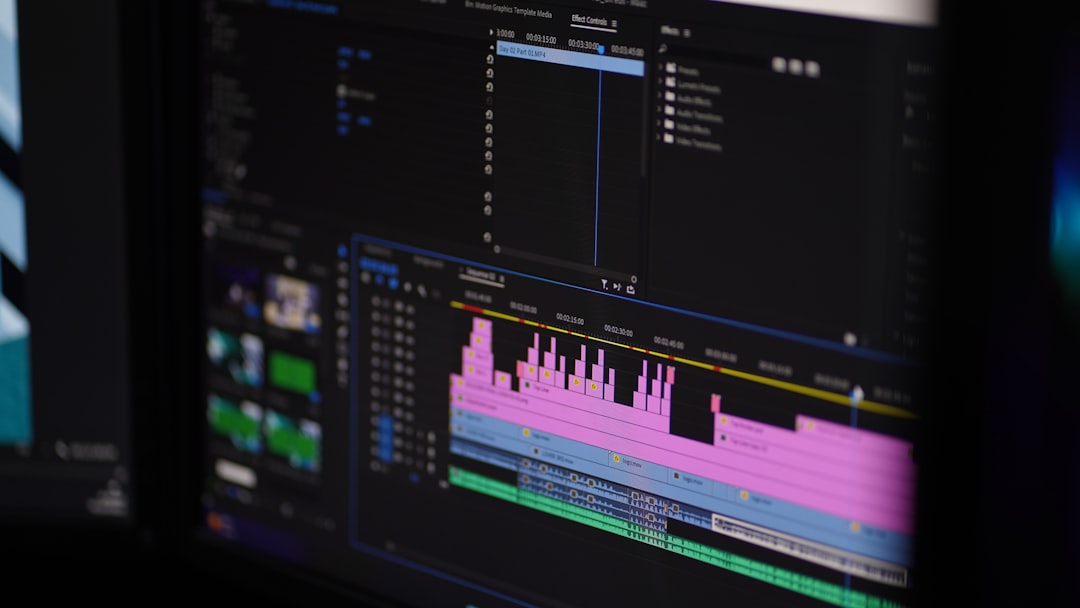
Camtasia is often considered one of the most beginner-friendly and comprehensive screen recording tools available. Unlike OBS Studio, which focuses heavily on live production and streaming, Camtasia centers on tutorial creation.
Key Features
- Integrated screen recorder and video editor
- Drag-and-drop timeline editing
- Built-in annotations, callouts, and transitions
- Cursor effects for emphasizing actions
- Royalty-free music and assets library
Why It’s Great for Tutorials
Camtasia simplifies the entire workflow. After recording, users are automatically brought into the editing interface, where they can trim clips, zoom into specific areas, add text overlays, and enhance audio without switching to another program.
For educators, marketers, and online course creators, the ability to add quizzes and interactive elements makes it especially valuable.
Potential Downsides
- Premium pricing
- May feel too feature-rich for users wanting simple recordings only
Overall, Camtasia shines when polished production quality is a priority.
2. ScreenPal (Formerly Screencast-O-Matic)
ScreenPal is known for its accessibility and cloud-focused workflow. It offers a balance between simplicity and functionality, making it an attractive option for quick tutorials.
Key Features
- Web-based and desktop recording options
- Basic and advanced editing tools
- Stock library integration
- Built-in caption generation
- Hosting and sharing platform
Why It’s Great for Tutorials
For creators who need to record and upload quickly, ScreenPal removes unnecessary complexity. Users can capture their screen, webcam, or both with minimal setup. Automatic captions and easy export options streamline distribution.
It’s particularly useful for teachers creating lessons or professionals building internal training materials.
Potential Downsides
- Advanced editing tools are limited compared to dedicated editors
- Free plan includes restrictions and watermarks
Still, for many users, ScreenPal offers the right mix of convenience and functionality.
3. Bandicam
Bandicam is a lightweight yet powerful screen recorder that appeals especially to users needing high-performance recordings. It is often favored by gamers and software demonstrators who require crisp quality without heavily taxing system resources.
Key Features
- High-compression recording
- Real-time drawing tools
- Device capture support (HDMI, webcam, console)
- Scheduled recording
- Hardware acceleration support
Why It’s Great for Tutorials
Bandicam excels in capturing high-resolution footage with minimal lag. Real-time annotation tools allow presenters to highlight areas directly while recording, eliminating some post-production steps.
It also performs well on systems that may struggle with OBS Studio’s heavier resource demands.
Potential Downsides
- Limited built-in editing
- Windows-only software
For raw performance and stable recordings, Bandicam stands out as a solid OBS alternative.
4. Loom
Loom focuses on speed and simplicity. Originally popular in corporate communication settings, it has become a go-to tool for quick tutorials and walkthroughs.

Key Features
- Browser extension and desktop app
- Instant shareable links
- Simple trimming tools
- Viewer engagement analytics
- Automatic cloud storage
Why It’s Great for Tutorials
Loom removes nearly all technical friction. Users hit record, complete their demonstration, and immediately receive a shareable link. This makes it ideal for short tutorials, bug reports, onboarding guides, and team instructions.
It may not replace a full production suite, but for speed and accessibility, few tools compare.
Potential Downsides
- Limited advanced editing features
- Primarily cloud-based
Loom is best suited for quick-turnaround, conversational tutorials rather than highly polished course content.
Comparison Chart
| Tool | Ease of Use | Built-in Editing | Best For | Platform Support |
|---|---|---|---|---|
| Camtasia | Very High | Advanced | Professional tutorials and courses | Windows, Mac |
| ScreenPal | High | Moderate | Educational content and quick uploads | Windows, Mac, Web |
| Bandicam | Moderate | Basic | High-performance recording | Windows |
| Loom | Very High | Basic | Quick team tutorials and walkthroughs | Windows, Mac, Web |
How to Choose the Right Tool
When selecting a screen recording tool for tutorials, creators should evaluate several important factors:
- Complexity of tutorials: Advanced, highly produced training benefits from tools like Camtasia.
- Speed requirements: Loom is excellent for instant sharing.
- Performance needs: Bandicam handles high-resolution recording efficiently.
- Budget constraints: ScreenPal offers flexible pricing tiers.
No single tool is perfect for everyone. The best choice depends on the creator’s workflow, technical skill level, and content goals.
Frequently Asked Questions (FAQ)
1. Is OBS Studio still a good option for tutorials?
Yes, OBS Studio remains a powerful and free solution, especially for advanced users who need detailed customization and streaming capabilities. However, beginners may find its setup process complex compared to simpler alternatives.
2. Which screen recording tool is best for beginners?
Loom and Camtasia are typically considered the most beginner-friendly. Loom excels in simplicity, while Camtasia offers easy editing with professional results.
3. Do these tools support webcam recording?
Yes, all four tools support simultaneous screen and webcam recording, which is essential for engaging tutorial content.
4. Can recorded videos be edited within these platforms?
Camtasia offers advanced editing, ScreenPal provides moderate editing tools, and Loom and Bandicam include more basic trimming and annotation features.
5. Are there free versions available?
Most of these tools offer free plans or trials, though they often include watermarks, export limits, or restricted features.
6. Which tool is best for professional course creators?
Camtasia is generally the preferred choice for professional course creation due to its comprehensive editing suite and interactive features.
Choosing the right screen recording tool can significantly simplify the tutorial creation process. While OBS Studio remains powerful, these four alternatives provide streamlined experiences that cater to different types of creators. By evaluating needs such as editing depth, recording performance, and sharing speed, content creators can confidently select the tool that makes capturing tutorials effortless and efficient.
