

Laptop Screen Lines Problem: Causes and Effective Fixes
Laptop screens are essential productivity tools, and when they start displaying distracting lines across the display, it can immediately disrupt work, entertainment, and communication. Lines on a laptop screen are more than just a cosmetic issue—they can signal hardware failure, connection problems, or software malfunctions. Understanding the root cause is critical to determining whether the issue can be fixed easily or requires professional repair. Acting quickly can also prevent further damage.
TLDR: Lines on a laptop screen are commonly caused by loose internal connections, damaged display panels, outdated graphics drivers, or failing GPUs. Vertical or horizontal lines can indicate either software glitches or deeper hardware problems. Start with simple fixes like restarting, updating drivers, or checking external display output before opening the laptop. If the display panel or graphics hardware is damaged, professional repair or screen replacement is usually required.
What Do Laptop Screen Lines Look Like?
Screen lines can appear in various forms, and identifying their characteristics can help diagnose the issue:
- Vertical lines: Often linked to display panel damage or cable issues.
- Horizontal lines: May indicate GPU problems or panel defects.
- Flickering lines: Can suggest loose internal connections.
- Colored lines: Commonly associated with pixel damage or hardware failure.
- Black or white solid lines: Often indicate rows or columns of dead pixels.
The severity and behavior of the lines—whether they move, flicker, or stay fixed—provide valuable clues about the root cause.
Common Causes of Laptop Screen Lines
1. Loose or Damaged Display Cable
One of the most frequent causes of screen lines is a loose or damaged LVDS or eDP display cable connecting the motherboard to the screen. Over time, opening and closing the laptop lid can strain this cable.
Symptoms include:
- Lines that change or disappear when adjusting the screen angle
- Intermittent display problems
- Flickering combined with lines
If this is the issue, reseating or replacing the cable often resolves the problem.
2. Damaged LCD or LED Panel
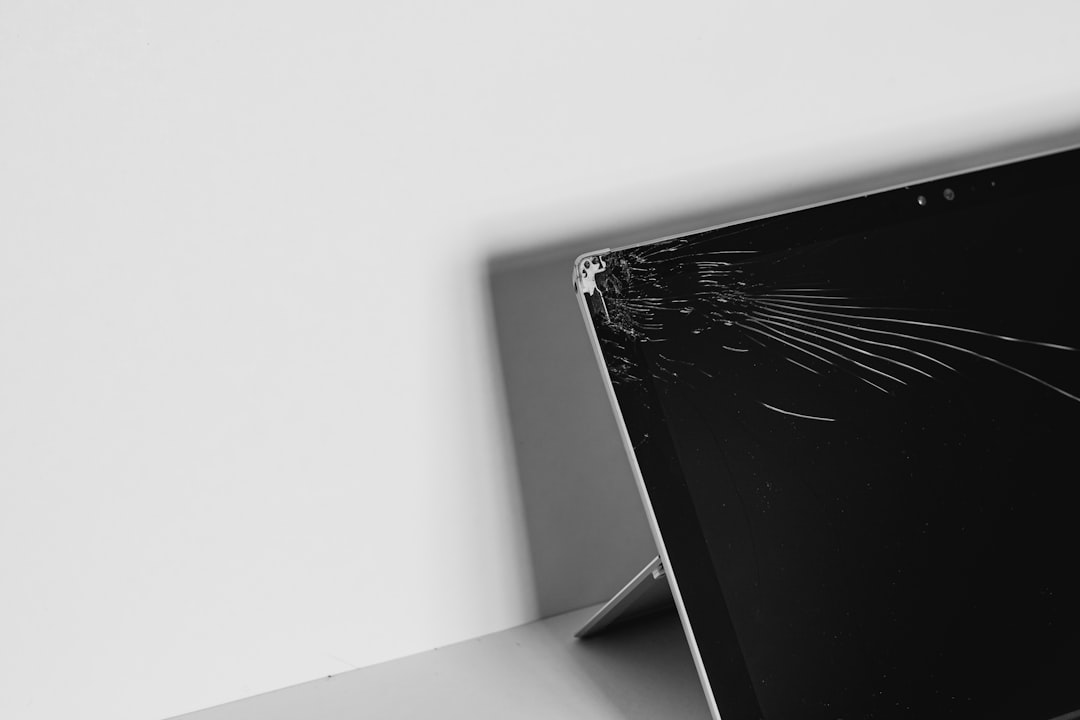
Physical damage to the screen itself is another common cause. Even if there is no visible crack, internal layers of the display may be compromised.
Typical indicators:
- Persistent vertical or horizontal lines
- Dark patches or color distortions
- Lines that remain unchanged regardless of software adjustments
In these cases, the only effective solution is usually screen replacement.
3. Graphics Driver Issues
Not all screen line problems are hardware-related. Corrupted or outdated graphics drivers can also produce visual artifacts, including lines.
This may be the cause if:
- The lines appear after a system update
- They disappear in BIOS but show in the operating system
- They change when adjusting resolution settings
Updating, rolling back, or reinstalling the GPU drivers may fix the issue entirely.
4. Failing Graphics Card (GPU)
A failing GPU is a more serious issue. In laptops with dedicated graphics cards, overheating or age-related degradation can cause display anomalies.
Signs of GPU failure include:
- Lines on both the laptop screen and an external monitor
- Frequent crashes or blue screens
- Overheating and loud fan noise
GPU issues often require motherboard repair or full replacement, which can be costly.
5. Dead or Stuck Pixels
If you notice a single line composed of tiny colored dots, you may be dealing with a column or row of dead pixels.
Key characteristics:
- Thin, perfectly straight lines
- No flicker or change
- Limited to a specific part of the screen
Dead pixels are permanent in most cases, though minor stuck pixels can sometimes be corrected with pixel-refresh software.
How to Diagnose the Problem
Proper diagnosis prevents unnecessary repairs. Follow these steps methodically:
Step 1: Restart the Laptop
Rebooting eliminates temporary software glitches. If lines disappear after restart, the issue was likely software-based.
Step 2: Check BIOS Screen
Enter the BIOS menu before the operating system loads. If the lines appear in BIOS, the problem is almost certainly hardware-related.
Step 3: Connect an External Monitor
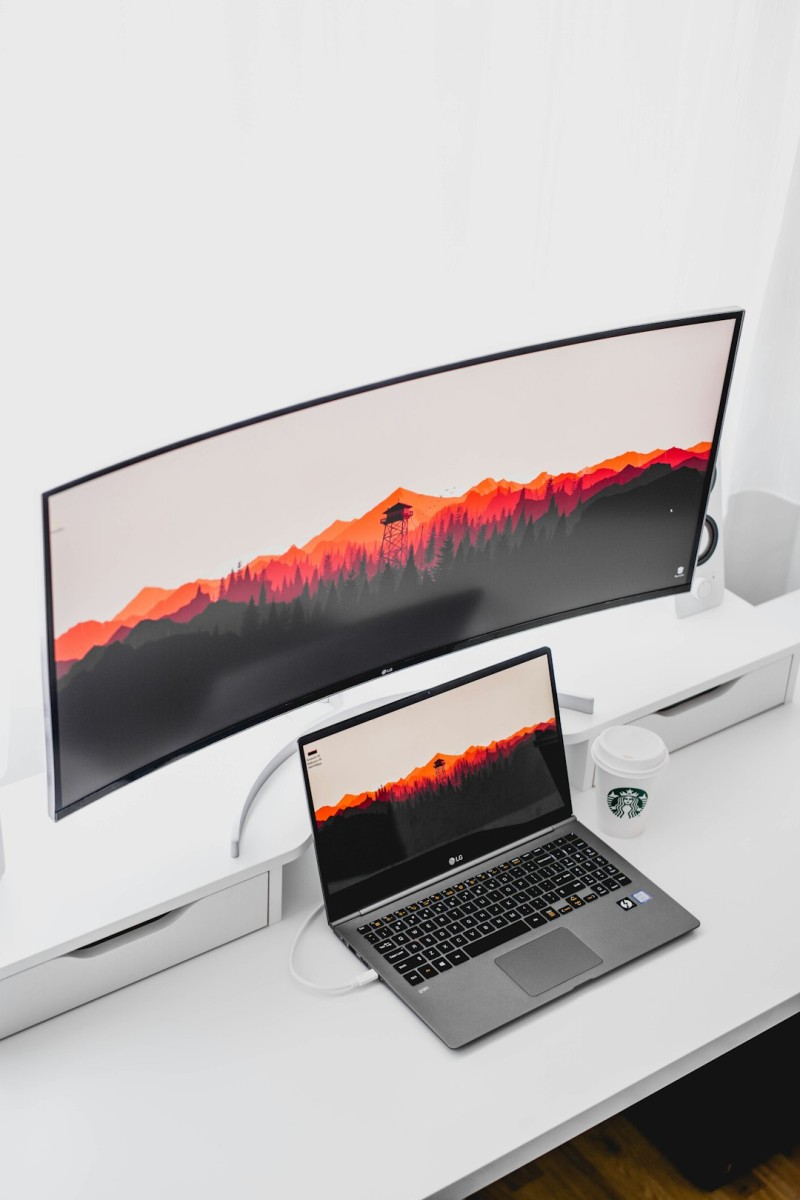
Use HDMI or DisplayPort to connect your laptop to an external monitor.
- If lines appear on both screens: GPU or motherboard issue.
- If external display is normal: Internal screen or display cable problem.
Step 4: Update Graphics Drivers
Download the latest drivers from the manufacturer’s official website. Avoid relying solely on automatic updates.
Step 5: Adjust Screen Angle
Carefully tilt the screen back and forth. If the lines change or flicker, the internal display cable is likely loose or worn.
Effective Fixes for Laptop Screen Lines
Software-Based Fixes
If the issue is software-related, these steps are effective:
- Update or reinstall graphics drivers.
- Adjust screen resolution and refresh rate.
- Perform a system restore to a previous stable state.
- Scan for malware that may interfere with display settings.
These fixes are low-risk and should be attempted before any hardware intervention.
Hardware Fixes
When hardware is responsible, solutions become more technical:
- Reseat the display cable: Requires opening the laptop panel.
- Replace the display cable: Relatively affordable repair.
- Replace the LCD panel: Necessary for cracked or internally damaged screens.
- Repair or replace the motherboard: Required in severe GPU cases.
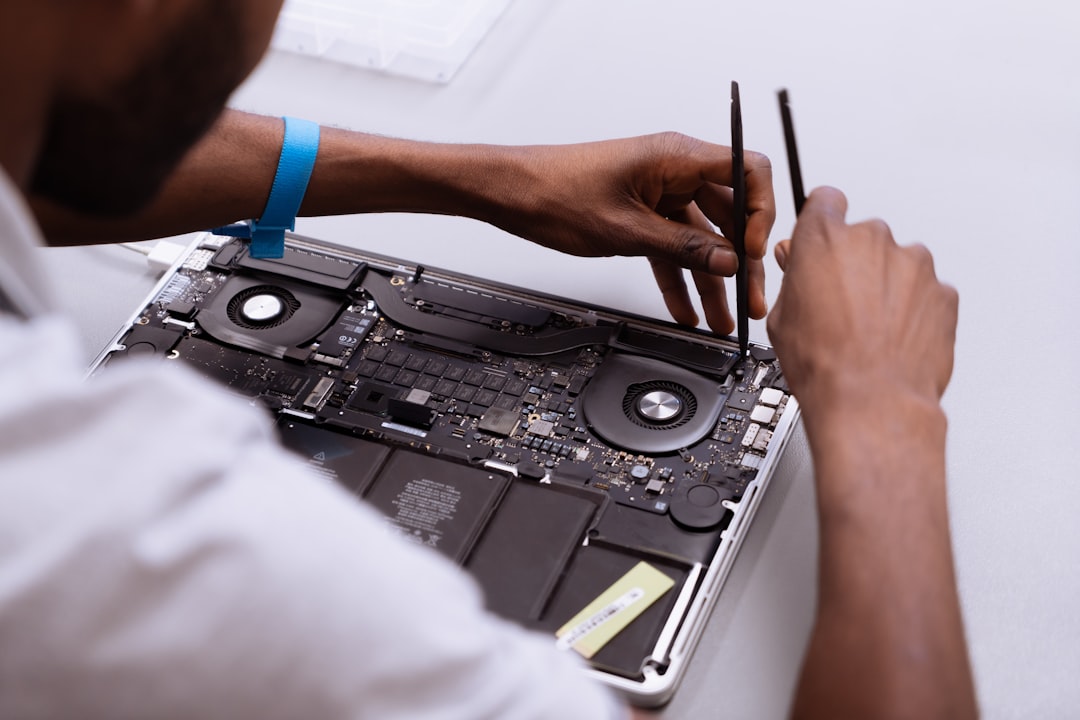
Important: Opening a laptop may void the warranty. If the device is still covered, contact the manufacturer before attempting repairs.
Can Screen Lines Be Prevented?
While not all issues are preventable, proper care significantly reduces risk.
- Avoid excessive pressure on the screen.
- Open and close the lid gently.
- Keep the laptop cool to protect internal components.
- Regularly update drivers.
- Use a protective sleeve during transport.
Heat management is especially important. Overheating accelerates GPU degradation and can eventually cause persistent display artifacts.
When to Seek Professional Repair
Professional assistance is recommended if:
- The laptop is under warranty.
- You suspect GPU or motherboard failure.
- The screen must be replaced and you lack technical experience.
- The issue appeared after liquid damage or a drop.
A certified technician can run advanced diagnostics to confirm the exact cause before replacing costly components.
Cost Considerations
The cost of repairing laptop screen lines varies widely depending on the issue:
- Driver fix: Free
- Display cable replacement: Moderate cost
- Screen replacement: Moderate to high cost depending on model
- Motherboard or GPU repair: Expensive
In older laptops, motherboard repairs may exceed the value of the device. In such cases, replacement might be more practical.
Final Thoughts
Laptop screen lines should never be ignored. What may start as a thin, barely noticeable line can develop into widespread display failure. The key to resolving the issue effectively is accurate diagnosis—separating software glitches from hardware defects.
Start with simple troubleshooting steps like driver updates and external monitor testing. If the problem persists and points to hardware damage, timely repair can prevent further deterioration. In cases of GPU or motherboard failure, carefully weigh repair costs against replacing the device.
A methodical, informed approach ensures that you address the problem responsibly and avoid unnecessary expenses, keeping your laptop functional and reliable for years to come.

