

How to Set Up Your New iPhone: A Beginner’s Onboarding Guide
A new iPhone can feel exciting and slightly overwhelming, especially for someone who has never used iOS before. The setup process is designed to be friendly, but a beginner may still wonder which options matter, what should be skipped, and how to make the phone ready for everyday use safely.
TLDR: A new iPhone owner should begin by charging the device, turning it on, connecting to Wi-Fi, and following the on-screen setup steps. The most important choices involve signing in with an Apple ID, setting up Face ID or Touch ID, enabling iCloud, and restoring data if moving from an old phone. After setup, the user should update iOS, review privacy settings, install essential apps, and learn basic navigation. A few careful choices at the start can make the iPhone easier, safer, and more useful from day one.
1. Before Turning On the iPhone
Before setup begins, the new owner should make sure the iPhone has enough battery power. If the device is brand new, it may already have a partial charge, but plugging it in for a few minutes is a good idea. A stable Wi-Fi connection should also be available, because the phone may need to activate, download updates, restore data, or sign in to Apple services.
The user should also keep important information nearby. This may include an Apple ID email and password, the passcode from an old iPhone, Wi-Fi password, SIM card details, and any login information for email or banking apps. If the owner is switching from Android, having the Android phone charged and nearby can help with data transfer.

2. Turning On the iPhone and Starting Setup
To begin, the user should hold the side button until the Apple logo appears. After a moment, the Hello screen will appear in multiple languages. The user can swipe up or press the Home button, depending on the iPhone model, to start the setup assistant.
The iPhone will ask for a language and country or region. These choices affect the keyboard, date format, emergency services, and available features. After that, the device may offer Quick Start, which allows setup using another nearby iPhone or iPad. For someone upgrading from an older iPhone, Quick Start is usually the easiest method.
3. Using Quick Start or Manual Setup
If the new owner already has an iPhone, Quick Start can copy settings, Apple ID details, Wi-Fi information, and preferences. The old iPhone should be unlocked and placed near the new one. A prompt will appear on the old device, allowing the user to begin setup. The new phone may display an animation that must be scanned with the old phone’s camera.
If there is no old iPhone nearby, the user can choose Set Up Manually. Manual setup takes a little longer but gives full control over each step. The iPhone will ask to connect to Wi-Fi or cellular service before continuing. A reliable network connection helps avoid delays during activation.
4. Setting Up Cellular Service
Many modern iPhones support eSIM, while some models also support a physical SIM card. The phone may detect service automatically if it was purchased through a carrier. If an eSIM is required, the user may follow on-screen carrier instructions, scan a QR code, or transfer service from an older iPhone.
If cellular setup is not possible immediately, the owner may be able to skip the step and finish it later in Settings. However, calling, texting, and mobile data will not work until cellular service is activated. Wi-Fi can still be used for setup, app downloads, and internet access.
5. Creating a Passcode and Enabling Face ID or Touch ID
Security is one of the most important parts of the setup process. The iPhone will ask the user to create a passcode. A six-digit passcode is standard, though a longer numeric code or custom alphanumeric password can offer stronger protection.
Next, the iPhone may ask to set up Face ID or Touch ID. Face ID uses facial recognition on newer iPhones, while Touch ID uses a fingerprint on supported models. These features make unlocking the phone, approving purchases, and signing into apps faster and more secure. A beginner should not skip this step unless there is a specific reason.
6. Signing In With an Apple ID
An Apple ID is the account that connects the iPhone to Apple services, including iCloud, the App Store, iMessage, FaceTime, Apple Music, and device backup. If the user already has an Apple ID, signing in will make the phone much more useful. If not, the setup assistant can help create one.
The user should choose a strong password and keep recovery information updated. Apple may ask for two-factor authentication, which helps protect the account by requiring a trusted device or phone number during sign-in. This can feel like an extra step, but it is an important layer of safety.
7. Restoring Data or Starting Fresh
The iPhone will ask whether the owner wants to restore apps and data. Several options may appear:
- Restore from iCloud Backup: Best for users who backed up an old iPhone to iCloud.
- Restore from Mac or PC: Useful when a computer backup was created previously.
- Transfer Directly from iPhone: A convenient option when both old and new iPhones are nearby.
- Move Data from Android: Helpful for users switching from an Android phone.
- Do Not Transfer Apps and Data: Best for someone who wants a clean start.
Restoring data may take time, especially if there are many photos, videos, apps, and messages. The phone can often be used while apps continue downloading in the background. A clean setup may be simpler for a beginner who wants to avoid clutter, but it means apps and accounts must be added manually.
8. Understanding iCloud During Setup
iCloud helps keep information synchronized across Apple devices. It can store photos, contacts, calendars, notes, passwords, messages, and device backups. During setup, the iPhone may ask whether to enable iCloud features. For most beginners, turning on iCloud Backup is strongly recommended because it can protect data if the phone is lost, damaged, or replaced.
The user should also review iCloud Photos. When enabled, it syncs photos and videos across devices and stores them in iCloud. This is convenient, but it can use a large amount of storage. Apple provides a limited amount of free iCloud storage, and some users may eventually need a paid plan.
9. Choosing Privacy and Location Settings
The setup assistant will ask about privacy-related features such as Location Services, analytics sharing, Siri, and app tracking. A beginner may not know what to choose, but the safest approach is to enable features that are useful and avoid unnecessary sharing.
Location Services allows maps, weather, Find My iPhone, ride-sharing apps, and emergency services to work properly. It can be turned on during setup and controlled later for each app. Sharing iPhone analytics with Apple is optional. It may help improve products, but the phone works normally if it is disabled.
10. Setting Up Siri, Apple Pay, and Keychain
The iPhone may offer to set up Siri, Apple’s voice assistant. Siri can send messages, start calls, set reminders, answer questions, and control smart home devices. If the user prefers privacy or rarely uses voice assistants, Siri can be skipped and enabled later.
Apple Pay allows secure payments using saved cards in the Wallet app. It can be useful, but a beginner may prefer to set it up after becoming comfortable with the phone. iCloud Keychain, however, is often worth enabling because it securely saves passwords and helps fill them in across apps and websites.
11. Updating iOS After Setup
Once the Home Screen appears, the first task should be checking for a software update. The user can open Settings, select General, and then choose Software Update. Updating iOS helps improve security, fix bugs, and unlock the latest features.
If an update is available, the phone should ideally be connected to Wi-Fi and plugged into power. The update may take several minutes, and the device will restart during the process. Keeping iOS current is one of the easiest ways to keep the iPhone secure.
12. Learning Basic Navigation
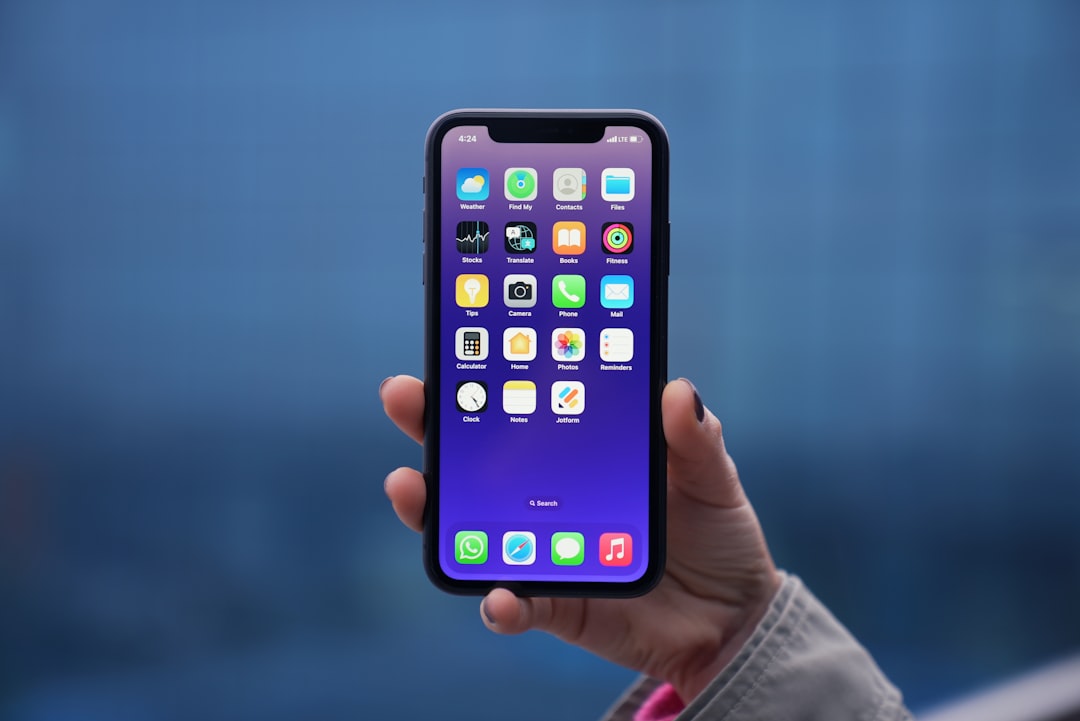
A beginner should spend a few minutes learning how to move around the iPhone. On Face ID models, swiping up from the bottom returns to the Home Screen. Swiping up and pausing opens the app switcher. Swiping down from the top-right corner opens Control Center, while swiping down from the middle of the screen opens Search.
On iPhones with a Home button, pressing the Home button returns to the Home Screen, and double-pressing it opens the app switcher. The user can rearrange apps by pressing and holding an app icon until the icons jiggle. Apps can be moved, grouped into folders, or removed from the Home Screen.
13. Installing Essential Apps
The App Store is where the user can download social media apps, banking tools, messaging services, streaming platforms, productivity apps, and games. The owner should open the App Store, search for trusted apps, and download only from legitimate developers.
Some apps will ask for permissions, such as access to photos, contacts, camera, microphone, or location. A beginner should read these prompts carefully. If an app does not clearly need a permission, the user can choose Don’t Allow or provide limited access.
14. Setting Up Find My iPhone
Find My iPhone is one of the most important safety features on the device. It helps locate a missing iPhone, play a sound, mark the device as lost, or erase it remotely. In many cases, Find My is enabled automatically when the user signs in with an Apple ID, but it should still be checked.
The user can go to Settings, tap the name at the top, choose Find My, and confirm that Find My iPhone is turned on. Enabling Send Last Location is also helpful because it sends the phone’s location to Apple when the battery is critically low.
15. Customizing the iPhone for Daily Use
After the core setup is complete, the owner can personalize the phone. This may include changing the wallpaper, adjusting text size, setting up Focus modes, choosing notification styles, and adding widgets. These changes are not required, but they can make the iPhone feel more comfortable.
The user should also review Settings for display brightness, sound and haptics, battery health, emergency contacts, and accessibility options. Apple includes many accessibility features, such as larger text, voice control, captions, and display adjustments, which can make the phone easier to use for different needs.
16. Beginner Mistakes to Avoid
New iPhone owners sometimes rush through setup and later realize that important features were skipped. A few common mistakes are easy to avoid:
- Using a weak passcode that is easy to guess.
- Skipping iCloud Backup and risking data loss.
- Forgetting the Apple ID password or recovery details.
- Allowing every app to access location, photos, or contacts.
- Ignoring software updates for too long.
- Downloading apps from unfamiliar or suspicious sources.
A careful setup does not need to be complicated. The new owner should take time, read each screen, and make choices that balance convenience, privacy, and security.
FAQ
How long does it take to set up a new iPhone?
Basic setup may take about 10 to 20 minutes. Restoring data, downloading apps, and updating iOS can take much longer, depending on internet speed and the amount of data being transferred.
Is an Apple ID required to use an iPhone?
An iPhone can perform some basic functions without an Apple ID, but many key features require one. The App Store, iCloud, iMessage, FaceTime, Find My iPhone, and backups work best with an Apple ID.
Should a beginner restore from backup or start fresh?
If the user wants old messages, photos, apps, and settings, restoring from backup is best. If the old phone was cluttered or had too many unused apps, starting fresh may create a cleaner experience.
Can data be moved from Android to iPhone?
Yes. Apple provides a Move to iOS option during setup. It can transfer contacts, messages, photos, videos, mail accounts, calendars, and some free apps when both phones are connected properly.
What should be done first after setup is complete?
The user should check for an iOS update, confirm that iCloud Backup and Find My iPhone are enabled, review privacy permissions, and install essential apps from the App Store.
Is Face ID safe to use?
Face ID is designed to be secure and convenient. It stores facial recognition data on the device rather than sending it to external servers, and it can be used for unlocking the phone, approving purchases, and signing into apps.

