
How to Increase FPS in Xenia (Skate 3)
Skate 3 remains one of the most beloved skateboarding video games, and with the help of Xenia, the Xbox 360 emulator, fans can now enjoy it on PC. However, running Skate 3 smoothly on an emulator like Xenia takes a bit of fine-tuning. Users often struggle with stuttering, lag, and low frame rates that hinder gameplay. If you’re looking to improve your Frames Per Second (FPS) while playing Skate 3 on Xenia, this guide provides you with step-by-step methods to optimize performance without needing a high-end PC.
TL;DR: Too Long, Didn’t Read
If you’re playing Skate 3 on the Xenia emulator and experiencing low FPS, there are several things you can do to boost performance. Start by switching to Xenia Canary, use the Vulkan renderer, and ensure your graphics drivers are updated. You can also tweak the emulator’s configuration settings, limit background activity, and consider disabling vsync or enabling async mode. These changes can collectively enhance the gameplay experience dramatically.
1. Use the Correct Version of Xenia
There are two main branches of the Xenia emulator: the Master branch and the Canary branch. For performance and experimental enhancements, the Canary branch is preferred—especially for games like Skate 3.
- Download Xenia Canary: Visit the official Xenia GitHub page or trusted repositories that compile the Canary branch.
- Frequent Updates: Canary receives frequent performance updates and compatibility improvements that may not yet make it into the Master branch.
2. Use Vulkan as the Graphics Backend
Xenia supports DirectX 12 and Vulkan as rendering backends, but Vulkan generally performs better for Skate 3. You can switch the graphics backend in the emulator’s configuration file.
- Open config file (xenia.config.toml): Located in your Xenia folder.
- Change the line:
gpu = "d3d12"to:
gpu = "vulkan"
Vulkan tends to be more efficient and better suited to modern GPUs, leading to an increase in FPS and more stable gameplay.
3. Make Sure Your GPU Drivers Are Up-to-Date
Running older graphic drivers can severely limit your FPS. Since Xenia uses your system’s GPU heavily, it’s crucial you have the latest stable updates installed from your GPU’s manufacturer.
- Nvidia: Download via GeForce Experience or nvidia.com
- AMD: Use Radeon Software or visit amd.com
- Intel: Use Intel Driver & Support Assistant
4. Change Xenia Configuration Parameters for Better Performance
Inside the configuration file xenia.config.toml, you can tweak various settings that will impact performance. Here are some of the top tweaks that can help:
- Enable Async Compute:
gpu.async_compute = true - Disable VSync: This can reduce input delay and sometimes boost FPS.
gpu.vsync = false - Reduce maximum FPS limit: Uncapped FPS can cause instability on some systems.
gpu.max_frame_rate = 60
These settings are especially helpful when used in combination with a Vulkan backend, and they can help reduce stuttering and frame drops in Skate 3.
Image not found in postmeta5. Lower System Load with Background Task Management
When running demanding applications like emulators, ensuring nothing else is hogging CPU or RAM is vital for maximum frame rate. Be sure to:
- Close background applications: Especially Chrome, Discord, and recording software like OBS, which can demand CPU cycles.
- Use Game Mode (Windows 10/11): This prioritizes Xenia’s processes over others running in the background.
- Set Xenia to High Priority: In Task Manager, right-click xenia.exe, select ‘Go to details’, then assign high priority.
6. Use a Lower Resolution and Adjust Scaling Options
High internal resolution scaling can drastically drop performance, especially on mid-range or older GPUs. Xenia doesn’t have an in-built UI for resolution scaling yet, but you can try forcing a lower desktop resolution like 720p or 900p when playing Skate 3 and run the emulator in full screen to match.
This trick reduces pixel workload and can result in a noticeable FPS bump.
7. Use Prebuilt Shader Caches
Stuttering in games like Skate 3 often comes from shader compilation. Over time, Xenia will build a shader cache, leading to smoother gameplay. However, you can sometimes find prebuilt shader caches shared by the community online, which can help reduce stutter from the start. Use them with caution and back up your own cache files before replacing anything.
8. Use SSD Over HDD
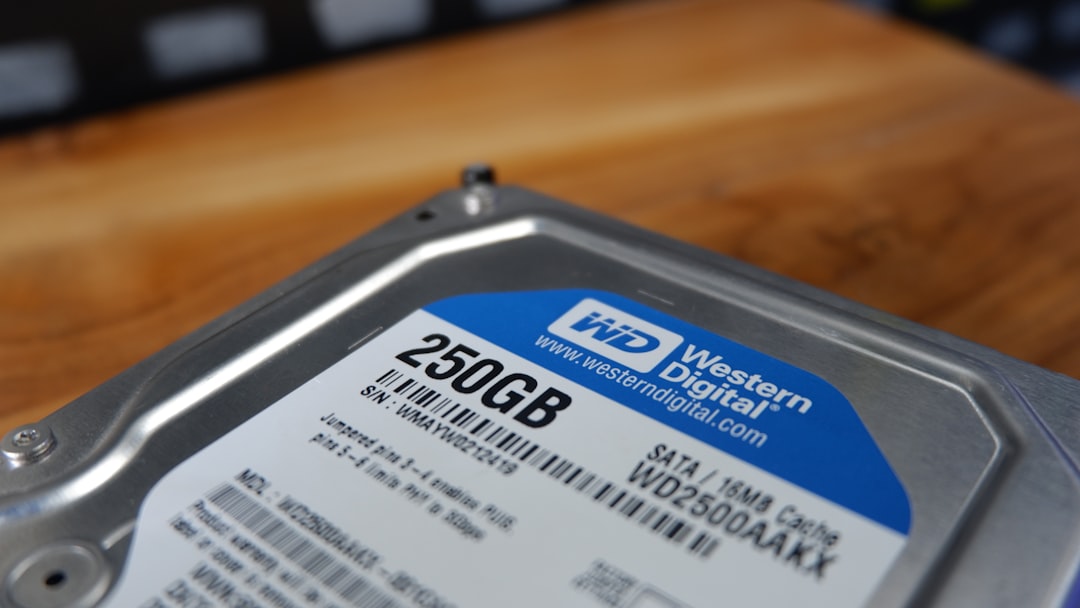
If you’re still relying on a Hard Disk Drive, migrating Xenia and your game files to a Solid State Drive (SSD) can significantly reduce loading times and eliminate stutters caused by data access delays. While it won’t magically increase FPS, smoother data read/write speeds can enhance overall performance consistency.
9. Disable Fullscreen Optimizations and DPI Scaling
Windows 10 and 11 sometimes apply settings to applications that can interfere with performance. Here’s how to disable them for Xenia:
- Right-click on xenia.exe and choose Properties.
- Under the Compatibility tab, check “Disable fullscreen optimizations”.
- Click “Change high DPI settings” and check both boxes under that menu.
This can reduce input lag and graphical anomalies while providing a minor—but sometimes vital—performance improvement.
10. Keep Audio Drivers and System Up-to-Date
Although it might sound unrelated, outdated or conflicting audio drivers can occasionally cause instability in emulators, especially if you suffer from intermittent hitching or microstutters. Ensure your sound drivers are current via Device Manager or manufacture utility tools.
Troubleshooting: Still Laggy?
If you’ve tried all the above and you’re still stuck with low FPS, it might be worth trying one of these extra options:
- Switch Between GPU Backends: If Vulkan isn’t working well, test DirectX 12—especially on older AMD cards.
- Monitor Temperatures: Overheating processors or thermal throttling can tank FPS without you realizing it.
- Recompile or redownload Skate 3: Occasionally, the ISO/XEX image itself may be improperly dumped or corrupted.
Final Thoughts
Emulating Skate 3 through Xenia can be one of the best ways to enjoy this iconic game in high definition on modern systems, but that experience is highly dependent on software and hardware optimization. By following the steps above—especially switching to the Vulkan graphics backend, updating drivers, fine-tuning the config file, and managing background load—you can achieve smoother and more consistent FPS that lets you pull off tricks and explore the open world without interruption.
Keep in mind that Xenia is still in development, and new updates frequently bring better compatibility and more efficient code pathways. Make it a habit to check for updates and experiment with new settings as they arrive.

