

How to Fix Shift Button Not Working on Keyboard
Computer keyboards are one of the most essential components of any workstation or setup. When something goes wrong—especially with a key as critical as the Shift key—it can disrupt your productivity, communication, and efficiency. Whether you’re typing a document, writing code, or entering a password, the Shift key is integral to basic text input by enabling capital letters and special character input. If it’s suddenly not working, it’s important to diagnose the issue properly and fix it promptly.
TLDR
If your Shift key is not working, it could be due to hardware malfunctions, software settings, outdated drivers, or even dirt under the keys. Start by checking if the issue persists in another program or system. Try using an external keyboard, scan for malware, and check for sticky or accessibility keys settings. If necessary, consider cleaning or replacing the keyboard.
1. Identify the Nature of the Problem
Before jumping into solutions, you’ll want to narrow down the source of the issue. Here are some quick checks to identify the problem type:
- Is the issue with one Shift key or both? Most keyboards have two Shift keys; test both to see if the problem is isolated.
- Check specific programs: Does the problem occur in all applications or only in specific ones like Word or a web browser?
- Try another keyboard: Plugging in a secondary, known-working keyboard can tell you if it’s a hardware issue.
Understanding whether the problem is software or hardware-based will help you apply the correct fix more efficiently.
2. Restart Your Computer
It might sound simplistic, but performing a full reboot can resolve many input issues. Temporary glitches in the software or memory can impact keyboard functionality. Always try restarting your computer before diving into more complex solutions.
3. Clean the Shift Key and Keyboard
Physically inspecting and cleaning your keyboard can sometimes fix the issue. Over time, dirt, dust, or debris can build up under the keys, preventing them from being pressed properly.
Steps to clean:
- Turn off and unplug your computer or laptop.
- Use compressed air to blow out debris around the Shift keys.
- Gently pry off the keycap if your keyboard allows it (check the manual).
- Clean underneath with a soft brush and alcohol-soaked cloth.
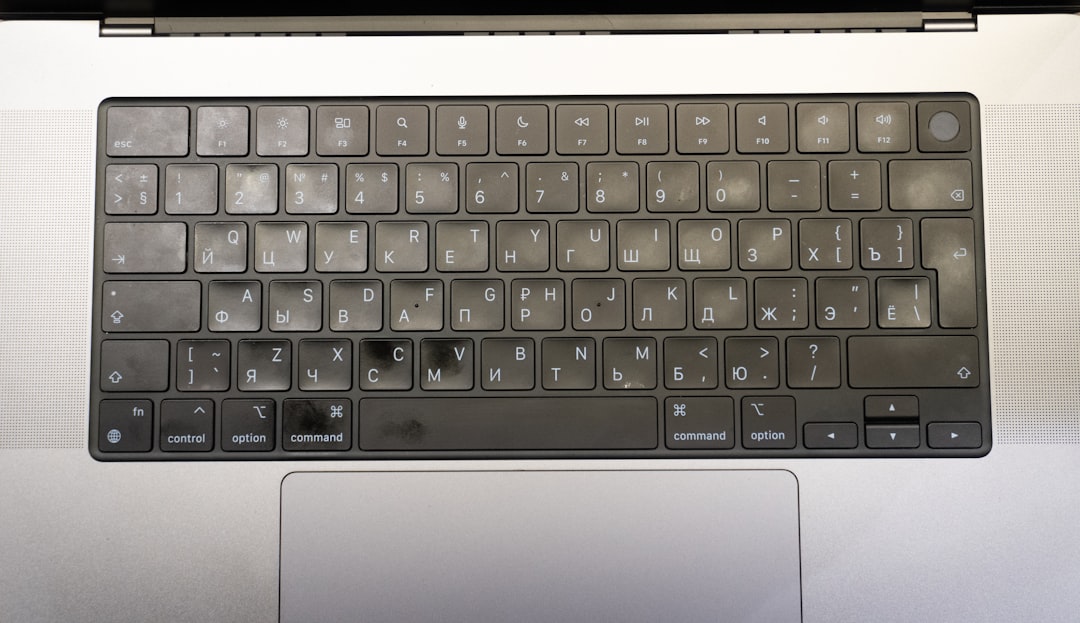
If cleaning restores function, the Shift key’s lack of response was likely mechanical rather than technical.
4. Check Modifier Key Settings in Your OS
Both Windows and macOS have accessibility settings that can remap or alter keyboard behavior. One such feature is Sticky Keys, which changes how modifier keys like Shift operate.
Windows:
- Go to Control Panel and click on Ease of Access Center.
- Select Make the keyboard easier to use.
- Uncheck Turn on Sticky Keys and Filter Keys.
macOS:
- Go to System Settings or System Preferences.
- Select Accessibility → Keyboard.
- Ensure Sticky Keys are turned off.
These settings can inadvertently be toggled via keyboard shortcuts, so it’s a common (and easily fixed) user error.
5. Test for Driver or Software Conflicts
Keyboard drivers are essential for translating physical key presses into digital input. If your driver is outdated or corrupted, some keys may stop functioning properly.
To update or remove drivers in Windows:
- Right-click the Start button and choose Device Manager.
- Expand the Keyboards category.
- Right-click on your keyboard device and select Update driver.
- If updating fails, try selecting Uninstall device and reboot your computer.
macOS systems update drivers along with the OS, so install any pending OS or security updates.
6. Check for Malware or Background Software Conflicts
Some types of malware or productivity software can interfere with keyboard input. Applications like keyloggers, productivity trackers, or accessibility apps could remap or block keys.
Steps to check:
- Run a full virus scan with reputable antivirus software.
- Boot into Safe Mode and test if the Shift key works there. If it does, a third-party app in normal mode is likely the problem.
- Open the Task Manager (Windows) or Activity Monitor (macOS) to look for unfamiliar background processes.
If keyboard functionality returns in Safe Mode or after disabling certain apps, try removing or updating the offending application.
7. Use an External Keyboard or Virtual Keyboard
If you’re unsure whether it’s a hardware fault with your laptop’s built-in keyboard, try these substitute input methods:
Options:
- External Keyboard: Plug in a USB or Bluetooth keyboard and see if the Shift keys work.
- Virtual On-Screen Keyboard:
- Windows: Go to Start → Settings → Ease of Access → Keyboard → Turn on On-Screen Keyboard.
- macOS: Go to System Preferences → Keyboard → Input Sources → Show Keyboard Viewer.
If the Shift key functions normally using these substitutes, the issue is likely with your keyboard hardware—especially if cleaning didn’t help.
8. Look into System Updates and Rollbacks
Occasionally, operating system updates might be responsible for input device failures. If the Shift key stopped working after a recent update, consider rolling back or checking online for known bugs associated with that specific update.
Windows users:
- Go to Settings → Update & Security → View Update History.
- Click Uninstall Updates to revert the last update if needed.
Mac users: While macOS does not easily allow rollbacks, you can search for issues online, or contact Apple Support if the Shift key issue started post-update.
9. Hardware Replacement Might Be Necessary
If none of the above solutions work, your Shift key (or the keyboard in general) may be physically broken or experiencing electrical failure. This is not uncommon in cases of:
- Laptop spills
- Dropped devices
- Age-related wear and tear
Consult a professional technician or visit an authorized repair center. Many users with laptop keyboards end up replacing the entire upper chassis or getting an external keyboard as a substitute.
Final Thoughts
A malfunctioning Shift key can be an annoying and seemingly small problem that significantly impacts your daily tasks. The key to resolution lies in methodically checking the most common causes—from dust and debris to malware and drivers. While hardware failures may ultimately require replacement, many fixes are simple, quick, and inexpensive.
Always begin with the least invasive solutions like cleaning, rebooting, and checking settings. If those don’t work, escalate to more technical fixes or hardware diagnosis. Knowing what to look for will save time and prevent unnecessary repairs or replacement.

