
How to Fix Modern Warfare 3 Travis-Rilea Error?
Getting the Travis-Rilea error in Modern Warfare 3 can kill the mood fast. You launch the game, wait for online services, and then the connection fails. This error matters because it blocks multiplayer access completely. Sometimes it shows up right after an update. Other times it appears without warning.
This guide explains what the error means, why it happens, how to fix it step by step, and how to avoid it later.
What Is the Travis-Rilea Error in Modern Warfare 3?
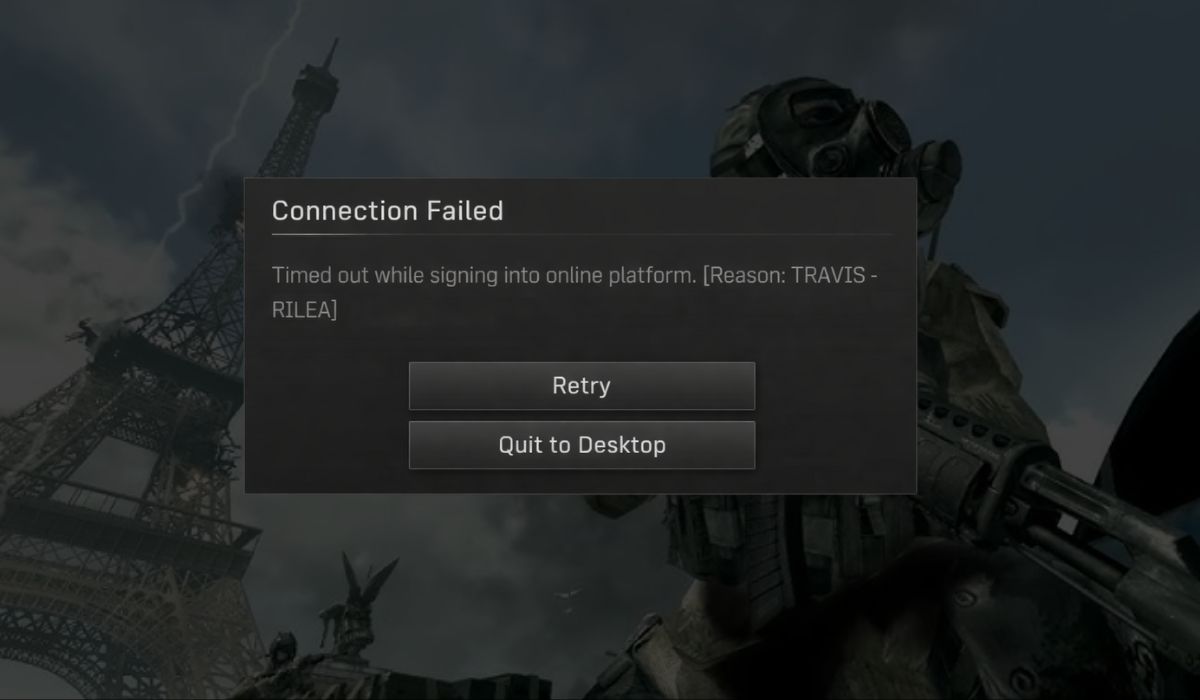
The Travis-Rilea error in Modern Warfare 3 is an online connection error. It appears when the game cannot communicate with required online services. This includes matchmaking servers and account verification systems. The error does not mean you are banned. It also does not point to a gameplay bug or corrupted save file.
Most players see the Travis-Rilea error while connecting to online services. It usually appears on the loading screen before multiplayer starts. In some cases, it shows up right after pressing Play from the main menu.
Common Causes of Modern Warfare 3 Travis-Rilea Error
This error can happen for several reasons. Some causes come from server issues, while others come from local network problems. The mix can make it confusing. Below are the most common reasons players run into this issue.
- Activision servers are down or under maintenance
- Unstable or slow internet connection
- Platform service outage on Steam, Xbox, or PlayStation
- Strict or closed NAT type
- Router or modem connection issues
- VPN or proxy service interference
- Firewall or security software blocking traffic
How to Fix Modern Warfare 3 Travis-Rilea Error?
In most cases, the Travis-Rilea error goes away after fixing connection or network issues. The right fix depends on whether the problem is on the server side or your setup. Try the fixes below in order. Stop once multiplayer connects normally.
Fix #1: Check Activision Server Status
Sometimes the Travis-Rilea error has nothing to do with your system or internet. When Activision servers are down or under maintenance, Modern Warfare 3 cannot connect to online services. Checking server status first helps you avoid changing settings that do not need fixing.
If servers are offline, waiting is the only real solution.
Follow the steps below to check Activision server status:
- Open a web browser on your phone or PC
- Go to the official Activision support website
- Open the Online Services or Server Status page
- Select Call of Duty or Modern Warfare 3
- Check the status for your platform and region
- Look for maintenance or outage messages
- Wait until services show as online before retrying
Fix #2: Restart Modern Warfare 3 and the Game Platform
Game platforms can hold broken connection sessions. Restarting clears cached data and refreshes online authentication. This helps when the error appears after updates or long sessions.
Close Modern Warfare 3 fully. Restart Steam, Battle.net, Xbox, or PlayStation services. Launch the game again and try connecting.
Fix #3: Restart Your Internet Connection
Connection routing issues can cause the Travis-Rilea error. Restarting your modem or router refreshes your IP address and clears temporary network problems.
Turn off your router and modem. Wait about one minute. Turn them back on and let the connection stabilize before launching the game again.
Fix #4: Check Platform Online Services
Modern Warfare 3 depends on platform services to connect online. If Steam, Xbox Live, or PlayStation Network is down, the game cannot connect.
Check your platform’s service status page. If services are offline, wait until they return before trying to play.
Fix #5: Disable VPN or Proxy Services
VPNs and proxy tools often block or reroute game traffic. Activision servers may reject masked IP addresses. This causes the Travis-Rilea error during connection attempts.
Once the VPN is disabled, the game can connect using your real IP address.
Follow the steps below to disable VPN or proxy services:
- Close Modern Warfare 3
- Open your VPN or proxy app
- Click Disconnect or Turn Off
- Make sure the VPN icon disappears
- Restart your internet connection
- Launch the game again
- Try connecting to multiplayer
Fix #6: Set NAT Type to Open or Moderate
NAT type controls how your console or PC communicates online. A strict NAT can block matchmaking and server access. Setting NAT to Open or Moderate improves connectivity.
After adjusting NAT settings, the game usually connects without errors.
Follow these steps to improve NAT type:
- Log in to your router settings
- Enable UPnP if available
- Forward required game ports
- Save router settings
- Restart the router
- Restart your device
- Launch Modern Warfare 3 again
Fix #7: Allow Modern Warfare 3 Through Firewall
Firewalls can block game traffic silently. If Modern Warfare 3 is blocked, online services fail to connect. Allowing the game through the firewall fixes this issue.
Here are the steps to allow the game through the firewall:
- Open Windows Security
- Click Firewall and network protection
- Select Allow an app through firewall
- Click Change settings
- Find Modern Warfare 3
- Check Private and Public boxes
- Save changes and restart the game
Fix #8: Contact Activision Support
If none of the fixes work, the issue may be account-specific or server-side. In that case, only official support can help. Activision support can check connection logs and account status.
When contacting support, provide your platform, error code, region, and time the error appears. This helps speed up the response.
Prevention Tips to Avoid Travis-Rilea Error in the Future
Preventing this error saves time and frustration. A few simple habits help keep online play smooth.
- Use a stable wired or strong Wi-Fi connection
- Avoid VPNs while playing
- Keep router firmware updated
- Maintain Open or Moderate NAT type
- Restart the router weekly
- Check server status before long sessions
- Keep firewall rules updated
Conclusion
In short, the Travis-Rilea error in Modern Warfare 3 is an online connection problem. It usually comes from server outages, network routing issues, or blocked traffic. The error appears before multiplayer loads and prevents online play.
Try the fixes one by one and give each step time to work. If the error continues, contacting Activision support is the best next step. If this guide helped you, share it with other players and leave a comment about which fix worked for you.

