
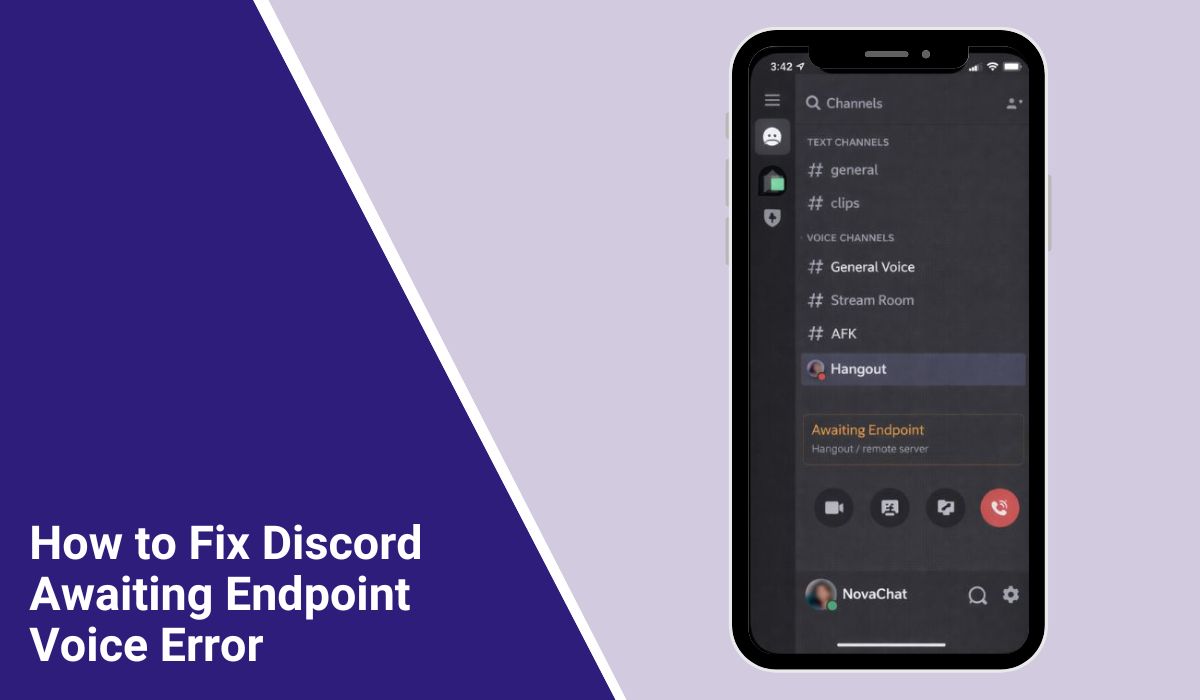
How to Fix Discord Awaiting Endpoint Voice Error?
You join a voice channel, ready to talk, and then it stops. Discord shows “Awaiting Endpoint.” Text still works. Voice does not. That moment feels frustrating, especially during a game or a team call. This guide helps you understand what that message means, why it happens, how to fix it, and how to keep it from coming back.
What Is “Discord Awaiting Endpoint”?
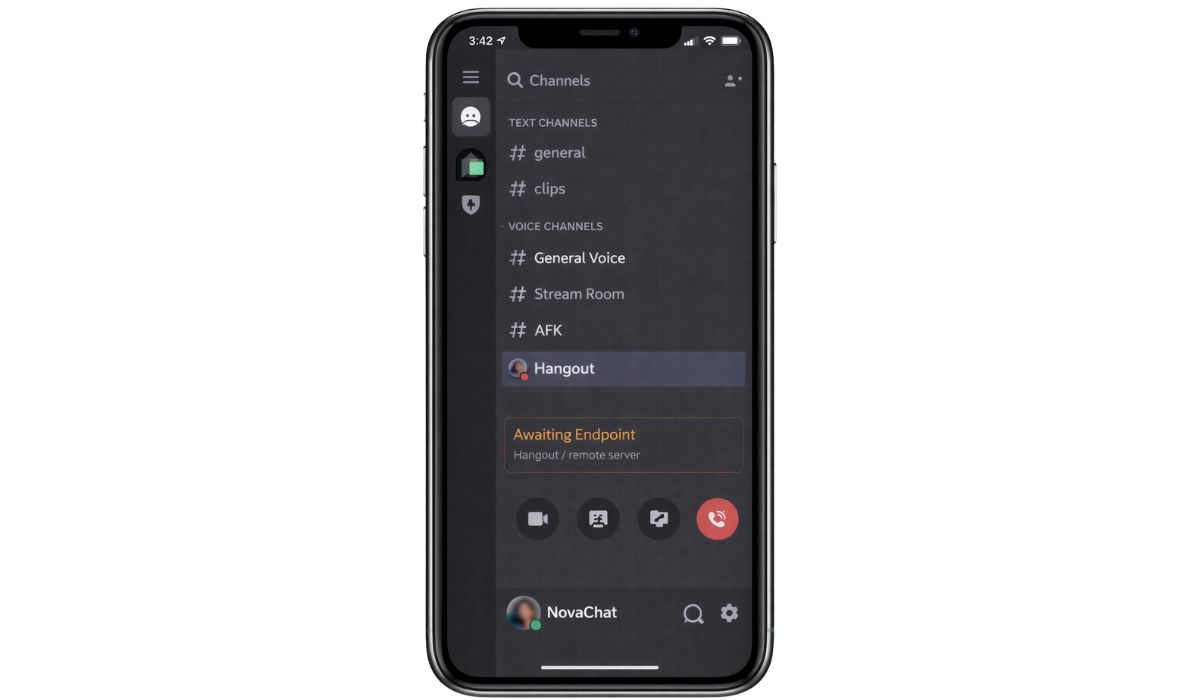
“Awaiting Endpoint” means the app is trying to connect your device to a voice server but cannot finish the link. The connection starts, yet it never completes. Because of that, voice chat stays stuck while the app waits for a response.
You usually see this when you join or switch a voice channel on Discord. It can show up on the desktop app, the web version, or the mobile app. It often appears after a network change, a quick channel switch, or a reconnect attempt.
Common Causes of Discord Awaiting Endpoint
This error can happen for several reasons, depending on your network and app state. These are the most common ones.
- Unstable internet that drops packets
- UDP traffic blocked by a firewall or router
- VPN or proxy changing your route
- Voice server region having issues
- Corrupted Discord cache files
- Audio device conflicts
- Temporary Discord voice service trouble
Each cause points to a connection path problem, not a text chat issue.
How to Fix Discord Awaiting Endpoint?
In most cases, simple steps bring voice back. Try one fix at a time. Pause between tries.
Fix #1: Leave and Rejoin the Voice Channel
This resets the voice handshake and often clears a stuck state.
Here are the following steps which help you reconnect:
- Click Leave on the voice channel
- Wait 10 seconds
- Join the same channel again
- Watch the status message
- Speak to test audio
Once it connects, the message disappears.
Fix #2: Restart Discord Completely
Background processes can hold a bad connection.
Follow the steps below to restart Discord:
- Close Discord
- End Discord tasks if needed
- Reopen the app
- Join the voice channel
- Test your mic
This clears cached sessions.
Fix #3: Turn Off VPN or Proxy
VPNs can change routing and block voice traffic. If you use one, disable it for Discord and try again. Many users see an instant fix after this step.
Fix #4: Change the Server Region
Sometimes the voice region struggles.
Try these simple steps to change it:
- Open Server Settings
- Go to Voice Channels
- Set a different region
- Save changes
- Rejoin the channel
Pick a region close to your location.
Fix #5: Check Firewall and Router Rules
Firewalls can block UDP voice packets. Allow Discord through your firewall. If you use a strict router profile, relax it for voice traffic. After that, reconnect.
Fix #6: Reset Voice Settings
Audio conflicts can stall the connection.
Perform the following steps carefully:
- Open Discord Settings
- Go to Voice & Video
- Click Reset Voice Settings
- Rejoin the channel
- Select the correct input and output
This refreshes audio paths.
Prevention Tips to Avoid Discord Awaiting Endpoint
A few habits reduce repeat issues.
- Use a stable network, wired if possible
- Avoid VPNs during voice chat
- Restart your router once a week
- Keep Discord updated
- Set the right mic and speakers
- Avoid rapid channel switching
- Check Discord status during outages
These steps keep the voice path clean.
Conclusion
In short, “Awaiting Endpoint” means Discord cannot finish a voice connection. It usually comes from network routing, device settings, or a busy voice region. Text works because it uses a different path.
Try the fixes calmly and give each one a moment. If the issue keeps coming back, it may be on Discord’s side and waiting helps. If this guide helped you, share it with friends or drop a comment with what worked for you.

