
How to Fix ChatGPT Error When Creating or Updating a Project?
When you try to create or update a project in ChatGPT and it throws an error, it stops everything. It breaks your flow and makes the whole task feel harder than it should be. When this happens, it usually means something in your project settings or workspace got confused. This guide explains what the error means, why it pops up, how to fix it, and what you can do so it stays away next time.
What Is This ChatGPT Project Error?
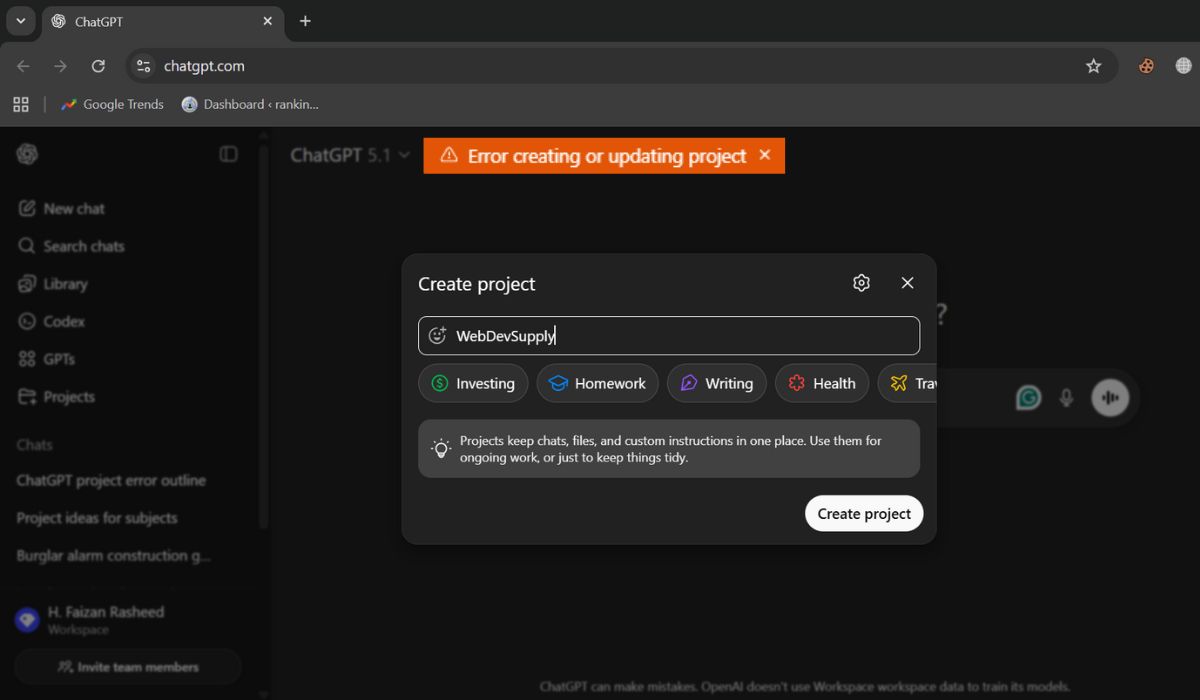
The ChatGPT project error is a message you see when the system can’t complete a task linked to a project. It can happen when ChatGPT tries to save new code, update your model setup, or register a new project in your workspace. The system shows this message when something inside your project configuration, model settings, or API link does not make sense to the OpenAI servers.
This message usually shows up inside the ChatGPT interface. You might see it on the project editor screen, on the custom GPT builder page, or when saving data inside your workspace. Sometimes it appears next to the project name, or in a small warning box when you try to update fields like the model, API key, or embedding configuration.
Common Causes of ChatGPT Project Error
This error can happen for several reasons, depending on your settings. Below are the causes many users run into.
- Wrong or missing project ID in the ChatGPT Workspace.
- Expired or deleted OpenAI API key connected to the project.
- Model version conflicts between GPT-4, GPT-4.1, GPT-4o, or older models.
- Damaged or unreadable project metadata inside the workspace.
- Workspace roles that block editing or project creation.
- Network or server interruptions that stop saving.
- API usage limits hitting the maximum point for your account.
How to Fix ChatGPT Error When Creating or Updating a Project?
You might see different versions of this problem depending on your internet connection, workspace roles, or small mistakes in your settings. However, the fixes below solve the issue for most users.
Fix 1: Check the Project ID
This fix matters because ChatGPT cannot update a project that has the wrong ID. When you use the correct ID, the workspace and the system talk to each other again.
Here are the following steps which help you to correct the project ID:
- Open your workspace.
- Go to the Projects tab.
- Pick the project you want to fix.
- Copy the project ID.
- Paste it into the update field inside the editor.
- Save your changes.
- Refresh the page and check again.
Fix 2: Regenerate Your API Key
This problem appears when your API key expired or got deleted. A new key restores the link between your project and the OpenAI API servers.
Follow the steps below to easily reconnect your API key:
- Log in to the OpenAI dashboard.
- Open the API Keys page.
- Create a new key.
- Copy it.
- Paste the new key into your project settings.
- Save the changes.
- Try updating the project again.
Fix 3: Adjust Workspace Permissions
This error also appears when your role doesn’t allow project editing. After adjusting permissions, the update should work without trouble.
You can perform the following steps to check your permissions:
- Open the Workspace settings.
- Go to the Members area.
- Click on your user profile.
- Look at your role or permissions.
- Ask an admin to change your role if needed.
- Reload ChatGPT.
- Try saving your project update.
Fix 4: Clear or Reset Project Metadata
Some projects store metadata that becomes corrupted. Clearing it removes the conflict.
Try these simple steps to quickly refresh your project metadata:
- Open project settings.
- Look for metadata or advanced fields.
- Remove fields that look empty or broken.
- Reset the default options.
- Save your project.
- Reload the editor.
- Test the update again.
Fix 5: Change the Model Version
When a project uses an old model that no longer works, this error appears. Switching to a stable model fixes the problem.
Below are the steps that will guide you to adjust the model version:
- Open your ChatGPT editor.
- Go to Model settings.
- Pick a working version like GPT-4.1 or GPT-4o.
- Remove unsupported versions.
- Save your changes.
- Test the update.
- Run your project to make sure it works.
Fix 6: Check Server or Network Status
When OpenAI servers have issues or your Wi-Fi drops, the system can’t update your project. In this case, wait a bit or reconnect your internet. No extra steps needed for this fix.
Fix 7: Reset Rate Limits or Usage
When your account hits a usage cap, the project cannot update. Checking your usage will tell you if this is the issue.
Follow these easy instructions to check your usage:
- Go to the OpenAI dashboard.
- Tap the Usage tab.
- Look for warning messages.
- Upgrade or add credits if needed.
- Wait for the change to update.
- Try your project update again.
Prevention Tips to Avoid Errors in ChatGPT
Stopping the error before it happens saves time and stress. The tips below help keep your projects stable.
- Keep your API keys fresh.
- Stick to stable GPT model versions.
- Clean unused metadata every few weeks.
- Use steady internet when updating projects.
- Watch your API usage to avoid limits.
- Keep your workspace roles organized.
- Update ChatGPT and OpenAI settings when needed.
Conclusion
In short, the ChatGPT error that appears when you create or update a project usually happens because something breaks inside the project settings. This might be the project ID, your API key, your workspace role, or the model version you selected. These issues can block ChatGPT from saving changes.
Try the fixes in this guide and follow the prevention steps to avoid future problems. If nothing works, reach out to OpenAI support so they can check deeper system issues. And if you found this guide useful, share it or leave a comment so others can solve the same issue faster.

