
PS5 Not Turning On? 5 Ways to Power Up Your Console
Your PS5 is silent. No light. No beep. No happy startup sound. It feels like your console has decided to take a nap forever. Do not panic. In many cases, a PS5 that will not turn on is not dead. It may just need a small reset, a better power connection, or a little dust rescue mission.
TLDR: If your PS5 is not turning on, start with the simple stuff first. Check the power cable, wall outlet, and power strip. Then try a full power cycle, Safe Mode, and a good cooldown. If nothing works, it may be time to contact PlayStation Support or a repair expert.
Before You Start: What Does “Not Turning On” Mean?
Not all “dead PS5” problems are the same. Your console may be giving you clues. Tiny clues. Sneaky clues. Console detective clues.
Look for these signs:
- No light at all: The console may not be getting power.
- One beep, then nothing: The PS5 may have a power or hardware issue.
- Blue light, no picture: The console may be on, but the screen is not showing it.
- White light, no image: This often points to an HDMI or display problem.
- Turns on, then shuts off: It may be overheating or having a system issue.
Once you know what it is doing, fixing it gets easier. So grab your controller, your power cable, and your best “I can fix this” face.
1. Check the Power Cable and Wall Outlet
Yes, this sounds too simple. But simple fixes win a lot. A loose cable can ruin game night faster than a surprise boss fight.
First, turn off the console fully if it has any light. Then unplug the PS5 power cable from the back of the console. Also unplug it from the wall. Wait a few seconds. Now plug it back in firmly.
Make sure the cable is pushed all the way into the PS5. It should feel snug. Not wobbly. Not “kind of in.” Fully in.
Now test the wall outlet. Plug in something else, like a lamp or phone charger. If it does not work, the outlet is the problem. Try another outlet.
If you use a power strip, remove it from the story. Plug the PS5 straight into the wall. Power strips can fail. Surge protectors can trip. They look innocent. But sometimes they are the villain.
Also check the power cable itself. Look for:
- Bent ends
- Frayed spots
- Burn marks
- Loose connectors
- Pet bite marks, because cats and dogs choose chaos
If the cable looks damaged, do not use it. Replace it with a compatible power cable. Safety first. Games second. Snacks third. Actually, snacks can be second.
Image not found in postmeta2. Do a Full Power Cycle
A power cycle is like a nap for your console’s brain. It clears stuck power states. It can help when the PS5 freezes, refuses to wake up, or acts like a moody robot.
Here is how to do it:
- Unplug the PS5 power cable from the wall.
- Unplug the power cable from the console.
- Wait at least 60 seconds.
- While it is unplugged, press and hold the PS5 power button for about 15 seconds.
- Plug the cable back into the console.
- Plug it straight into the wall.
- Press the power button again.
Why press the power button while it is unplugged? It helps drain leftover electricity. Think of it as emptying the console’s tiny battery goblin.
If your PS5 turns on after this, great. You win this round. Let it load fully. Then check for system updates. Updates can fix weird bugs.
Go to:
Settings > System > System Software > System Software Update and Settings
If an update is available, install it. It may stop the problem from coming back.
3. Wake It From Rest Mode the Right Way
Rest Mode is useful. It downloads games. It charges controllers. It makes the PS5 feel fast. But sometimes Rest Mode gets grumpy. A console can get stuck and refuse to wake.
If your PS5 will not turn on after being in Rest Mode, try this:
- Press the power button on the console, not just the controller.
- Hold the power button for 10 to 15 seconds.
- Unplug the console for one full minute.
- Plug it back in.
- Use the console power button again.
Also disconnect extra devices. Remove USB drives, external hard drives, capture cards, and headsets. One accessory may be causing trouble at startup.
If the PS5 turns on, you can change Rest Mode settings. This may help prevent future drama.
Go to:
Settings > System > Power Saving > Features Available in Rest Mode
You can turn off some Rest Mode features. Try disabling power to USB ports during Rest Mode. You can also stop internet connection during Rest Mode for a while. Test it. See if the console behaves better.
Quick tip: If your PS5 has been crashing during Rest Mode, avoid using Rest Mode for a few days. Shut it down fully instead. Boring? Yes. Helpful? Also yes.
4. Try Safe Mode
Safe Mode is the PS5’s repair menu. It starts the console with only the basics. It is like sending your PS5 to a quiet room with a toolbox.
Use Safe Mode if your PS5 powers on but gets stuck, shows a blue light, has no picture, or keeps crashing.
Here is how to start Safe Mode:
- Turn off the PS5 completely.
- If it is stuck, hold the power button until it shuts down.
- Press and hold the power button again.
- Keep holding it until you hear a second beep.
- The second beep usually comes after about 7 seconds.
- Connect your controller with a USB cable.
- Press the PS button on the controller.
Now you should see the Safe Mode menu. Start with the gentlest options first. Do not jump straight to the scary ones.
Try these options in order:
- Restart PS5: Simple, safe, and worth trying first.
- Change Video Output: Good if the console is on but the screen is blank.
- Update System Software: Helpful if software is broken or outdated.
- Clear Cache and Rebuild Database: This can fix slow menus, crashes, and startup issues.
Be careful with reset options. Resetting the PS5 can delete your data. Only do that if you understand what will happen. If possible, back up your saves first. PlayStation Plus cloud saves can help if you have them enabled.
If Safe Mode works, your console is not completely dead. That is good news. It means the hardware may be okay. The problem may be software, display settings, or storage confusion.
5. Cool It Down and Clean the Vents
Your PS5 is powerful. It is also a heat machine. If it gets too hot, it may shut down or refuse to start. This is the console version of saying, “Nope. I am melting.”
Touch the console carefully. Is it very warm? Was it in a tight cabinet? Is it surrounded by dust? Does it have little air space? If yes, heat may be the problem.
Turn it off. Unplug it. Let it cool for at least 30 minutes. Do not put it in the freezer. Do not aim a hair dryer at it. Do not perform wizard experiments. Just let air do its job.
Place the PS5 somewhere with good airflow. Give it space on all sides. Keep it away from blankets, rugs, and closed shelves. The vents need to breathe.
Now check for dust. Dust is the final boss of electronics. It sneaks in slowly. Then it blocks airflow.
To clean safely:
- Unplug the console first.
- Use a soft brush or microfiber cloth.
- Gently clean around the vents.
- Use short bursts of compressed air if needed.
- Do not spray liquid cleaner into the console.
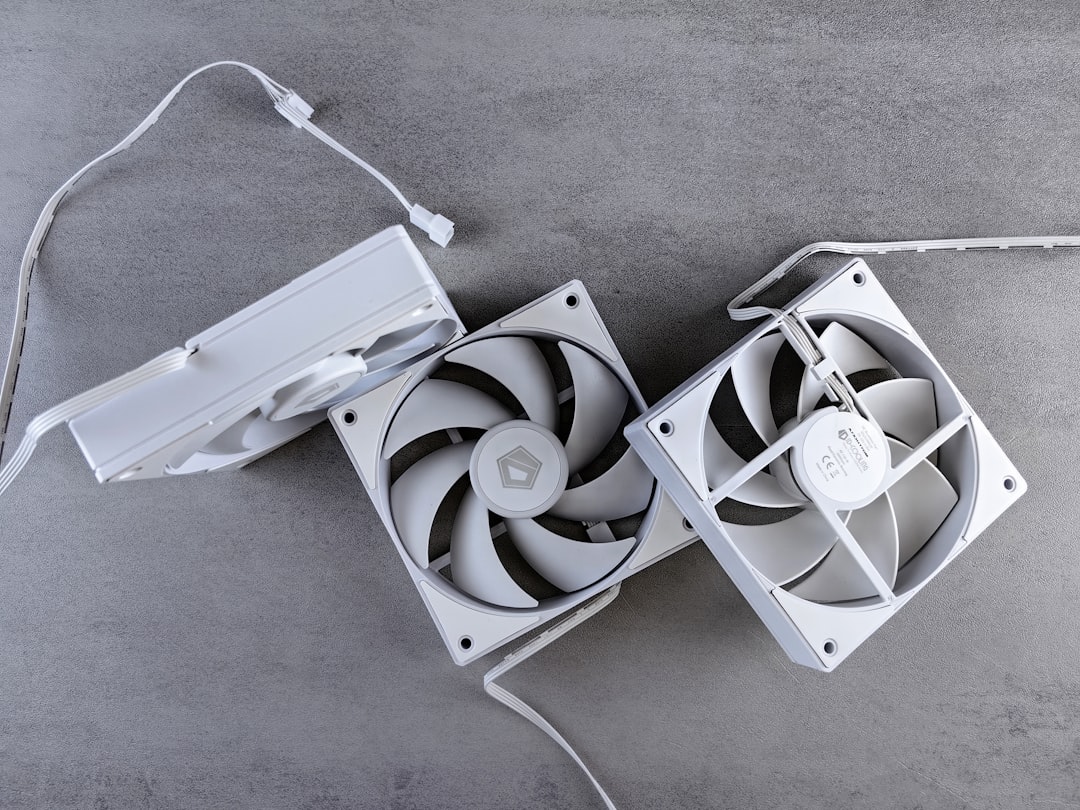
If you feel comfortable, you can remove the side panels and clean the dust catcher areas. Sony designed these spots to help with basic cleaning. Be gentle. Do not force the panels. If you are unsure, watch an official guide or ask someone experienced.
After cleaning, plug the PS5 directly into the wall. Try turning it on again. If it starts, great. Keep it in a cooler, open space from now on. Your console likes air. Lots of air.
Bonus Check: Is It Actually a Display Problem?
Sometimes the PS5 is turning on, but your TV is not showing it. Sneaky. Very sneaky.
If the console light turns white, it is usually on. If there is no picture, check the HDMI setup.
Try this:
- Make sure the TV is on the right HDMI input.
- Unplug and reconnect the HDMI cable.
- Try a different HDMI port on the TV.
- Try a different HDMI cable.
- Test the PS5 on another TV or monitor.
Also inspect the HDMI port on the back of the PS5. Look for bent pins or looseness. Do not jam the cable in. If the port is damaged, it may need repair.
Safe Mode can also help here. Use Change Video Output. Pick a lower resolution. This can fix issues with TVs that do not like certain settings.
When Should You Stop Trying?
There is a point where the heroic home repair quest should end. If your PS5 still shows no light, no beep, and no sign of life after all steps, it may have a power supply issue. That is not a simple living room fix.
Stop and get help if:
- The console smells burnt.
- You see smoke or sparks.
- The power cable gets hot.
- The PS5 shuts off instantly every time.
- Safe Mode will not open.
- The console was dropped or hit.
- Liquid spilled into it.
If your PS5 is under warranty, contact PlayStation Support first. Do not open the console deeply if it may void your warranty. If it is out of warranty, choose a trusted repair shop. Ask about the power supply, motherboard, and HDMI port.
How to Prevent This Problem Later
Once your PS5 is alive again, treat it like royalty. Not too much royalty. It still has to run games. But give it some care.
Use these habits:
- Shut it down fully sometimes. Do not always use Rest Mode.
- Keep it updated. System updates fix bugs.
- Give it airflow. Heat is bad news.
- Clean dust often. A little cleaning saves big trouble.
- Use a good outlet. Avoid overloaded power strips.
- Do not yank cables. HDMI and power ports are not tug toys.
You can also use a surge protector. A good one may protect your console from power spikes. Just make sure it is working and not overloaded.
Final Thoughts
A PS5 that will not turn on feels scary. But many fixes are simple. Start with power. Then reset it. Then try Safe Mode. Then check heat, dust, and HDMI. Move slowly. Do not panic-click every option like a boss fight quick time event.
If it powers up, celebrate. Maybe update the system before jumping into a game. If it does not, get professional help. Either way, you did the smart steps first. Your PS5 may just need patience, airflow, and a little less dust in its life.

