
Why Does My Monitor Keep Going Black Randomly?
Your monitor is behaving like a stage magician. One second, everything is fine. The next second, poof. The screen goes black. No warning. No goodbye. Just darkness. The good news is that this problem is usually not spooky. It is often caused by a loose cable, a sleepy setting, a hot computer, or a grumpy graphics driver.
TLDR: If your monitor keeps going black randomly, start with the simple stuff. Check the power cable, video cable, and sleep settings first. Then update your graphics driver and check for overheating. If the screen still goes black, the monitor, cable, or graphics card may be failing.
First, What Does “Going Black” Mean?
A black monitor can mean a few different things. So let’s play detective.
- The monitor turns off completely. The power light goes off.
- The monitor stays on, but the screen is black. The power light stays on.
- The screen goes black for a second, then comes back. This is often a cable or driver issue.
- The screen says “No Signal.” The monitor is not getting video from the computer.
- The computer also freezes or restarts. This may be a bigger PC problem.
Knowing which one is happening helps a lot. It tells you where to look first. Think of it like asking, “Did the lights go out, or did someone just close the curtains?”

1. Check the Cables First
Yes, cables are boring. But they cause many weird problems. A loose cable can make your monitor blink off like it is winking at you.
Check the power cable. Make sure it is pushed firmly into the monitor. Also check the wall outlet or power strip. If the plug is loose, the monitor may lose power for a moment.
Next, check the video cable. This may be HDMI, DisplayPort, DVI, or VGA. Unplug it. Then plug it back in firmly. Do this on both ends. One end goes into the monitor. The other goes into the computer.
Look at the cable too. Is it bent? Crushed? Chewed by a pet? Twisted like a pretzel? A damaged cable can cause random black screens.
Quick test: Try a different cable. If the problem stops, the old cable was the villain. Give it a tiny imaginary mustache and retire it.
2. Try a Different Port
Your computer and monitor may have more than one video port. Try another one.
For example, if you use HDMI, try another HDMI port. If you use DisplayPort, try a different DisplayPort port. Ports can wear out. Dust can get inside. Sometimes they just get moody.
If you have a desktop PC, make sure your cable is plugged into the graphics card, not the motherboard. The graphics card ports are usually lower on the back of the computer. The motherboard ports are higher.
If you plug into the wrong place, your monitor may work badly. Or it may not work at all. Computers are picky little boxes.
3. Check Your Power Settings
Your monitor may not be broken. It may just be taking naps.
Windows and macOS both have power settings. These settings can turn off the display after a few minutes. This is useful. But it can also be annoying if it happens too soon.
On Windows, look for:
- Settings
- System
- Power or Power and battery
- Screen and sleep
Set the screen timeout to a longer time. You can also test by setting it to Never for a while.
On macOS, check:
- System Settings
- Displays
- Lock Screen or Battery
Look for settings that turn off the display. Adjust them and see what happens.
If the screen goes black only when you stop using the mouse or keyboard, power settings are very likely the reason.
4. Update Your Graphics Driver
Your graphics driver is software. It helps your computer talk to your monitor. If the driver is old, broken, or confused, your monitor can go black.
This is common after updates. It is also common during games, video calls, or video editing. The graphics driver gets busy. Then it trips on its own shoelaces.
If you use Windows, update your graphics driver from the maker:
- NVIDIA for GeForce cards
- AMD for Radeon cards
- Intel for Intel integrated graphics
You can also use Device Manager, but manufacturer updates are often better.
If the issue started right after a driver update, try rolling back the driver. Newer is not always better. Sometimes newer is just “newer chaos.”
5. Watch for Overheating
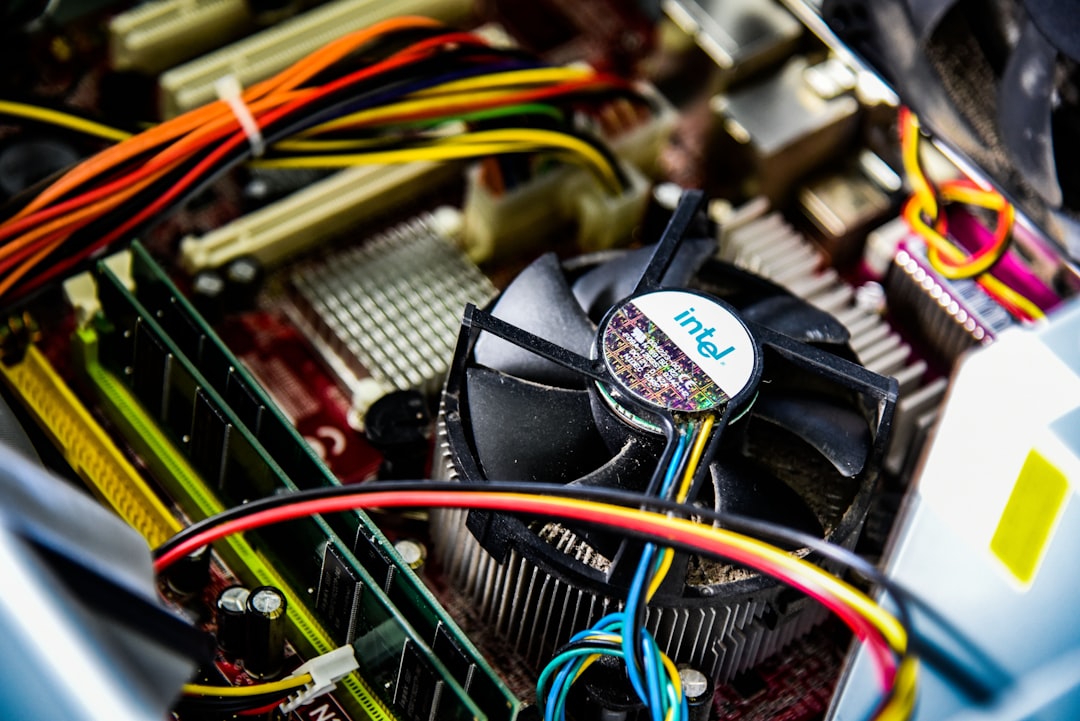
Computers hate heat. Monitors hate heat too. Heat can cause random black screens, crashes, and strange behavior.
If your screen goes black during games, streaming, or heavy work, heat may be the problem. Your graphics card may be getting too hot. Your CPU may also be cooking like a tiny toaster.
Look for clues:
- Fans are very loud.
- The computer case feels hot.
- The screen goes black during games.
- The computer shuts down by itself.
- The room is warm and airflow is poor.
Turn off the computer. Let it cool down. Then clean the dust from vents and fans. Use compressed air if you have it. Do not use a vacuum inside the computer. Static electricity can damage parts.
Make sure the computer has space to breathe. Do not push it tight against a wall. Do not bury it under papers. Your PC is not a filing cabinet.
6. Check the Refresh Rate
A monitor refresh rate tells the screen how many times to update each second. Common rates are 60 Hz, 120 Hz, 144 Hz, and 165 Hz.
If the refresh rate is set too high for your cable, port, or monitor, the screen may blink or go black. This often happens with gaming monitors.
Try lowering the refresh rate.
On Windows:
- Open Settings.
- Go to System.
- Click Display.
- Choose Advanced display.
- Pick a lower refresh rate.
If you were using 144 Hz, try 120 Hz or 60 Hz. If the black screen stops, you found a clue.
This does not mean your monitor is bad. It may mean the cable is not strong enough. Some cheap HDMI cables do not handle high refresh rates well.
7. Disable Fancy Features for Testing
Modern monitors have lots of fancy features. Some are great. Some are tiny gremlins.
Try turning off these features in your monitor menu or graphics settings:
- HDR
- G Sync
- FreeSync
- Variable refresh rate
- Auto input switching
- Dynamic contrast
Turn off one feature at a time. Then test the monitor. If the screen stops going black, that feature may be causing trouble.
This is especially common with DisplayPort cables and gaming monitors. They love speed. But sometimes they also love drama.
8. Test Another Monitor
If you can, connect another monitor to your computer. This is one of the best tests.
If the second monitor works fine, your original monitor may have a problem. It could be the power board, backlight, or input port.
If the second monitor also goes black, the problem is probably your computer, cable, graphics card, or settings.
You can also test your monitor with another device. Try a laptop, game console, or different PC. If the monitor goes black with all devices, the monitor is likely the issue.
Simple rule: Move the parts around. See where the problem follows.
9. Look for “No Signal” Messages
If your monitor says No Signal, it is not getting video from the computer. This is different from a monitor simply turning off.
A “No Signal” message can be caused by:
- A loose video cable
- A bad cable
- The wrong input selected
- A sleeping computer
- A graphics card problem
- A computer that failed to start properly
Use the monitor buttons to check the input. Make sure it is set to the right source. For example, choose HDMI 1 if your cable is in HDMI 1. This sounds obvious. But monitors enjoy hiding useful things in tiny menus.
10. Check the Graphics Card
If you use a desktop with a separate graphics card, it may be loose or failing. This can cause random black screens.
Turn off the PC. Unplug it. Open the case if you are comfortable. Check that the graphics card is seated firmly in its slot. Also check its power cables. Many graphics cards need extra power cables from the power supply.
If a power cable is loose, the card may cut out under load. This can happen during games or heavy graphics work.
If your graphics card is old, overheating, or unstable, black screens can be an early warning sign. It may not be dead yet. But it may be coughing politely.
11. Check the Monitor’s Power Supply
Some monitors use external power bricks. Others have the power supply inside the monitor.
If the power brick is failing, the monitor may turn off randomly. Feel the brick carefully. Warm is normal. Very hot is not great.
Try another compatible power adapter only if it matches the monitor’s required voltage and amperage. Do not guess. Electricity is not a guessing game.
If your monitor power light turns off when the screen goes black, this may be a power issue. Try a different wall outlet. Try skipping the power strip. A bad power strip can cause weird flickers too.
12. Scan for Software Problems
Sometimes software causes the black screen. Full screen apps can crash. Games can change display settings. Screen recording tools can conflict with graphics drivers.
Try using the computer in Safe Mode. Safe Mode loads basic drivers. If the monitor works fine there, a driver or app may be causing the issue.
Also think about what changed recently. Did you install a new game? A new driver? A new update? A new app that promised to “boost performance” with a rocket icon? That could be the troublemaker.
Uninstall suspicious apps. Update Windows or macOS. Restart the computer. Yes, restart it. The old “turn it off and on again” trick is famous because it actually works a lot.
Quick Fix Checklist
Here is the fast path. Try these in order.
- Check the monitor power cable.
- Check the HDMI or DisplayPort cable.
- Try a different cable.
- Try a different port.
- Check sleep and power settings.
- Update or roll back the graphics driver.
- Lower the refresh rate.
- Turn off HDR, G Sync, or FreeSync for testing.
- Clean dust and check temperatures.
- Test another monitor or another computer.
When Should You Replace Something?
Replace the cable first if you are not sure. Cables are cheap. They are also sneaky.
Consider replacing the monitor if it goes black with many devices and many cables. Also consider repair or replacement if the power light turns off randomly.
Consider the graphics card if several monitors go black on the same computer. This is more likely if it happens during games, 3D work, or video editing.
If the computer shuts down too, look at the power supply, overheating, or hardware failure. That problem is bigger than just the monitor.
The Final Word
A monitor that keeps going black randomly is annoying. It can feel like your screen is playing hide and seek. But most causes are simple. Start with cables. Then check settings. Then move to drivers, heat, and hardware.
Do not panic. Do not throw the monitor into the moon. Test one thing at a time. Keep notes if needed. Soon, your screen should stop disappearing like a shy ghost and get back to doing its job.

