

How to Improve Audio Quality on ASUS Laptops Easily
Whether you use your ASUS laptop for streaming movies, joining video calls, gaming, editing media, or simply enjoying your favorite playlists, sound quality plays a major role in the overall experience. While ASUS laptops are known for reliable hardware and often feature enhancements like SonicMaster or Dolby Atmos, the default settings aren’t always optimized for your specific needs. Fortunately, you can significantly improve audio quality with a few practical adjustments and smart upgrades.
TLDR: Improving audio quality on ASUS laptops is easier than most people think. By adjusting built-in sound settings, updating drivers, enabling audio enhancements, and optimizing your environment, you can dramatically upgrade clarity and depth. External tools like quality headphones or speakers also make a noticeable difference. With a few simple tweaks, your laptop audio can sound richer, clearer, and more immersive.
1. Start with Windows Sound Settings
The easiest place to begin is within your built-in Windows sound settings. Many users overlook these controls, yet they offer immediate improvements.
To access them:
- Right-click the speaker icon in the taskbar.
- Select Sound settings.
- Click on your active output device (usually “Speakers”).
- Choose Device properties and explore additional settings.
Inside these menus, you can:
- Adjust output volume balance between left and right speakers.
- Switch sample rate and bit depth for clearer reproduction.
- Enable or disable spatial sound features.
If available, try setting the format to a higher quality option (such as 24-bit, 48000 Hz). While the difference may be subtle on built-in speakers, it can be more noticeable with headphones.
2. Enable ASUS SonicMaster or Dolby Enhancements
Many ASUS laptops come with built-in audio enhancement technology like SonicMaster, DTS, or Dolby Atmos. However, these enhancements are sometimes turned off by default or set to neutral profiles.
To activate or adjust them:
- Open the MyASUS app.
- Navigate to Customization or Audio settings.
- Enable available sound enhancements.
Dolby Atmos, for example, often includes preset modes such as:
- Music – Balanced tones and improved clarity.
- Movie – Enhanced surround and bass depth.
- Voice – Clearer dialogue for meetings.
- Game – Directional sound for immersive gameplay.
Experiment with different presets depending on how you use your laptop.
3. Update Your Audio Drivers
Outdated drivers are one of the most common reasons for flat, distorted, or low-quality sound. Keeping your audio drivers updated ensures compatibility and often unlocks performance improvements.
You can update drivers in two main ways:
Manual Method
- Press Win + X.
- Select Device Manager.
- Expand Sound, video and game controllers.
- Right-click your audio device and choose Update driver.
Through MyASUS
- Launch the MyASUS application.
- Go to Customer Support.
- Check for driver updates.
Updated drivers can reduce crackling, improve clarity, and optimize compatibility with external audio devices.
4. Adjust Equalizer Settings for Custom Sound
One of the most powerful ways to enhance audio is by adjusting the equalizer (EQ). The EQ allows you to control different frequency ranges like bass, mids, and treble.
If your laptop includes Realtek Audio Console:
- Open Realtek Audio Console.
- Find the Equalizer section.
- Select presets or manually adjust sliders.
Basic tips for EQ adjustments:
- Boost low frequencies for deeper bass (ideal for music).
- Enhance mids for clearer vocals and dialogue.
- Increase highs slightly for crisper detail.
Avoid over-boosting any frequency, as it can cause distortion, especially on compact laptop speakers.
5. Improve Your Physical Listening Environment
Surprisingly, your surroundings heavily impact perceived audio quality. ASUS laptop speakers are usually bottom-firing or side-firing, meaning sound reflects off surfaces.
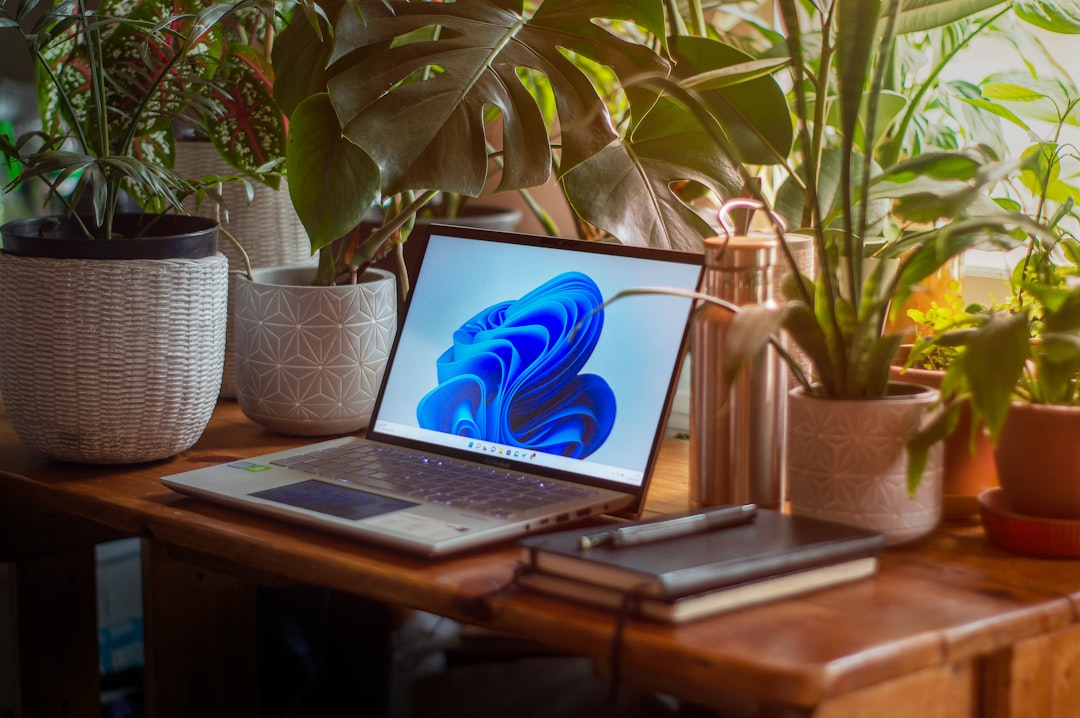
Here’s how to optimize positioning:
- Place your laptop on a hard, flat surface instead of a bed or couch.
- Avoid blocking speaker vents.
- Use a laptop stand to improve projection.
- Sit at ear level with the speakers for better clarity.
Soft surfaces absorb sound waves, reducing volume and clarity. Simply moving your laptop from a blanket to a desk can noticeably enhance sharpness and volume output.
6. Use High-Quality Headphones or External Speakers
Built-in speakers are convenient but limited by size and placement. For the biggest improvement in sound quality, consider investing in:
- Wired studio headphones for accurate sound reproduction.
- Noise-canceling headphones for immersive listening.
- Bluetooth speakers for room-filling sound.
- USB desktop speakers for richer bass response.
If using Bluetooth devices, make sure:
- The device is fully charged.
- You use the correct audio profile (stereo mode instead of hands-free).
- No other wireless interference is present.
Wired connections generally provide more stable and higher-quality audio compared to Bluetooth.
7. Disable Audio Enhancements (If Sound Feels Distorted)
While enhancements can help, sometimes they create unnatural or distorted output. If your audio sounds:
- Too bass-heavy
- Muffled
- Artificial or echoing
Try turning off enhancements:
- Open Sound settings.
- Select your output device.
- Go to Enhancements.
- Disable all additional processing.
This resets the sound profile to a more natural baseline.
8. Calibrate Audio for Video Calls and Meetings
Clear communication is especially important for remote work and online classes. ASUS laptops often include AI noise-canceling features.

Improve call clarity by:
- Enabling AI Noise-Canceling Audio in MyASUS.
- Using a dedicated headset microphone.
- Reducing background noise in your room.
- Testing audio levels before meetings.
This ensures your voice remains crisp while minimizing distractions from typing or ambient noise.
9. Check for System Sound Conflicts
Sometimes poor audio quality isn’t hardware-related but software-related. Watch for:
- Multiple sound output devices being active simultaneously.
- Conflicting third-party audio software.
- Background apps altering system sound.
Set your preferred device as the default output under Sound settings. Disable unused audio devices to avoid conflicts.
10. Keep Your System Updated
Regular Windows updates include performance fixes and enhancements that may directly impact sound quality. Make sure to:
- Run Windows Update frequently.
- Keep MyASUS updated.
- Install firmware updates if available.
Updated systems typically offer smoother performance and better hardware integration.
11. Consider Using Third-Party Audio Enhancement Software
If you want even more control, specialized audio software tools provide advanced customization such as:
- Detailed frequency shaping
- Surround sound simulation
- Dynamic range control
- Volume normalization
However, avoid running multiple enhancement programs at the same time, as they may conflict and degrade audio quality.
12. Clean Speaker Grilles and Audio Ports
Dust and debris can accumulate in speaker openings over time, muffling sound. Gently clean:
- Speaker grilles using compressed air.
- Headphone jacks with careful inspection.
- Surrounding areas using a microfiber cloth.
Even small blockages can reduce clarity and volume projection.
Final Thoughts
Improving audio quality on your ASUS laptop doesn’t require technical expertise or expensive upgrades. In fact, many improvements come from simple adjustments like enabling built-in enhancements, updating drivers, fine-tuning equalizer settings, and optimizing your environment. For those seeking a more dramatic upgrade, investing in quality headphones or speakers makes a profound difference.
By taking a few minutes to explore your laptop’s sound capabilities and making small, intentional tweaks, you can transform your everyday listening experience into something far richer, clearer, and more immersive. Whether you are gaming, streaming, attending meetings, or enjoying music, better audio elevates everything you do.

