
How to Fix Surface Pro 4 Screen Ghosting? Step by Step
Surface Pro 4 is a device where you can do office work, study work, meetings, browsing, watching videos, reading documents, and many other daily tasks. But, sometimes this device shows a screen problem which is called screen ghosting. This problem is very disturbing for users because it makes the display hard to read and also makes normal work difficult. Sometimes, users also become confused because they do not know whether this issue is from the graphics driver, display settings, heat, or from the hardware itself.
This easy guide will help you to understand what Surface Pro 4 screen ghosting means, why it happens, how you can fix it, and what you can do so it does not become worse. It will also help you to clear your concept that whether this problem is small or whether it is a serious display issue. Let me clear this simply.
Why Is Surface Pro 4 Screen Ghosting?
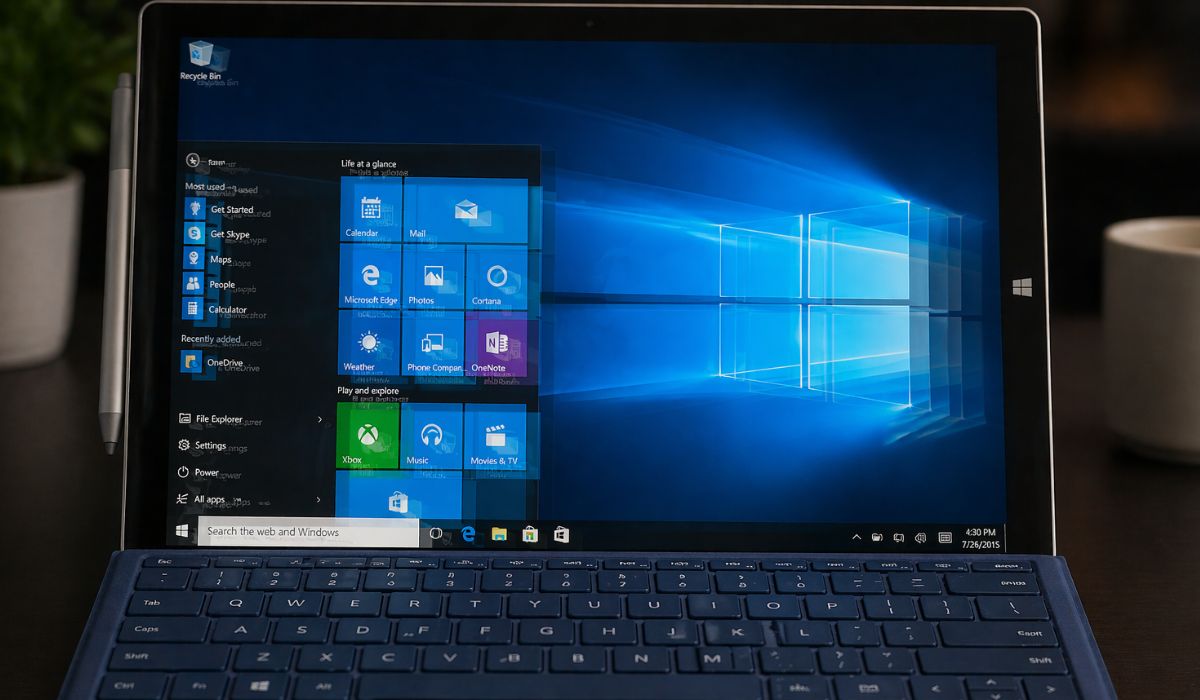
Surface Pro 4 screen ghosting means the display leaves a faint image, light shadow, or trail behind text, pictures, apps, windows, or other moving things on the screen. In simple words, when one thing moves away from the display, its mark does not disappear fully and quickly. Because of this, users may see afterimage, blurry text, double edges, image retention, or ghost effect on the LCD screen. This makes the screen look unclear and uncomfortable for normal daily use.
Users usually notice this issue while scrolling pages, changing apps, reading documents, watching videos, or after using the Surface Pro 4 for some time when it becomes warm. Some users notice it a little, and some users keep noticing it again and again. In short, this issue means the display is not showing images in a clean and stable way.
Common Causes of Surface Pro 4 Screen Ghosting
Surface Pro 4 screen ghosting can happen for many reasons. Here are some common and possible reasons behind this issue.
- LCD panel aging: The display panel becomes old, so it starts showing image retention or ghosting.
- Heat buildup: When the Surface Pro 4 becomes hot, the screen issue may become worse.
- Intel graphics driver issue: An old or unstable graphics driver may affect the way the display shows images.
- Surface Pro 4 flickergate issue: This device is already known by many users because of display related problems.
- High brightness setting: Very high brightness can make the ghost image easier to notice.
- Long use without cooling: Using the device for a long time can create more heat stress on the display.
- Hardware failure: Some internal display parts may start failing and create ghost image or flicker like blur.
How to Fix Surface Pro 4 Screen Ghosting?
Fixing Surface Pro 4 screen ghosting depends on the real reason behind it. Sometimes, the problem is from the graphics driver or display settings, and sometimes it is from heat or hardware. If you follow my given fixes then you can understand the issue in a better way and also know which fix is useful for you.
Fix #1: Restart the Surface Pro 4 and let it cool down
Sometimes, screen ghosting becomes worse after long use or when the Surface Pro 4 becomes hot. In this case, restarting the device and letting it cool down for some time can reduce temporary stress on the display. This is a simple fix, but it helps some users, especially when the problem starts after the device becomes warm.
Fix #2: Update the Intel graphics driver
The Intel graphics driver controls how the Surface Pro 4 shows text, pictures, videos, windows, and other moving things on the screen. If this driver becomes old or unstable then the ghosting or flicker like effect may become worse. So, updating the graphics driver is an important step for users.
If you follow my given steps then you can easily update the Intel graphics driver. Here are the steps you need to perform for this fix:
- Open the Start menu on your Surface Pro 4.
- Search for Device Manager and open it.
- Find the Display adapters section.
- Click on Intel HD Graphics 520.
- Right click on it.
- Choose Update driver.
- Follow the update steps shown on the screen, and restart the device.
Fix #3: Install the latest Windows updates
Windows updates can include display fixes, firmware updates, and better system stability for Surface devices. Because of this, keeping Windows updated is very important when you are facing screen ghosting. Many users ignore this simple thing, but sometimes this simple thing solves hidden software or firmware issues. My honest opinion is that you should always check this before thinking that your whole screen is fully damaged.
Fix #4: Lower screen brightness and test the display
High brightness can make the display hotter, and it can also make ghosting more visible on an older LCD panel. So, lowering the brightness is a simple way to test whether the screen becomes better or not. It may not fully remove the issue, but it can help you understand if brightness is making the problem worse.
If you want to test this clearly then follow these simple steps:
- Open Settings on your Surface Pro 4.
- Go to the System section.
- Click on Display.
- Find the brightness slider.
- Lower the brightness slowly.
- Use the device for a few minutes.
- Check whether the ghost image becomes less visible.
Fix #5: Change display settings and resolution
Some display settings can make the issue look worse, especially on older hardware like Surface Pro 4. If the resolution, scaling, or another display option is not working properly with the panel then the ghosting may look more obvious. In this case, changing the display settings is worth trying. It may not fully solve a hardware issue, but it can reduce the screen effect for some users.
Fix #6: Test the Surface Pro 4 with an external monitor
This is a useful fix because it helps you understand whether the issue is only in the built in screen or in the graphics system too. If the external monitor looks normal then the problem is more likely in the Surface Pro 4 display panel itself. Let me clear this confusion simply, this test separates the screen issue from the wider graphics issue.
If you want to test this clearly then follow these simple steps:
- Connect an external monitor to the Surface Pro 4.
- Turn on the monitor properly.
- Wait until the second display appears.
- Open text, windows, pictures, or videos.
- Compare the Surface screen with the external monitor.
- Check whether ghosting appears on both screens.
- Note the result before deciding the next step.
Fix #7: Contact Microsoft Support or a repair technician
If the screen ghosting keeps coming back then the issue may be from hardware failure and not only from software. In that case, Microsoft Support or a repair technician can inspect the display assembly and tell you whether the screen needs repair or replacement. Surface Pro 4 is already known by many users for display complaints, so getting proper help is not a wrong decision. In short, if the issue stays after easy fixes then do not keep guessing again and again.
Fix #8: Consider screen replacement or device replacement
If the Surface Pro 4 display keeps ghosting then the long term fix may be screen replacement or replacing the whole device. This usually becomes necessary when the LCD panel is aging badly, the flickergate issue is strong, or the repair cost becomes too high compared to the value of the device. Some users keep trying small fixes for too long, but sometimes the real answer is replacement.
If you want to make this decision clearly then follow these steps:
- Check whether the Surface Pro 4 is still under support or warranty.
- Ask Microsoft or a technician for a repair quote.
- Compare the repair cost with the value of the device.
- Think about the age and overall condition of the device.
- Check if the Surface Pro 4 has other problems too.
- Decide whether screen replacement is worth it.
- Replace the device if repair does not make sense for you.
Prevention Tips to Avoid Surface Pro 4 Screen Ghosting in Future
Prevention may not fully remove an aging display issue, but it can reduce stress on the screen and help the device work better for a longer time. Here are some simple and useful tips which may help you in the future.
- Keep Windows and display drivers updated regularly.
- Avoid long use at very high screen brightness.
- Let the device cool down after heavy use.
- Use the Surface Pro 4 on a hard surface for better airflow.
- Restart the device if the display begins to blur or ghost.
- Back up your files early if the screen issue is getting worse.
- Use an external monitor for longer work sessions if needed.
Conclusion
Surface Pro 4 screen ghosting means the display is leaving faint shadows, image trails, or blurry afterimages on the screen. This issue can happen because of LCD panel aging, heat stress, graphics driver problems, or a known hardware issue like flickergate. So, in short, the display is not showing images in a clean and stable way, and because of this, normal work becomes difficult for the user.
If you are facing this issue then try the simple fixes first, and then move to repair or replacement if the problem stays. But, my honest opinion on this is that if the ghosting keeps coming back again and again then do not wait too long, and get proper help from Microsoft Support or a trusted technician. Also, if you follow our guide and still face some difficulty while fixing Surface Pro 4 screen ghosting, then drop a comment in the comment section of our blog.

