
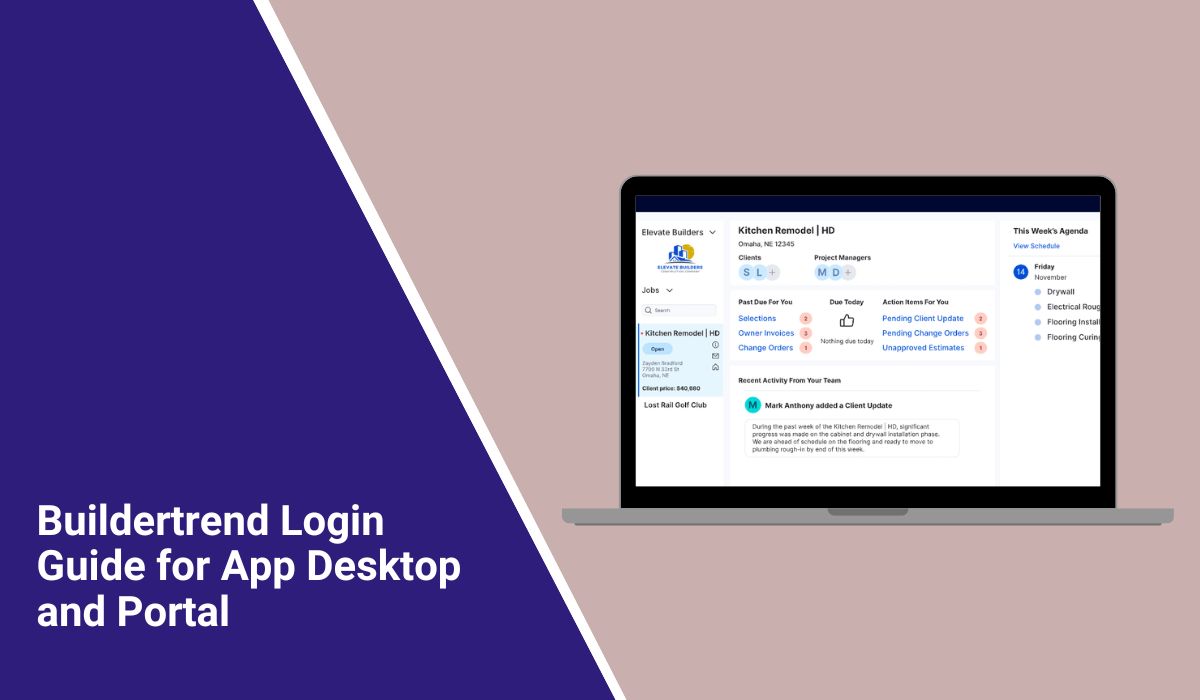
Buildertrend Login Guide for App Desktop and Portal
Buildertrend login can feel confusing at first because not everyone signs in the same way. Some users log in as builders or team members. Some use the Buildertrend mobile app. Others only need the client portal to check project updates, messages, or files. Buildertrend’s current help pages and product pages show access through the main platform, the mobile app, and the client portal.
This guide walks through the simple login steps for desktop and mobile, shows how to reset your password, and explains what to do if your Buildertrend login is not working.
Who is the Buildertrend login for?
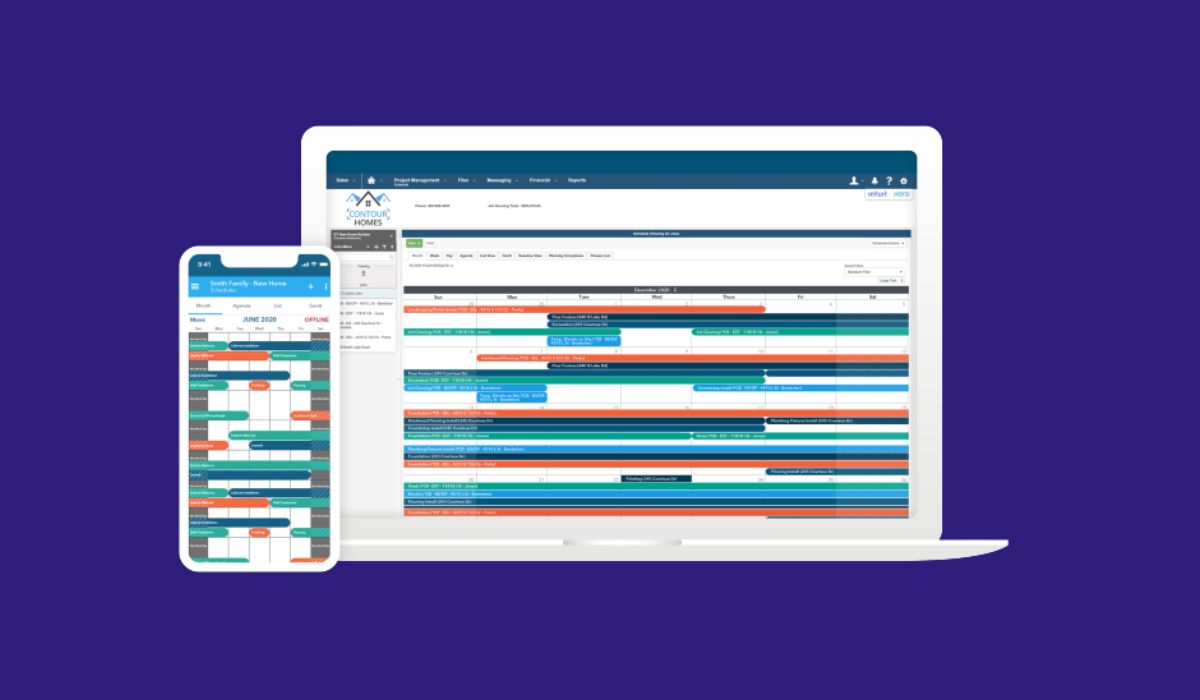
Buildertrend login can apply to a few different user types, so it helps to know which one fits your case before you start. Buildertrend’s site describes separate experiences for builders and contractors, clients using the client portal, and mobile users accessing the platform on iPhone or Android.
You may be logging in as:
- A builder or contractor
- An office or field team member
- A client using the client portal
- A Subcontractor or Vendor
- A mobile app user
If you are a client, your access may be different from the main builder account. Buildertrend’s client portal pages show that clients can view selections, messages, schedules, documents, financial items, and progress updates through portal access.
What you need before you log in
Before you try to sign in, keep the basics ready:
- Your username or email
- Your password
- Access to the correct Buildertrend portal or app
- A working internet connection
- Access to your email in case you need password reset help
If you are a first-time user, you may also need an invite or account setup email before the login works correctly. Buildertrend’s help content says password reset messages go to the email listed in Buildertrend, which makes email access important before you begin.
How to log in to Buildertrend on a desktop
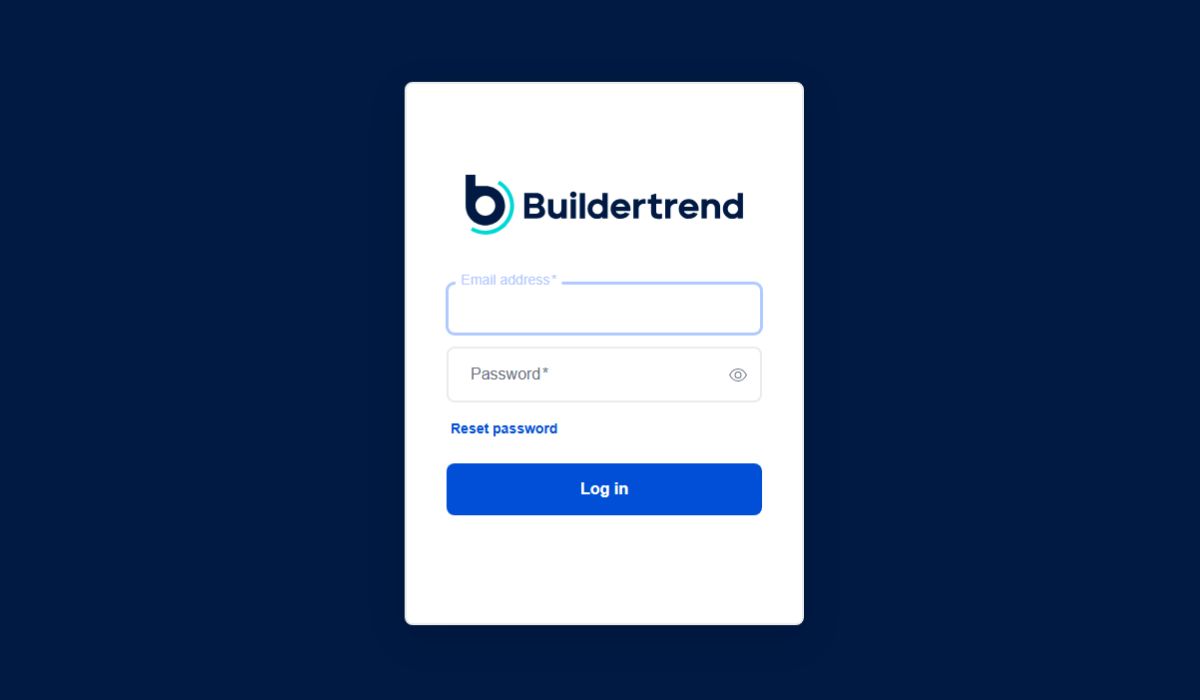
Desktop login is the simplest way to check whether your account is working normally.
Follow these steps:
- Open the Buildertrend sign-in page
- Enter your username or email
- Enter your password
- Select Sign In
- Open your dashboard or portal after login
If the login works on desktop but not in the app, the problem is usually app-related and not your Buildertrend account itself. Buildertrend’s support pages confirm standard sign-in with existing credentials on supported access points.
How to log in to Buildertrend on the mobile app
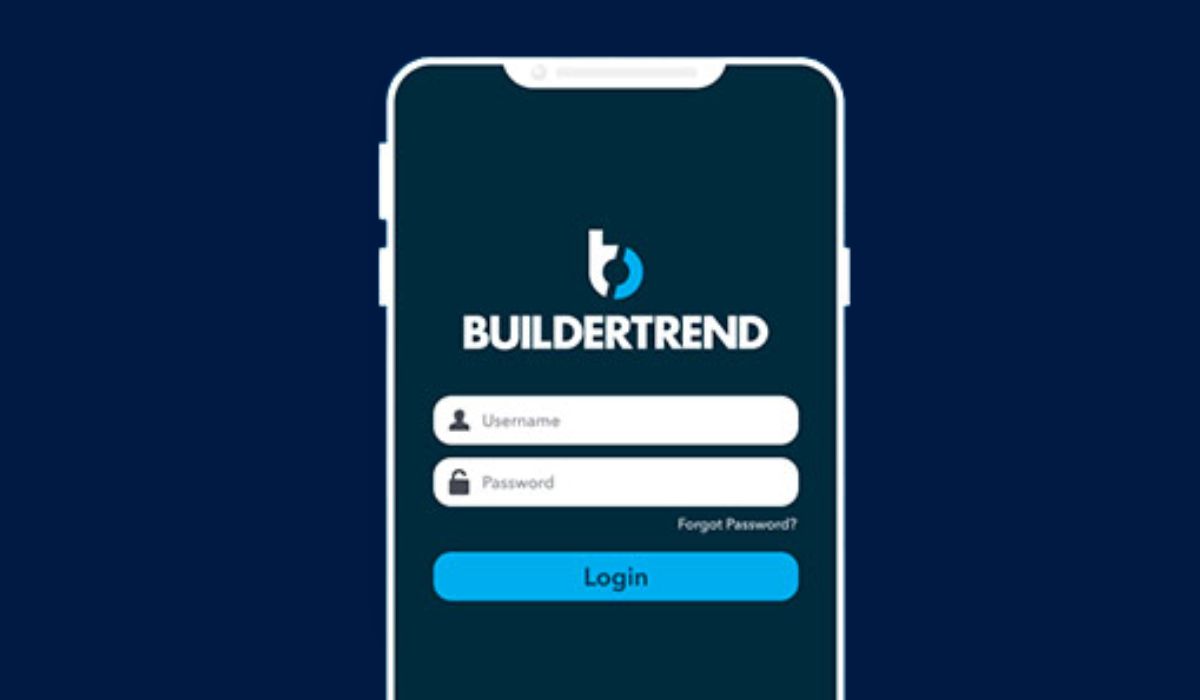
Buildertrend also supports login through the mobile app. Its app and help pages say the app is available in the App Store and Google Play, and that users sign in with their existing username and password.
Use these steps:
- Download the Buildertrend app from the App Store or Google Play
- Open the app
- Enter your username and password
- Tap Sign In
- Turn on notifications if you want project updates on your phone
If you already use Buildertrend on desktop, you do not need a separate app account. The same login usually works as long as your account has mobile access. Buildertrend’s help page specifically says to log in using your current Buildertrend username and password.
How to Reset your Buildertrend Password
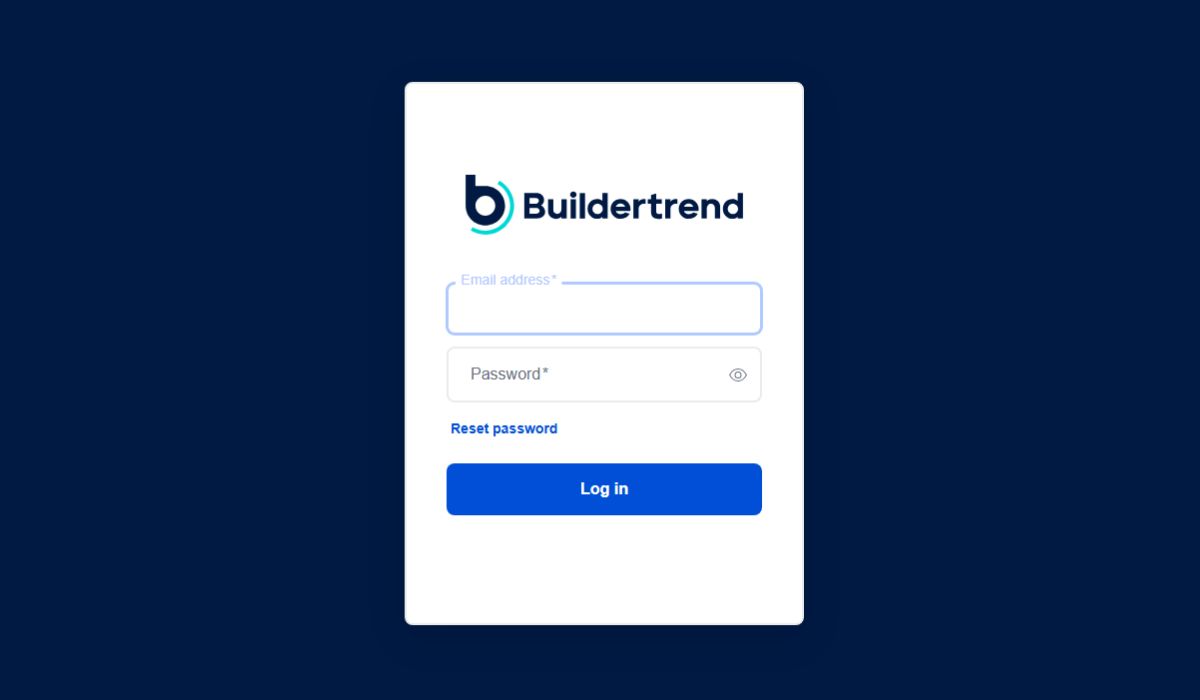
If you cannot remember your password, use the reset option before trying too many random logins.
Buildertrend’s help article says you can select “Forgot Password” and have a new password request sent to the email listed in Buildertrend.
Follow these steps:
- Open the login screen
- Select Forgot Password
- Enter the email listed on the account
- Open the reset email
- Create a new password
- Return to the login page and sign in again
If the reset email does not arrive, check your spam or junk folder first, then make sure you entered the right email address.
Why your Buildertrend login may not work
If the login keeps failing, the issue is usually one of a few common problems.
The most likely reasons are:
- Wrong username or email
- Wrong password
- The password needs to be reset
- Wrong portal or access page
- Invite or account setup is incomplete
- App session is broken
- Browser cache or session issue
- Support help is needed for the account
A lot of users get stuck because they are trying to enter the wrong type of Buildertrend access. For example, a client may need the client portal and not the full builder dashboard. Buildertrend’s portal pages make clear that client access is its own experience inside the platform.
Client portal login vs main Buildertrend login
This part matters because not every user should expect the same screen after signing in.
If you are a builder, contractor, or team member, you are usually trying to enter the main Buildertrend platform. If you are a homeowner or project client, your access may be through the client portal. Buildertrend describes the client portal as the place for customers to see project updates, communication, documents, financial details, and schedules.
So if someone shared a project invite with you, make sure you are using the right access route. A wrong portal can make a correct username and password look like a login problem when the real issue is that you are signing in to the wrong place.
What to do if the mobile app login fails
If the app will not let you in, do not assume the account is broken right away.
Try these steps:
- Check your username and password again
- Use Forgot Password
- Update the app
- Close and reopen the app
- Try logging in on desktop
- Contact support if both app and desktop fail
Buildertrend’s help content confirms password reset support and mobile login with standard account credentials, so if both app and desktop fail, the issue is more likely tied to the account or access setup than only the app.
When to contact Buildertrend support
If you still cannot log in after checking the basics, support is the next step. Buildertrend’s help pages list live chat, email support, and phone support as ways to get help.
You should contact support when:
- You cannot reset the password
- The account is not recognized
- Your invite is missing
- The portal access looks wrong
- The app and website both fail
- You need help with first-time setup
That is usually the fastest way to fix access issues tied to account setup, invite status, or portal permissions.
Final thoughts
Buildertrend login is usually simple once you start with the right access point. First check whether you need the main platform, the mobile app, or the client portal. Then sign in with your username and password, use the password reset option if needed, and move to support only if the normal steps still fail. Buildertrend’s current app, client portal, and help pages support this basic login flow.
If this guide helped, leave a comment and share it with someone else trying to sign in to Buildertrend.

