
How to Fix Outlast Trials Error F3C6? Troubleshooting Guide
Getting error F3C6 in The Outlast Trials is frustrating because it blocks you before you can get into the game properly. Current player reports usually connect this error to a problem contacting a Red Barrels service, so it looks more like a login, server, or online connection issue than a graphics or save-file problem.
This guide explains what F3C6 means, why it happens, how to fix it, and how to lower the chance of seeing it again.
What Is Outlast Trials Error F3C6?
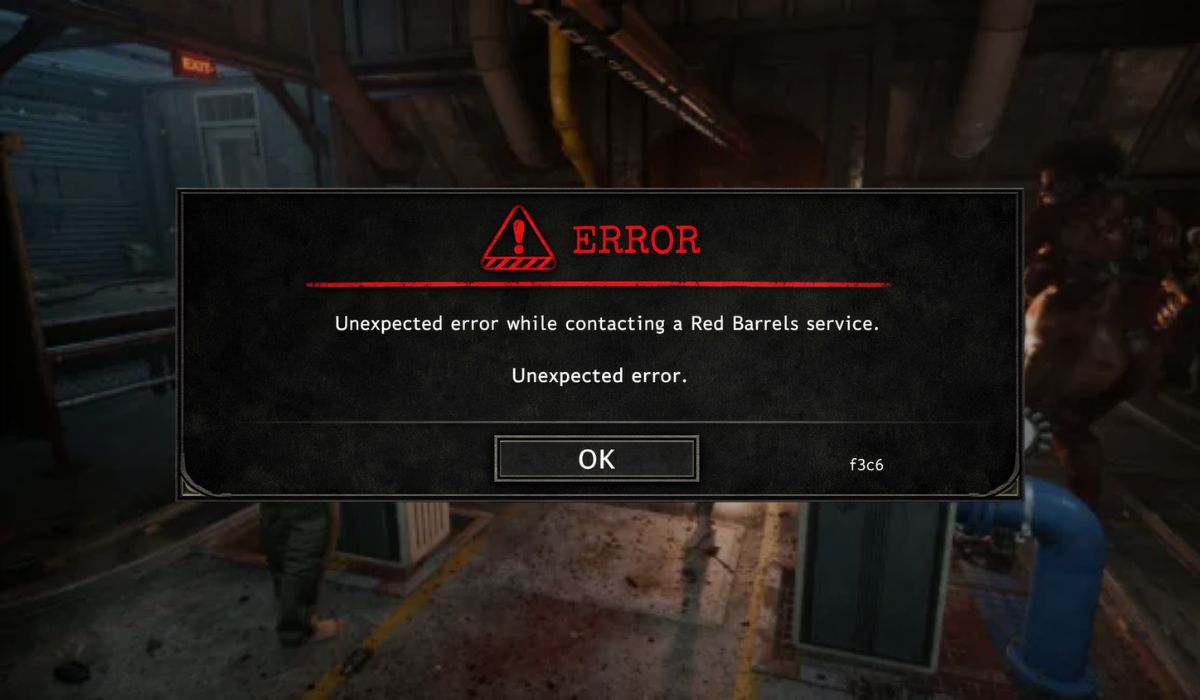
Outlast Trials error F3C6 is currently reported as an unexpected service-contact error. Players commonly see wording like “unexpected error while contacting a Red Barrels service,” which suggests the game cannot complete part of its online connection, authentication, or backend communication process. I could not find a dedicated official Red Barrels page that defines F3C6 by itself, so the safest explanation is that it is a connection or service error tied to the game’s online systems.
Players usually run into F3C6 very early, often at startup, after pressing a key to continue, or before the game fully reaches the main online state. Current reports come from Steam players and console players, including Xbox and PS5 users, which suggests the issue is not limited to only one launcher or one platform.
Common Causes of Outlast Trials Error F3C6
This error can happen for several reasons, but the strongest pattern still points to server or service communication trouble. Red Barrels’ general troubleshooting also supports checking game files, updates, drivers, and protection software when the game is not working as expected.
- A temporary Red Barrels server outage or backend disruption can stop the game from contacting online services correctly. Community reports often describe many players seeing similar “unexpected error” messages at once.
- A stale Steam, Epic, or console session can interfere with startup connection. Red Barrels staff previously advised restarting the launcher and relaunching the game for F3C6 and similar connection errors.
- A recent game update can sometimes be followed by service or backend instability. Players have specifically mentioned F3C6 appearing after updates or during periods of wider instability.
- An unstable internet connection can interrupt the handshake between the game and Red Barrels services. Console players have reported cases tied to home internet problems.
- Weak Wi-Fi, router issues, or temporary ISP routing problems can make the error keep returning. Some player reports mention internet-provider issues and router resets helping.
- Firewall or antivirus software may block the game or launcher from reaching required services. Red Barrels’ troubleshooting page explicitly tells players to check whether protection software is causing issues.
- Damaged or incomplete game files can also contribute, which is why Red Barrels includes file verification among its basic troubleshooting steps.
How to Fix Outlast Trials Error F3C6?
In most cases, the best plan is to start with the simplest connection checks first. If the issue is server-side, local fixes may not solve it right away. Still, the steps below help rule out launcher, network, and file problems before you assume the servers are fully at fault.
Fix #1: Wait a few minutes and try again
If many players are reporting F3C6 at the same time, the problem may be on Red Barrels’ side rather than yours. Community reports around similar “unexpected error” messages suggest some incidents are temporary and clear after a short wait.
So if the error appears suddenly and nothing changed on your system, give it a little time and try again before you start changing settings.
Fix #2: Restart the launcher and relaunch the game
This is one of the clearest F3C6-specific fixes I found. In a Steam discussion, Red Barrels staff told players receiving F3C6 or similar connection errors to restart their launcher, either Steam or Epic, and relaunch the game. That makes launcher restart one of the most grounded first fixes for this error.
Fix #3: Restart your PC or console
A full restart can refresh your network session, clear a stale platform login, and reset temporary background issues. This matters because F3C6 appears during service contact, and that process depends on both the game and the platform session working correctly. Players on Xbox and PS5 have also reported restart-based fixes in related unexpected-error cases.
Fix #4: Verify the game files
Red Barrels’ troubleshooting archive recommends verifying file integrity as one of the first checks. If your game files are incomplete or damaged after an update, the client may fail before it can connect properly.
Follow the steps below to easily verify the game files.
- Open Steam or your launcher.
- Find The Outlast Trials in your library.
- Open the game properties or settings.
- Look for the option to verify or validate game files.
- Start the file check.
- Let the launcher repair any missing or damaged files.
- Relaunch the game and test F3C6 again.
This fix is officially supported as part of Red Barrels’ general troubleshooting, even though the page does not single out F3C6 by name.
Fix #5: Check that the game and launcher are fully updated
Some players report F3C6 appearing around updates, and Red Barrels’ troubleshooting also says to make sure the game is up to date. A partial update, an outdated launcher, or a delayed platform patch can make the game fail while contacting online services.
So check for game updates first, then make sure Steam, Epic, or your console is also fully updated before you try again.
Fix #6: Restart your router and test a stable connection
If your internet connection is unstable, the game may fail while contacting Red Barrels services. A router restart can clear temporary routing issues, refresh your local connection, and fix short packet-loss problems that are easy to miss in normal browsing.
Try these simple steps to quickly restart your router and test a stable connection.
- Close The Outlast Trials fully.
- Turn off your router and modem.
- Wait about 30 to 60 seconds.
- Turn the modem back on and wait for it to reconnect.
- Turn the router back on and wait for the lights to stabilize.
- Reconnect your PC or console to the internet.
- Launch the game again and test the connection.
Player reports around unexpected service errors mention router resets and ISP-related issues, especially on consoles.
Fix #7: Check firewall and antivirus software
Red Barrels’ troubleshooting page explicitly says to check whether protection software is causing issues with the game. Firewall or antivirus software can block the launcher or the game client without making the reason obvious, so this is worth testing if F3C6 keeps returning while everything else seems normal.
The following steps will show you how to check firewall and antivirus software properly.
- Close the game and launcher.
- Open your firewall settings.
- Make sure The Outlast Trials and your launcher are allowed through the firewall.
- Open your antivirus app and review blocked or quarantined items.
- Add the game and launcher as allowed apps if needed.
- Save the changes and restart the launcher.
- Test the game again.
This is one of the stronger officially backed troubleshooting paths because it comes directly from Red Barrels’ support guidance.
Fix #8: Contact Red Barrels support if the error keeps returning
If you already restarted the launcher, verified files, checked updates, and tested your connection, but F3C6 still keeps appearing, it is time to contact support. This matters more when the game worked before, the error survives reinstall attempts, or other local fixes change nothing.
When you contact Red Barrels, include the exact error code, your platform, when the problem started, and the steps you already tried.
Prevention Tips to Avoid Outlast Trials Error F3C6 in Future
You cannot prevent every server-side issue, but you can reduce the chance of local connection trouble. These simple habits help keep the game, the launcher, and your network in a better state for online play.
- Keep The Outlast Trials fully updated.
- Keep Steam, Epic, or your console software updated too.
- Use a stable internet connection when launching the game.
- Prefer Ethernet over weak Wi-Fi when possible. This is a practical network step based on the connection-heavy nature of the error.
- Verify files after failed updates or after unusual crashes.
- Reduce firewall or antivirus conflicts by allowing the game and launcher.
- Check community reports before changing a lot of settings if the error appears suddenly. Widespread player posts can be a clue that the issue is broader than your device.
Conclusion
To summarize, Outlast Trials error F3C6 is most commonly reported as a Red Barrels service-contact or online connection problem. The strongest signs point to server disruption, launcher session issues, unstable internet, or protection software interference, while Red Barrels’ own troubleshooting supports file verification, updates, and security-software checks as good next steps.
Start with the easiest fixes first – wait a bit, restart the launcher, restart your PC or console, and check your connection. Then verify files and review firewall or antivirus settings if needed. If this article helped, share it with another player or leave a comment with the fix that worked for you.

