
How to Fix No Error Description Found 0x8096002A in Windows 11?
Seeing “No error description found 0x8096002A” in Windows 11 is frustrating because it usually appears right when you try to open or extract a file you need. In current Microsoft community reports, this error is most often tied to File Explorer failing to extract an archive such as a ZIP, RAR, or 7Z file, while third-party tools like 7-Zip or WinRAR often handle the same file without trouble.
This guide explains what the error means, why it happens, how to fix it, and how to avoid it later.
What Is “No Error Description Found 0x8096002A” in Windows 11?
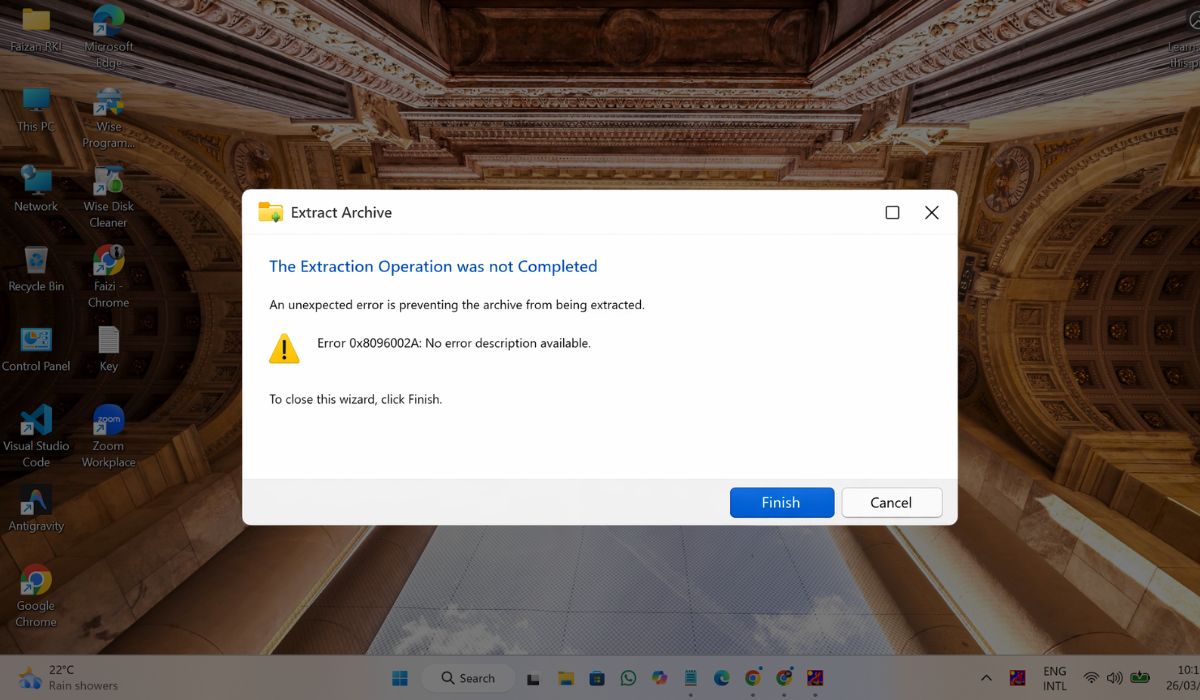
Error code 0x8096002A in Windows 11 is commonly reported when File Explorer fails during archive extraction. Users often see it together with messages such as “The extraction operation was not completed” or “An unexpected error is preventing the archive from being extracted.” Based on current Microsoft Answers threads, this is not usually a general Windows crash. It is more often a File Explorer archive-handling problem.
Most people run into this error while opening or extracting compressed files in File Explorer, especially RAR archives and sometimes 7Z-style compressed packages. A repeated pattern in Microsoft community threads is that File Explorer fails, but a tool like 7-Zip or WinRAR can still open the same archive.
That points to a built-in extraction limitation or compatibility issue more than a simple missing file message.
Common Causes of 0x8096002A in Windows 11
This error can happen for a few different reasons, but the strongest pattern is still archive extraction failure inside File Explorer. Microsoft community answers and related support material point most often to unsupported archive methods, File Explorer limits, path-length issues, or a damaged download.
- The archive may use a compression method that File Explorer does not fully support, even though third-party tools can still open it.
- The file may be a RAR or 7Z variant that Windows 11 built-in extraction does not handle well.
- The archive may be split into multiple parts, and one part may be missing or not placed in the same folder. Multi-part RAR archives are repeatedly mentioned in user reports around this type of failure.
- The file or folder path may be too long for Explorer to handle reliably during extraction. Microsoft support documents long-path failures in Explorer file operations.
- The archive download may be incomplete or corrupted. Several Microsoft Answers threads describe extraction failure on individual downloaded files rather than every archive on the PC.
- File Explorer itself may be hitting a built-in archive limitation or bug rather than the file being fully broken.
- In a smaller number of cases, damaged Windows system components may also play a part if extraction fails across many archives and formats. This cause appears more in third-party troubleshooting than in Microsoft’s own direct explanation of 0x8096002A.
How to Fix No Error Description Found 0x8096002A in Windows 11?
In most cases, the quickest fix is not a deep Windows repair. It is usually better to start with the archive itself, the extraction path, and the tool you are using. The steps below move from the easiest and most likely fixes to the more advanced ones.
Fix #1: Use 7-Zip, WinRAR, or another archive tool
This is the strongest repeated fix for 0x8096002A. Microsoft community replies repeatedly suggest using 7-Zip or WinRAR when File Explorer cannot extract the archive. That usually means the archive is not necessarily broken.
It may simply use a format or compression method that Explorer does not handle well. If 7-Zip or WinRAR opens the file normally, you have likely confirmed that File Explorer is the weak point, not the archive itself.
Fix #2: Move the archive to Desktop or Downloads
Sometimes the problem is not the archive format at all. It is the folder path. Microsoft documents that Explorer file operations can fail when file or folder paths get too long. Moving the archive to a short location like Desktop or Downloads reduces that risk and gives Explorer a simpler extraction path to work with. It is quick, safe, and worth trying before deeper repairs.
Fix #3: Check whether the archive is split into multiple parts
If the file is a multi-part RAR or another split archive, every part usually needs to be present in the same folder before extraction works. When one part is missing, extraction can fail in a confusing way. That kind of missing-part problem does not always produce a clear message in File Explorer, so it can look like a strange Windows error instead.
Here are the following steps which help you to check a split archive properly.
- Open the folder where the archive files are stored.
- Look for file names with parts such as
.part1,.part2, or similar numbering. - Make sure every archive part is in the same folder.
- Confirm that no file is missing from the sequence.
- Start extraction from the first archive part, not from a later one.
- Use 7-Zip or WinRAR if File Explorer still fails.
- Try the extraction again after confirming all parts are present.
This split-archive check is especially important for RAR files and large installer packages.
Fix #4: Re-download the archive file
A damaged or incomplete download can also cause 0x8096002A. If only one archive fails, but other ZIP or RAR files open normally, the problem may be the file itself. Re-downloading from the original source is a simple way to test that. If the new copy extracts without error, then the first download was probably incomplete or corrupted. Microsoft Answers threads around this error often describe one specific archive failing rather than all archives on the PC.
Fix #5: Update Windows 11
Windows updates can include File Explorer fixes, archive support improvements, and general reliability updates. This is not the strongest or fastest fix for 0x8096002A, but it is still a useful maintenance step when the problem keeps happening across multiple archives.
Follow the steps below to easily update Windows 11.
- Open the Start menu.
- Go to Settings.
- Open Windows Update.
- Click Check for updates.
- Install any available updates.
- Restart your PC when the installation finishes.
- Try extracting the archive again.
This fix makes more sense when File Explorer keeps failing broadly, not just on one odd RAR file.
Fix #6: Run SFC and DISM scans
If File Explorer extraction keeps failing across many archive types, Windows system components may need repair. This is a later fix, not a first fix. Still, it is useful when the built-in extraction feature seems broken in general and simpler archive-tool fixes did not solve the issue.
The following steps will show you how to run SFC and DISM scans properly.
- Open Start and search for Command Prompt.
- Right-click it and choose Run as administrator.
- Type
sfc /scannowand press Enter. - Wait for the scan to finish fully.
- Then type
DISM /Online /Cleanup-Image /RestoreHealthand press Enter. - Wait until DISM completes.
- Restart your PC and test extraction again.
Microsoft’s current public threads around 0x8096002A focus more on archive support and Explorer behavior than on SFC or DISM directly, so this step is a broad repair path rather than the main confirmed fix.
Fix #7: Try extracting a different archive
This is a simple test, but it helps a lot. If another ZIP, RAR, or 7Z file extracts normally, then Windows itself may be fine and the original archive is the real problem. If every archive fails in File Explorer, then the issue is broader and you should focus on Explorer limits, Windows updates, or system repair. This test helps separate a file-specific problem from a Windows-level problem without changing any settings.
Fix #8: Use a shorter file name and folder path
Explorer is known to behave badly with long file and folder paths in some file operations. Microsoft support documents unreliable copy behavior and failures when paths become too long. Archive extraction can hit the same kind of limitation, especially when the archive already contains deeply nested folders.
Shortening the archive name or extracting to a short folder like C:\Temp or Desktop can reduce that risk and often works when the current location is too deeply nested.
Prevention Tips to Avoid 0x8096002A in Future
This error is often easier to avoid than to decode after it appears. A few simple habits can make archive extraction in Windows 11 much smoother, especially if you work with RAR, 7Z, setup packages, or large game files.
- Use 7-Zip or WinRAR for RAR and 7Z archives instead of depending only on File Explorer.
- Avoid extracting from very deep folder paths or nested directories.
- Keep all split archive parts in one folder before you start extraction.
- Re-download suspicious archives if the first extraction fails.
- Keep Windows 11 updated so File Explorer and archive features stay current.
- Use shorter file and folder names for large archives.
- Test difficult archives with a second extraction tool before assuming the file is broken.
Conclusion
To summarize, “No error description found 0x8096002A” in Windows 11 is mainly reported as a File Explorer archive extraction problem. The strongest current evidence points to unsupported archive methods, Explorer limitations with some RAR and 7Z files, split-archive issues, long paths, or damaged downloads. One of the clearest signs is that File Explorer fails while 7-Zip or WinRAR still works on the same file.
Start with the easiest fixes first – use 7-Zip or WinRAR, move the archive to a shorter path, and check whether the file is split or incomplete. Then try Windows updates or system repair only if the problem keeps showing up across many files. And if this article helped, share it with someone else or leave a comment with the fix that worked for you.

