
How to Fix TPM Not Showing Up in Gigabyte BIOS?
Opening your Gigabyte BIOS and not seeing TPM can be confusing. You expect to enable it, but the option is missing.
This issue matters because TPM (Trusted Platform Module) is required for Windows 11 and helps with system security. When TPM does not show up, it usually means a BIOS setting, CPU support, or firmware version needs attention. In this guide, you’ll learn what this problem means, why it happens, how to enable TPM step by step, and what to do if your system does not support it.
What Does “TPM Not Showing Up in Gigabyte BIOS” Mean?
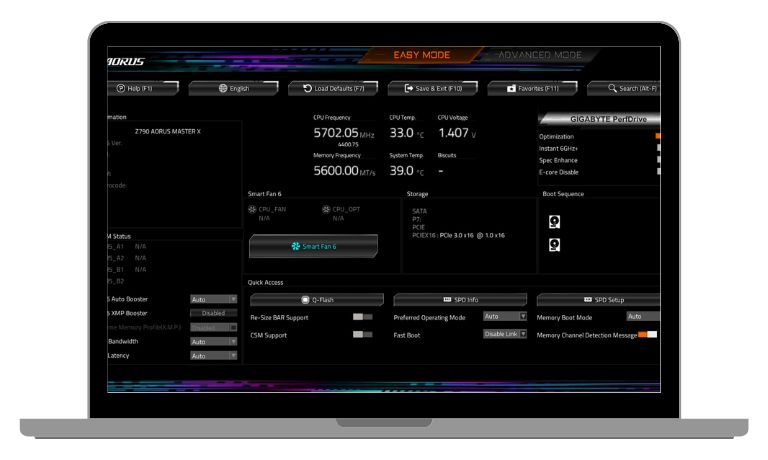
When TPM is not showing up in a Gigabyte BIOS, it means the firmware does not display an option for TPM, fTPM, or PTT in the settings menu.
You may notice this when Windows says TPM is not detected, when PC Health Check fails for Windows 11, or when the BIOS has no TPM option at all. In many cases, TPM exists on the CPU as fTPM for AMD or PTT for Intel, but it stays hidden because the BIOS is in the wrong mode or the setting is disabled.
Common Causes of TPM Missing in Gigabyte BIOS
This issue can happen for several reasons, depending on hardware and BIOS configuration.
- CPU does not support fTPM or PTT
- TPM option disabled in BIOS
- Outdated Gigabyte BIOS version
- CSM or Legacy Boot enabled
- Secure Boot turned off
- BIOS opened in Easy Mode
- No discrete TPM module installed
How to Fix TPM Not Showing Up in Gigabyte BIOS?
In most cases, TPM appears once the correct BIOS settings are enabled. Try the fixes below in order and stop when TPM becomes visible.
Fix #1: Check CPU TPM Support
TPM support depends on the CPU.
Here are the following steps which help you check CPU support.
- Find your CPU model
- Check if it supports AMD fTPM or Intel PTT
- Confirm motherboard compatibility
- Check Gigabyte support page
- Continue only if supported
If the CPU does not support TPM, BIOS options will not appear.
Fix #2: Switch BIOS to Advanced Mode
Gigabyte BIOS hides many options in Easy Mode.
Press the key to switch to Advanced Mode inside BIOS. Once enabled, more security and chipset options appear, including TPM related settings.
Fix #3: Enable fTPM or PTT in BIOS
TPM is often disabled by default.
Follow the steps below to enable it.
- Enter BIOS
- Go to Settings or Peripherals
- Open Trusted Computing or CPU Security
- Enable fTPM for AMD or PTT for Intel
- Save and exit
After reboot, TPM should appear.
Fix #4: Disable CSM and Use UEFI Boot Mode
Legacy boot hides TPM options.
You can perform the following steps to switch boot mode.
- Enter BIOS
- Open Boot settings
- Disable CSM
- Set Boot Mode to UEFI
- Save changes
This allows TPM and Secure Boot to work.
Fix #5: Enable Secure Boot
Secure Boot works with TPM. Secure Boot must be enabled in UEFI mode. Once enabled, BIOS may unlock TPM options that were previously hidden.
Fix #6: Update Gigabyte BIOS to Latest Version
Older BIOS versions may not show TPM.
Updating the BIOS adds support for newer CPUs and TPM features. Always follow Gigabyte’s update instructions and avoid power loss during the update.
Fix #7: Clear CMOS and Reset BIOS Settings
Corrupted settings can hide options. Turn off the PC, clear CMOS using the motherboard method, then enter BIOS again. This resets all settings to default and often restores missing options.
Fix #8: Install a Discrete TPM Module
Some older boards need a TPM module.
If your motherboard has a TPM header but no fTPM support, installing a compatible TPM module can solve the issue. This only works on supported boards.
Fix #9: Verify TPM in Windows
After BIOS changes, confirm TPM works. Boot into Windows, open the TPM management tool, and check status. If Windows detects TPM, the fix worked successfully.
Prevention Tips to Avoid TPM Detection Issues
Good habits reduce BIOS problems later.
- Keep BIOS updated
- Check CPU support before upgrades
- Use UEFI boot mode
- Avoid frequent BIOS resets
- Backup BIOS settings
- Follow Gigabyte guides
- Check Windows requirements early
Conclusion
In short, TPM not showing up in Gigabyte BIOS usually happens because of disabled settings, outdated firmware, or unsupported hardware. The problem looks serious, but most fixes are simple.
Try each fix calmly and save changes properly. If TPM still does not appear, hardware limits may be the reason. If this guide helped you, share it and leave a comment with your motherboard and CPU so others can learn too.

