
How to Set Up DeepSeek on Janitor AI? Step-by-Step
This guide explains how to connect DeepSeek with Janitor AI in a clear and simple way. The goal is to help you get responses working without confusion. If you are here, you likely want a model that feels natural, costs less, or behaves differently from common options. That makes sense.
Janitor AI allows external models through APIs. DeepSeek offers language models that can fit this setup when used correctly. The steps below focus on what actually works and what you should check before testing your first message.
What Is DeepSeek and Why Use It with Janitor AI?
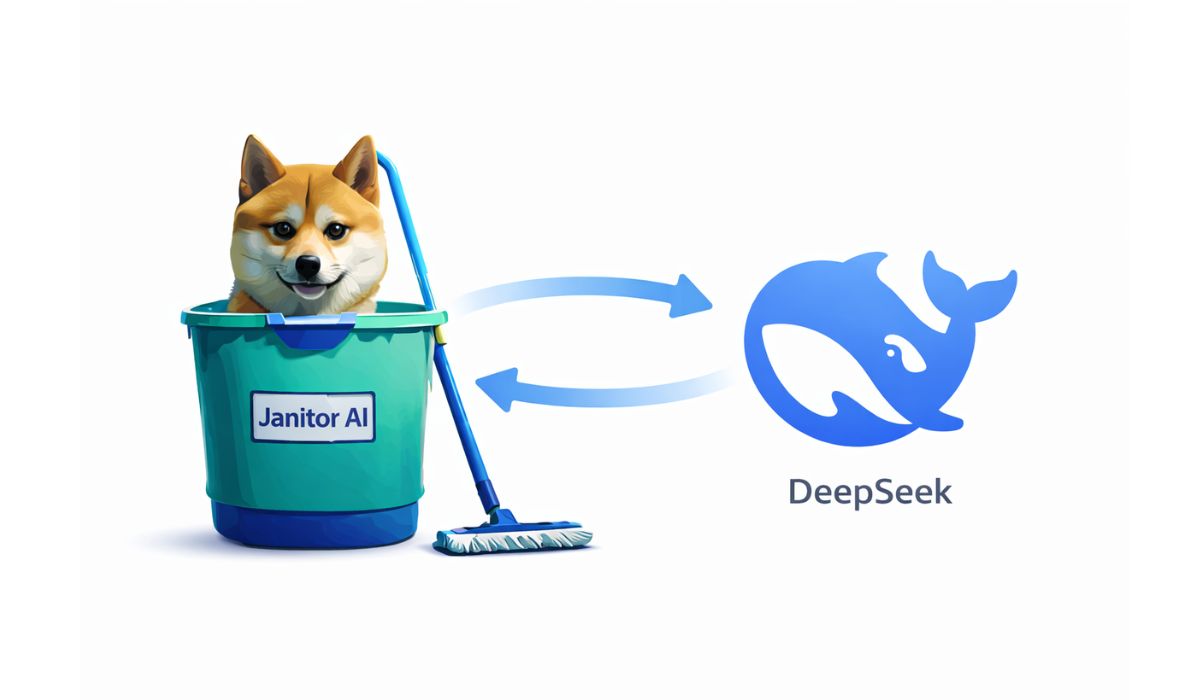
DeepSeek is an AI model provider focused on large language models. These models handle natural language processing tasks like conversation, reasoning, and long replies. People choose DeepSeek because it offers different response styles and pricing options.
Janitor AI is a roleplay and chat platform that connects to outside AI models through APIs. It does not host models itself. Instead, it sends prompts and receives replies from a compatible endpoint. This design allows flexibility, but it also means setup matters.
When DeepSeek is connected correctly, Janitor AI can send chat prompts to the DeepSeek model and display replies in real time. The link between the two systems depends on API compatibility, not on brand names.
Can Janitor AI Work with DeepSeek?
Yes, but only through an OpenAI-style API format.
Janitor AI expects an endpoint that behaves like the OpenAI API. That means the request structure, headers, and responses must follow the same pattern. DeepSeek supports this through compatible endpoints or approved gateways.
If the endpoint does not match this format, Janitor AI will fail silently or return errors. This is not a Janitor AI bug. It is a protocol mismatch.
So before moving forward, remember this simple rule: if the DeepSeek endpoint speaks OpenAI-style JSON, Janitor AI can listen.
What You Need Before Setting Up DeepSeek?
Before opening any settings page, make sure these items are ready:
- An active DeepSeek account with API access
- A valid API key generated from DeepSeek
- A supported DeepSeek chat model name
- Access to Janitor AI API settings
- The correct API base URL that supports OpenAI-compatible requests
Each of these pieces matters. A missing model name or wrong endpoint will break the connection. The API key acts as authentication, while the endpoint tells Janitor AI where to send requests.
How to Set Up DeepSeek on Janitor AI?
This is the main setup flow. Take it slow. Small mistakes cause most issues.
- Log in to your DeepSeek account and generate an API key. This key identifies your account during requests. Store it safely.
- Open Janitor AI and go to the API or model configuration section.
- Choose the option that allows custom or OpenAI-compatible APIs.
- Paste your DeepSeek API key into the API key field.
- Enter the API base URL provided by DeepSeek or its official gateway. This URL must accept REST requests.
- Select or type the correct model name exactly as listed by DeepSeek.
- Save the settings and refresh the session if needed.
Behind the scenes, Janitor AI sends prompts using HTTP headers and JSON payloads. DeepSeek receives the request, runs inference, and sends back text. If all fields match, replies appear normally.
Which DeepSeek Model Should You Use?
Model choice affects reply length, tone, and memory.
Some DeepSeek models focus on chat flow and dialogue. Others lean toward reasoning or structured output. For Janitor AI roleplay, chat-optimized models usually work best.
When choosing, think about:
- Context window size for longer chats
- Response speed during inference
- Stability under repeated prompts
- Compatibility with OpenAI-style requests
If a model name does not appear in DeepSeek’s API documentation, do not guess. I don’t know about unsupported models, and guessing here causes errors.
How to Test If DeepSeek Is Working Correctly?
After you finish the setup, testing is the only way to know if the connection truly works. Open Janitor AI and start a fresh chat session. Send a very simple message, like a greeting or a short question. Keep it basic. If DeepSeek is connected properly, you should see a reply appear within a few seconds. The response should look natural and complete, not cut off or empty.
If nothing shows up, pause and check the basics again. Look at the API key for typing mistakes. Check the API base URL and make sure it matches the OpenAI-style format. Also confirm the model name is correct. A wrong model name often causes silent failures. When replies appear but stop mid-sentence, that usually points to token or context limits. Fixing these small issues early saves time and avoids confusion later.
Conclusion
Setting up DeepSeek on Janitor AI is not hard, but it does require attention to detail. The platform depends on correct API behavior, not guesswork. When the endpoint, API key, and model name line up, the system works smoothly. You send a prompt. The model processes it. You get a reply. Simple as that.
If something feels off, slow down and recheck each setting one by one. Most problems come from small input errors, not from the model itself. Once everything runs fine, you can focus on better prompts and better conversations. If this guide helped you, share it with others and drop a comment about your experience.

